Overview
There will be many times when, on any data entry screen, you will want your numeric key field to automatically query the database to see what the last number being used was and increase that by one.
In m-Power, there are two ways to accommodate this scenario, depending on your data.
- If your table is not automatically incrementing the key value when a new record is inserted, you may use m-Power’s Auto Sequence feature to automatically populate the next available key value.
- If your table is set up to automatically increment the key value when a new record is inserted (i.e. your key is set up as an auto increment field on the database) then you will need to use the Identity option from Field Settings.
In the documentation below, both methods will be demonstrated.
Auto-Incrementing via m-Power
For developers who are working with a database table where the key value will not automatically increment for new records, you may use m-Power’s Auto Sequence option to automatically get the next available key value whenever a user adds a new record.
Implementation
In our case we will create an order entry application and select the appropriate fields from the orders table; Order #, Customer #, Order Date, Ship Date, and Order Amount.
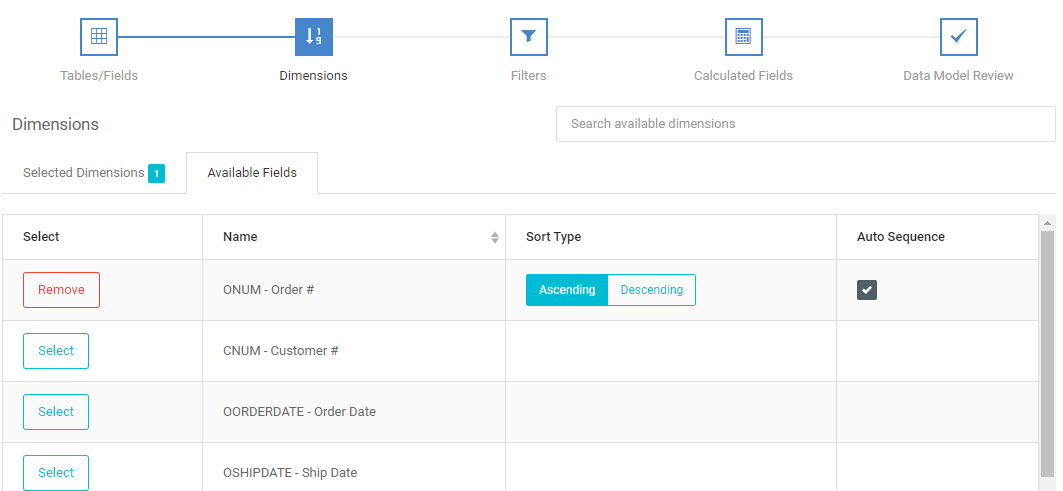
Now that our fields are selected go to “Dimensions”. When selecting Order # as a dimension, be sure to click the “Auto Sequence” check mark.
Build/Compile your application. At run time, we are shown this screen:

Notice at the top of the form, the next available order number is already populated. This tells us that the last record in the table had an order number of 301623, so our application received the next one available, 301624.
Hiding Your Auto Sequence Field
Once an auto sequence field has been set up, it is often beneficial to hide this auto sequenced field from the form. By hiding it, this prevents the user from modifying the value when adding a new record.
The steps below will explain how to hide the row.
- Open m-Painter for your application. Make sure you are editing your maintainer form page.
- Select the “Form Group”, or whatever element that encompasses the input field you are looking to hide.
- Press “Hide Element” from the Configure Selected Element panel (right side of the screen).
- Save m-Painter.
The following image provides a visual of which options to click inside m-Painter:

In m-Painter, whenever the “Hide Element” option is used, the element will NOT be hidden from the editor, but will correctly be hidden at runtime, as shown below.

While we cannot see the Auto Sequenced number, it is still within the HTML and ready to be submitted to the database as soon as the user clicks the “Accept” button.
Auto-Incrementing via the database
For developers who are working with a table where the key value will be automatically assigned by the database when a new record is inserted, you will not use m-Power’s Auto Sequence feature.
While you will still select this field as your Dimension, you will need to also appropriately identify this field as an “Identity” column within the application. This will ensure m-Power does not send a value for this field, but instead allow your database to be responsible for assigning this value.
Implementation
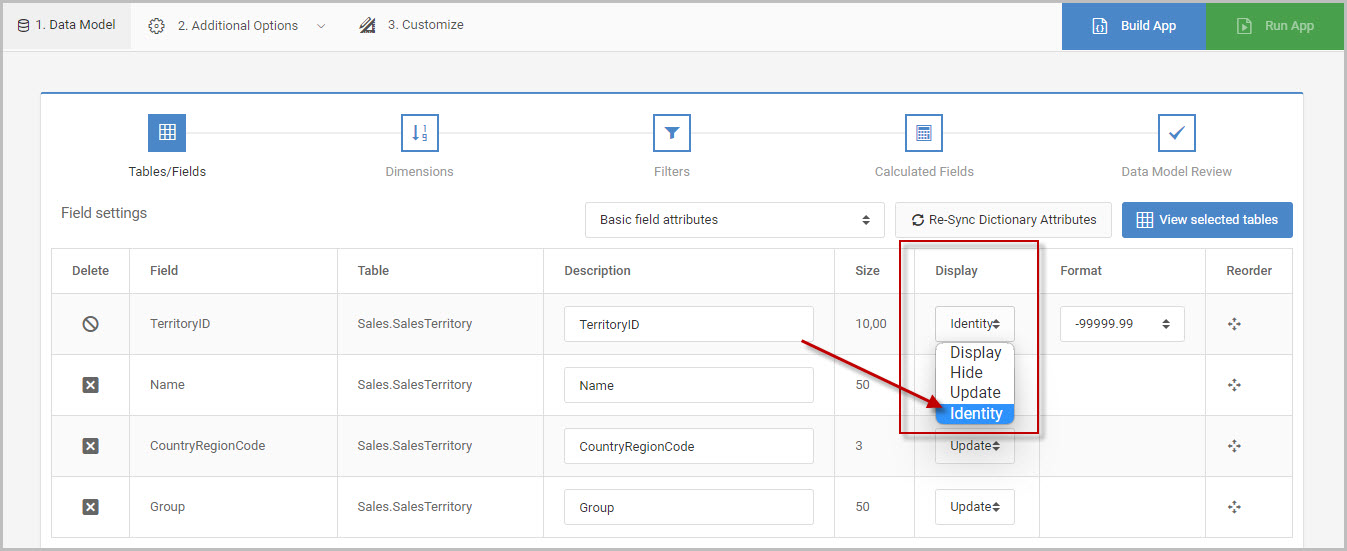
Select the appropriate tables and fields as usual. In my case I will use my sales territory table and select TerritoryID, Name, Country Region Code, and Group. TerritoryID is an auto generated column in the database. To inform m-Power of this, you will navigate to Field Settings and set the Display option for that field to “Identity”:
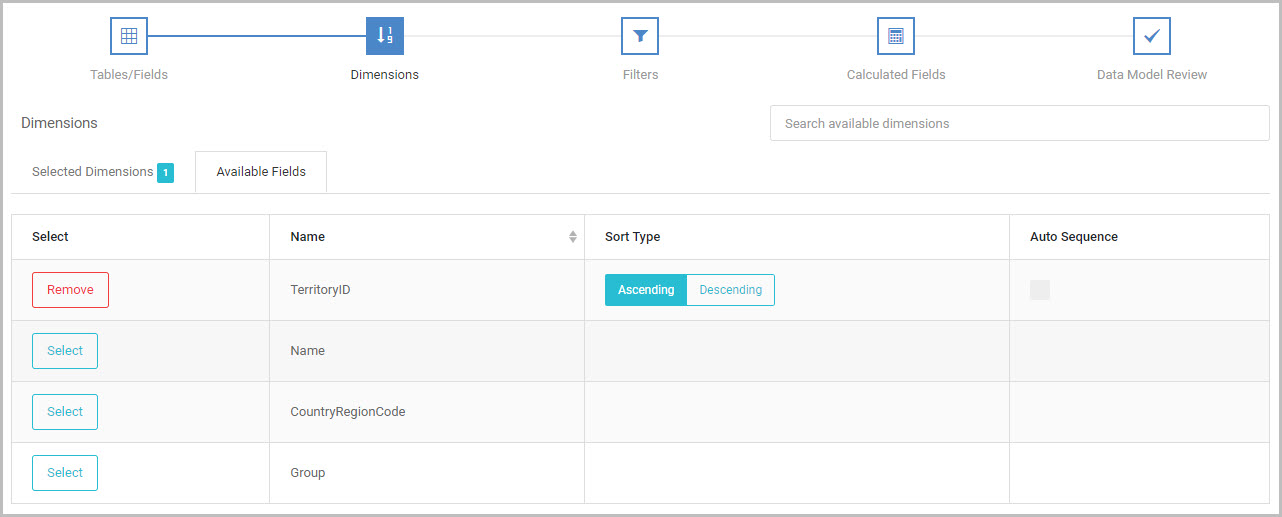
That field will be selected as the Dimension field for this application as well:
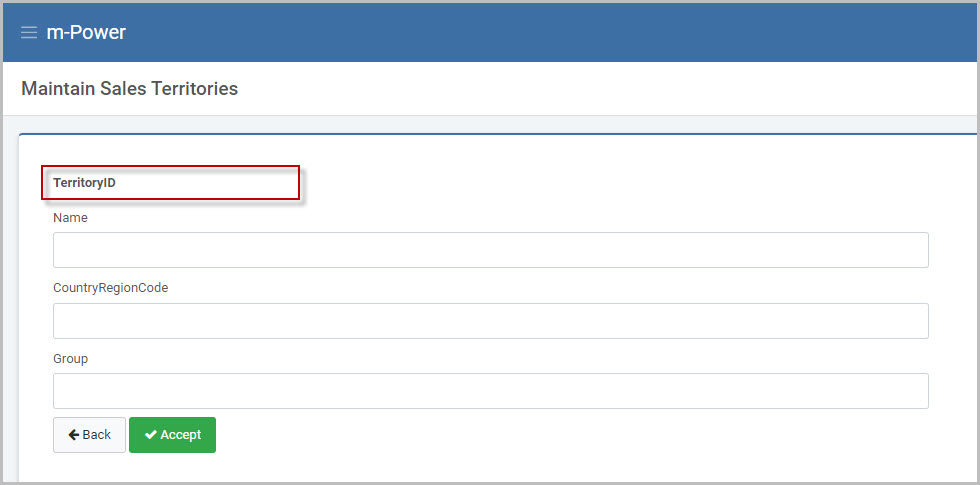
Build/compile your application. At runtime, the form will show the field name but no input box or value will be present on the page, as the value is only assigned by the database once the form is submitted.