mrc
Documentation
michaels,
ross & cole, ltd.
http://www.mrc-productivity.com/
|
|
|
|
Linking within Graphed Images
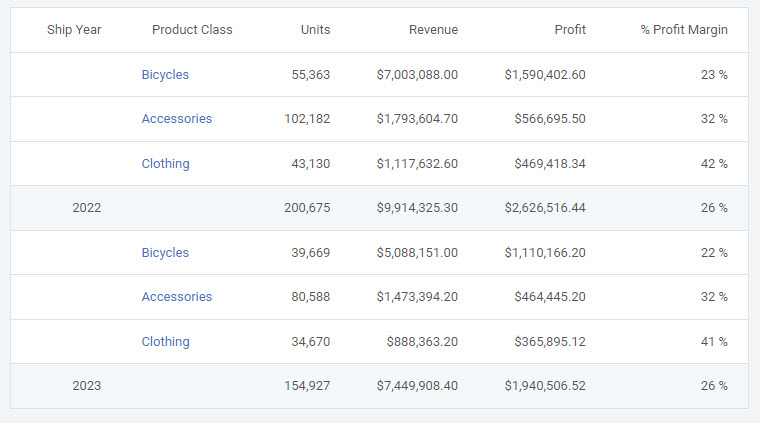
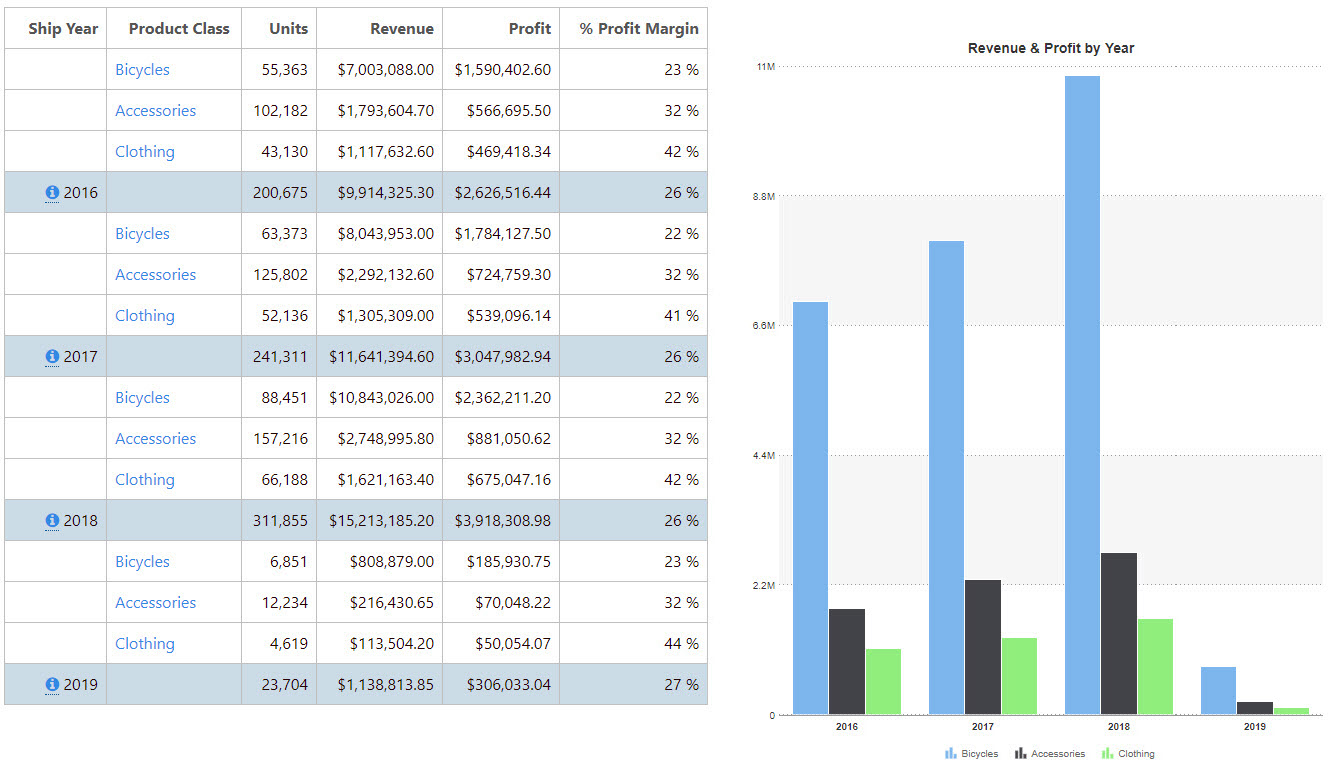
The ability to provide hyperlinks within graphs too often goes unnoticed. To see a working example, see our Crazy Bikes example (Sales By Year – Business Intelligence). As you can see by following the hyperlink, we have a Ship Year, Units Shipped, $ Revenue, and $ Profit field. I compiled the application, sequencing the Ship Year field with subtotals, using the Report with Graph template.

As you can see, we have a few things to do within the painter.
1. The first thing I see that needs to be modified is that the Year field is being subtotaled/totaled on my report. m-Power does this automatically because my Ship Year field is numeric. I need to delete my subtotal and grand total Ship Year.

Click inside the Subtotal level within the Ship Year column. Next, click the “Insert Date Field” icon from the m-Painter toolbar. Select the Ship Year from the Last row of Detail. Click OK.

2. On Crazy Bikes, we are not graphing the Grand Total; rather, we are graphing the subtotal. To make our example do this, we need to make 2 modifications.
First, we need to drag and drop the Data Collection Icon from the Grand Total Line to the Subtotal Line.

Next, we need to edit the specifications for the graph. Right-click the data-collection icon and select “Graph Data Collection.” Note that in Crazy Bikes we are only graphing the Revenue field. Delete all entries in the Graph Value & Graph Value Description boxes.

From the Select Field drop down, select the Revenue field. In the drop down box beneath, change to Subtotal. Click the “Add” button.

Next, we want the Ship Year used for the Description. To do this, click the dropdown for Fields (within the Graph Value Descriptions section), and select Ship Year. Next, because we want this information to come from the last row of detail, select “Last Row of Detail” from the Levels dropdown. Lastly, click the “Add” button next to Fields.

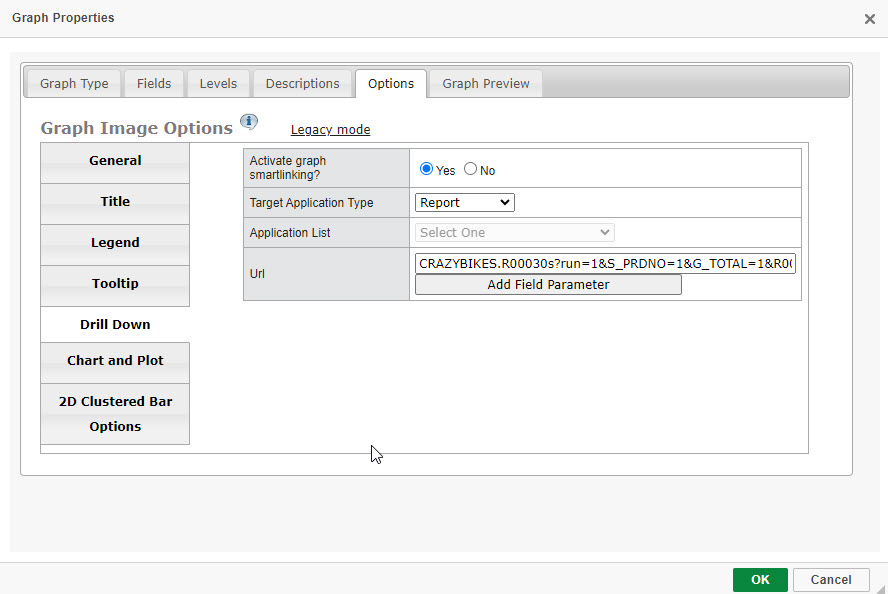
3. The final step to this process is to activate the ability to link and to specify the proper URL. Click the “Image Properties” tab. Scroll down until you see the “showurls” field.

a. Change the showurls value to “Yes” to activate the ability for the graphs to support hyperlinks.
b. I will modify the linkurl to be the “basic” url string that each graph will contain. My URL is “MRCWEBSITE.R00366s?run=1&S_SHIPYR=1&S_CLASS=1”, which state to link to Report 366 in data dictionary MRCWEBSITE. Run 1 tells mrc to skip the prompt page and to pass the following parameters (SHIPYR and CLASS subtotals on the linked page will display). More information about parameter passing can be found here.
c. Lastly, I need to specify what parameters to pass to R00366. Since R00366 is expecting a selection criteria of Shipping Year, I will pass it the Ship Year on R001. Since Ship Year is the group name, I will enter R001 for the groupkeyname. Note: You can also pass the value of the graph by specifying the valuekeyname to pass the values.

Note: There is also an additional parameter under the Image Data Collection tab, titled “Additional Parameters”

This option allows you to enter additional parameters if necessary. Options include, but not limited to:
· Pagename
· Passing additional Record Selections that are not included as a value
· Description
· Grouping value, or if you would like to specify more literal URL text. If you wanted to hard code R001 to be 83 and R002 to be AAB, you would code this above box to look like this:
R001=83&R002=AAB.
You, of course, have the option to use substitutions as well, if necessary, by typing in the Parameter name, then typing the relationship, and lastly selecting the field and level you wish substituted from the dropdown on the right. Don’t forget to click Add.
4. Click Save & Run Your application.

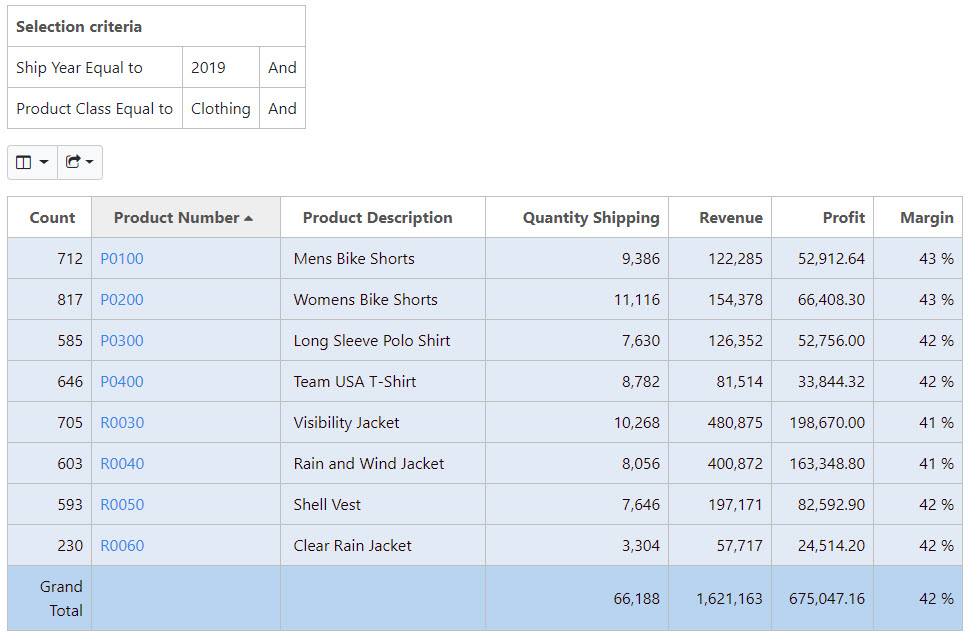
By clicking on one of the graphed bars (2007), I am redirected to this page: