
Overview
Many developers utilize m-Power’s built-in Dictionary Security, which requires end-users to sign on before running any applications in the data dictionary. This means once a user signs in, they can execute any application inside of that dictionary. Depending on your environment, this level of security may be sufficient.
However if you need to take security a step further and lock down application access to certain user roles, this is where m-Power’s Application Security should be utilized.
Enabling Application Security
From the development interface, navigate to Admin -> Menu & Security. All Application Security options will be found here:
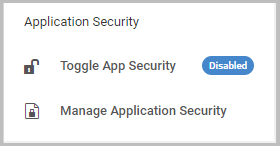
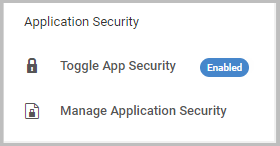
To turn on Application Security, click the Toggle App Security button and ensure the padlock is locked:
Configuring Application Security
Application Security offers two configurations when it comes to locking down application access. Those options are as follows:
- Option 1: Secure All Applications – This is the default configuration. With this option, all applications in the dictionary will be locked down and cannot be ran until the application has been assigned to a role in the security list.
- Option 2: Opt-in Applications – This configuration allows all applications in the dictionary to be accessible with the exception of the applications added to the security list. The applications in the security list will only be accessible to the assigned roles.
In your dictionary the selected security option can be changed from the Admin -> Dictionary Configuration -> Runtime Application Settings -> Application Security Mode property, as shown below:

If this property changed, make sure to restart Tomcat immediately.
Securing Applications
Assigning an application to the security list can be done from the Manage Application Security option (Admin -> Menu & Security). This screen appears as follows:
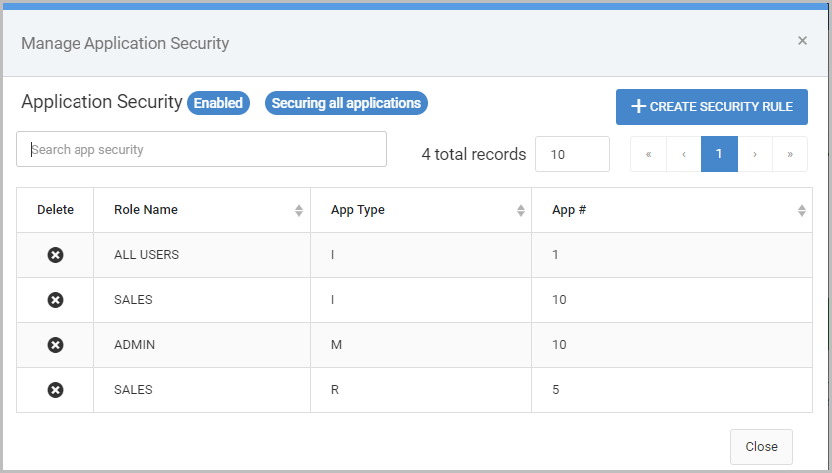
Notice in Figure 4, the selected security configuration will be shown at the top of the window in the blue badge.
To assign an application to Application Security, simply click Create Security Rule and select the desired app to assign to a user role.
Using Figure 4 as an example, there are a few applications assigned to different roles. Depending on the security configuration, this screen will be interpreted differently.
- If utilizing Secure All Applications (Option 1) only the sales users can run Retrieval 10 and Report 5. Only Admin users can run maintainer 10. All users can run Retrieval 1. Outside of this, all other applications in this dictionary are locked down and cannot be ran by any signed-in user unless the applications are assigned to a role.
- If utilizing Opt-in Applications (Option 2) only the sales users can run Retrieval 10 and Report 5. Only Admin users can run maintainer 10. All other applications in the dictionary are accessible by all signed-in users.
Runtime
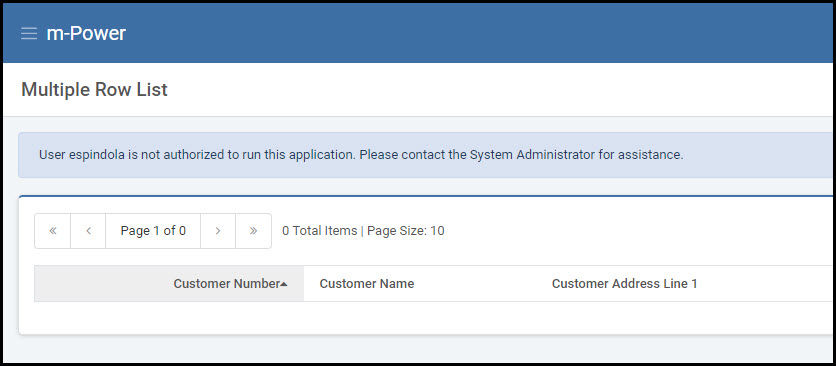
When a user runs an application that their role has access to, the user will be brought to the application and see data as normal. If the user attempts to run an application their role does not have access to, the following error will be presented on the screen, informing them they do not have access to run this application.
Other Notes
- Just like Dictionary Security, Application-Level Security is session-based. That means that every time you log on, the browser can remember who you signed on as, just as it will remember what applications you are allowed to access.
- Once you add the application to the App Security Listing and attempt to reload it, you will still not be allowed to run the application unless one of the following occurs:
- You manually sign out of the m-Power application and sign back in.
- Open a new browser session.
- Tomcat is restarted.
For this reason, mrc recommends that you utilize Application Level Security only in production environments, where it is truly needed.
Promoting to Production
To promote your application security logic to production, promote the MrcAppSecurity.class and MrcAppSecurity.java files from the Promote to Production utility. Alternatively, you can find these files directly on the m-Power server in ../m-power/mrcjava/WEB-INF/classes/DATA_DICTIONARY_NAME/ and manually copy them to your production installation.
Ensure to restart production Tomcat after promoting these files.