Overview
The Lookup Window is popular because:
- Lookup Windows are a viable alternative to dropdown lists. mrc recommends using dropdown lists when there are less than 100 options to select. Lookup Windows have no size limitation.
- Lookup Windows allow your user to filter and paginate through records easily.
- Lookup Windows can return multiple values to multiple inputs on a single form.
This example will focus on how to create a Lookup Window link within a Maintainer template; however this process can be utilized in Retrievals and Report applications, as well.
Create Separate Multiple Row Data List
To begin, we first need to create a Multiple Row Data List Retrieval application that will serve as our Lookup Window list. This application should contain all of the necessary fields you wish to pass between the applications.
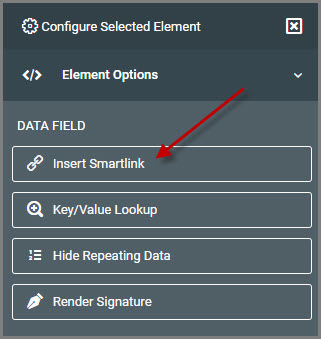
Once the application has been built and compiled, open m-Painter. Select the field that you wish to serve as the link. Once the data field is highlighted, click the “Insert Smartlink” button from the Element Panel on the right.
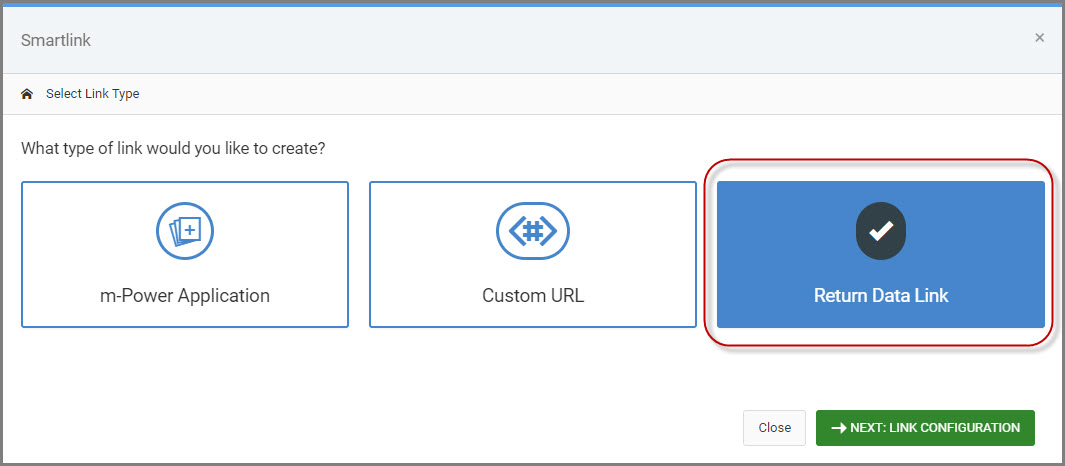
On the “Smartlink Link Type” screen, select the option to “Return Data Link”.
Finally, you have the option to set the “Link Style” as a normal link or a button style link. Leave the “Link Target” as the ‘Default Hyperlink”.
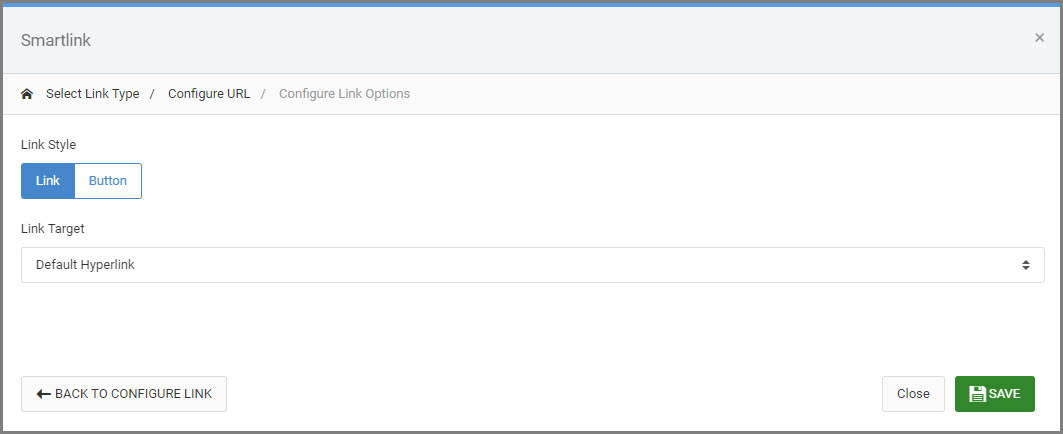
Click “Save” to close the smartlink window. Finally Save m-Painter and return to the maintainer application.
Create the Lookup Link
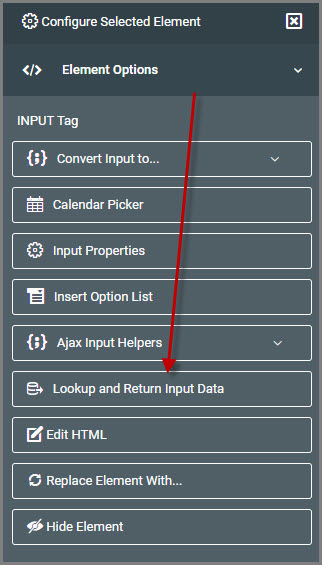
Open m-Painter for the maintainer where we will be adding the Lookup Window link. Select the input you would like the link to be over. Once selected, click the “Lookup and Return Input Data” button from the Element Panel on the right.
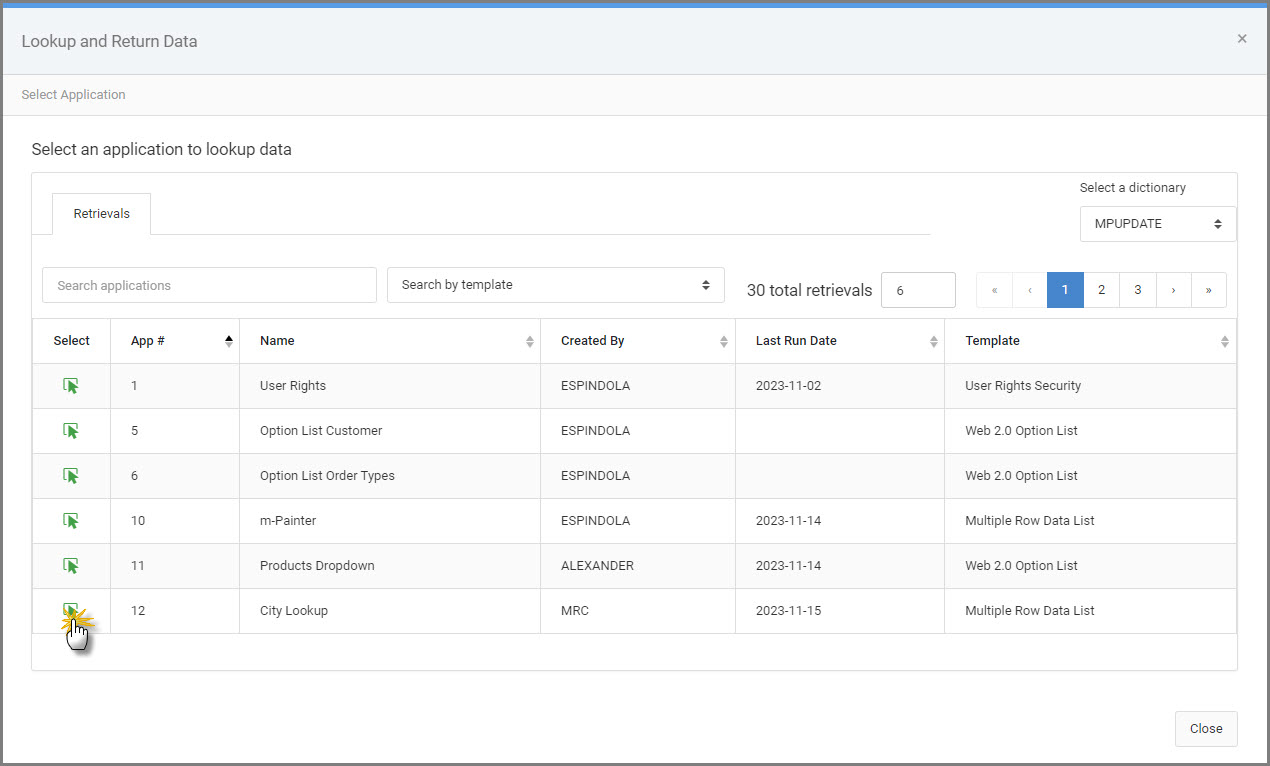
Select Retrieval to Lookup Data
This list shows you each retrieval you have available within this Data Dictionary. Since the source for your Lookup Window must be a retrieval, please select the appropriate application (i.e. the one you built in the previous step) from this list.
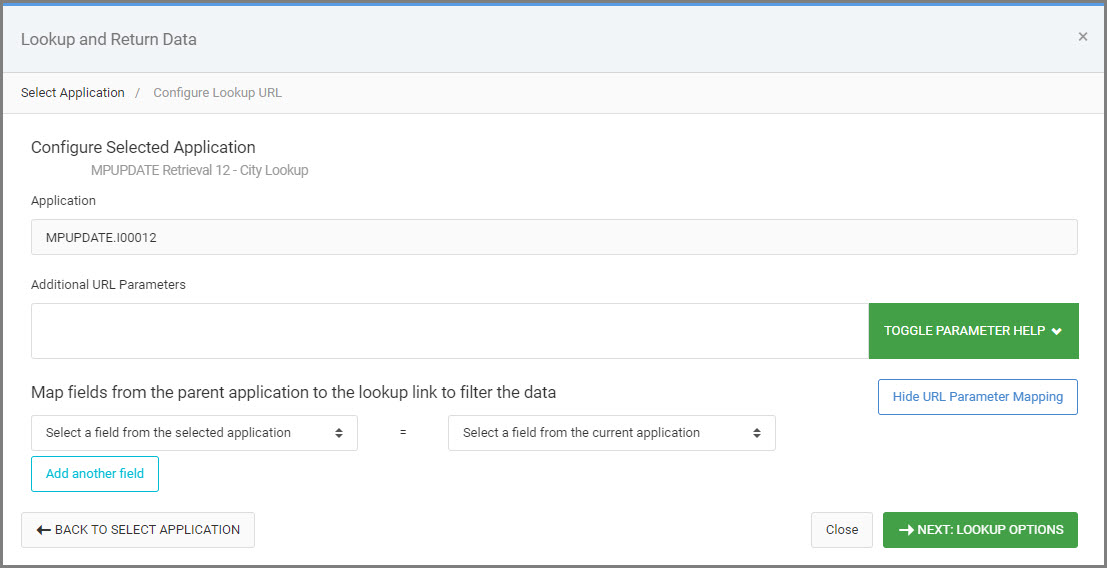
Configure Lookup URL
Once the retrieval is selected, you have the option to add additional URL parameters to further filter the data, including passing fields from the parent app to the lookup retrieval. Do this by selecting the appropriate fields from the dropdowns to map fields from the current app to the lookup retrieval. In this example, we do not need to filter the data further, so will click “Next” to move forward.
Configure Lookup Options
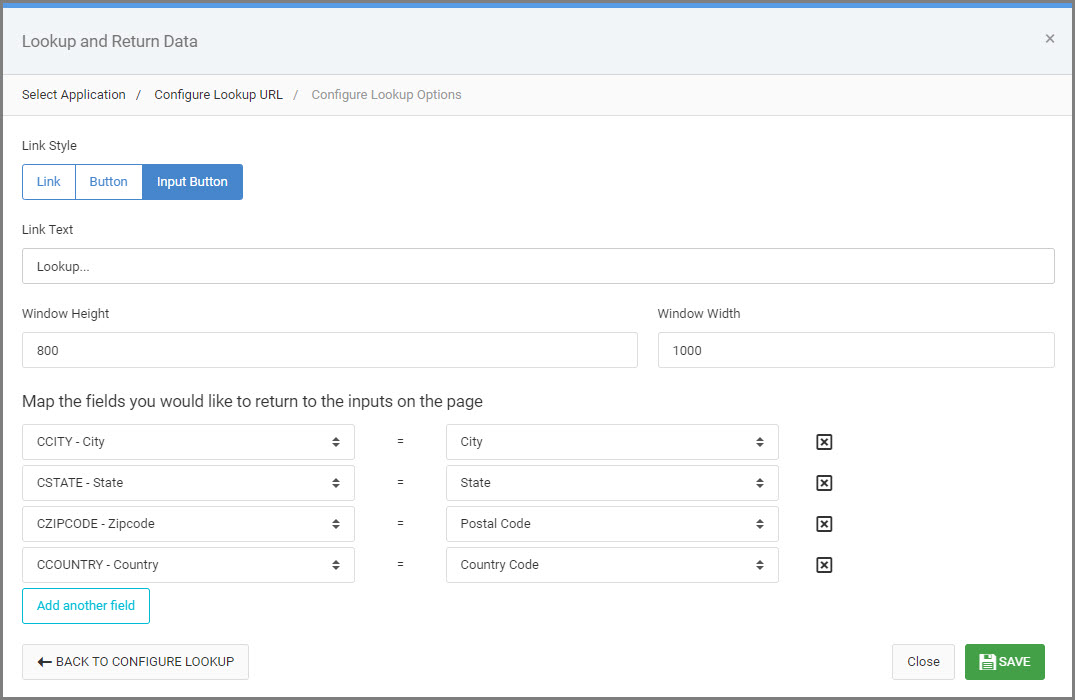
This screen allows you to configure the Lookup window.
Link Style
Choose how you would like the lookup link to display to the end user.
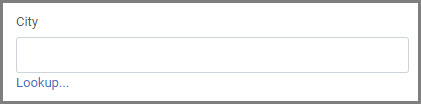
Link — Creates a default hyperlink below the input.
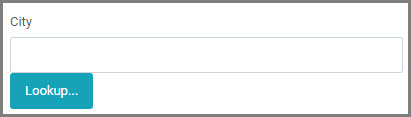
Button — Creates a button style link with added ability to choose the button theme (color).
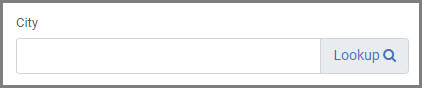
Input Button — Creates a button link inline with the input.
Link Text
This option allows you to customize the text for your Lookup Window link as how it will look at runtime for the end user.
Dialog Height & Dialog Width
This option allows you to control, in pixels, how large your Lookup Window will be.
Map Fields to Return to Inputs on Page
The dropdown on the right includes all of the fields available from you Lookup Window retrieval. Similarly, the dropdown on the left shows a list of all of the fields from your current application. You will want to match up the fields you wish to return. Click “Add another field” to add additional field mappings.
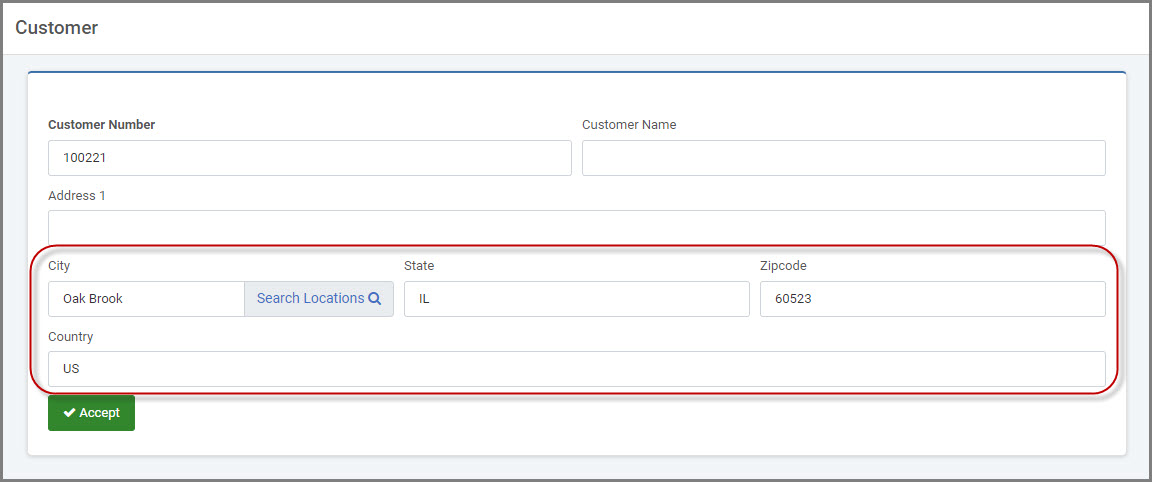
In my example, I want to pass the city, state, zip code and country code from the Lookup retrieval back to my current app (the maintainer).
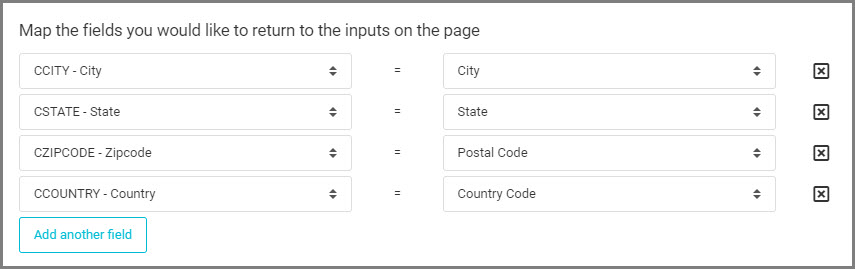
Click “Save” to close the window.
Lookup at Runtime
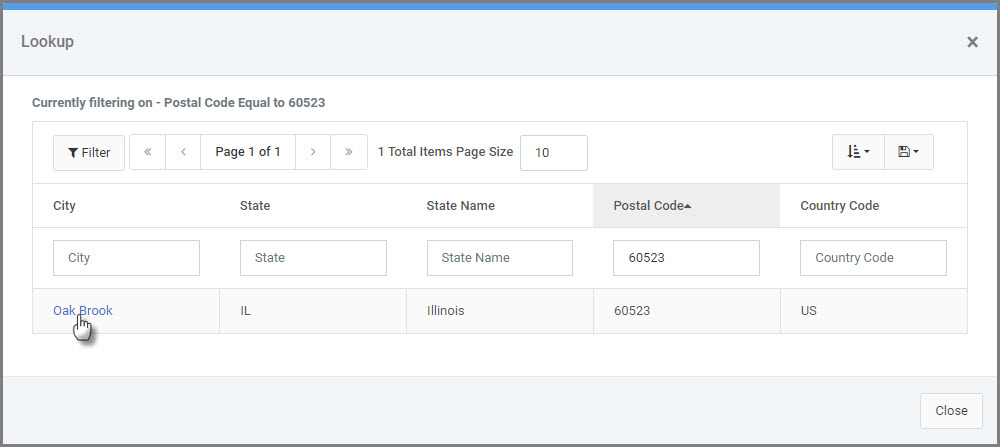
At runtime, when the end user clicks the Lookup Window link, a pop up modal will appear containing the Multiple Row Data List lookup you created.
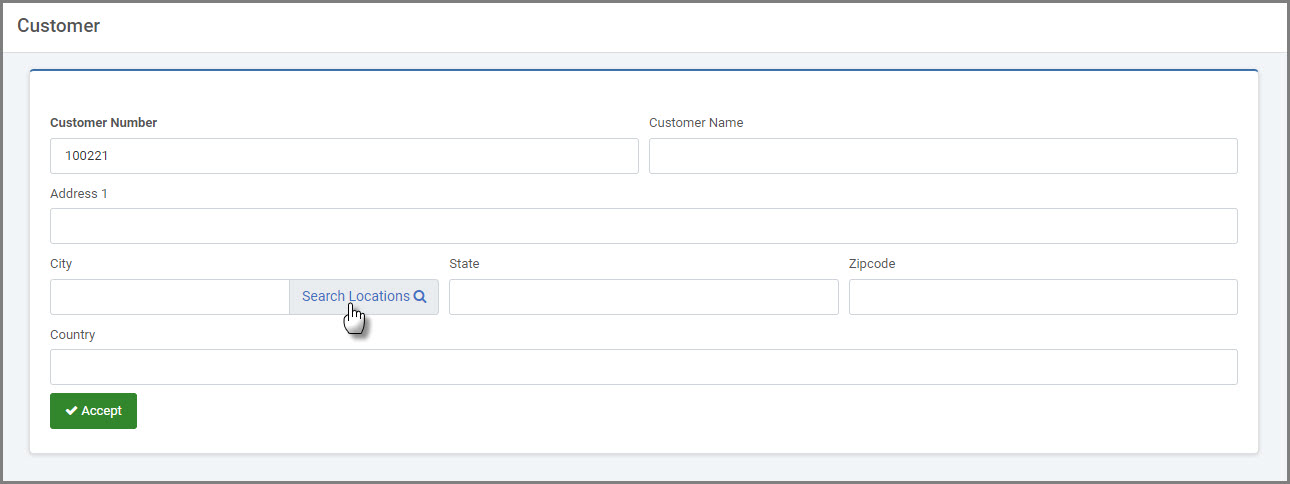
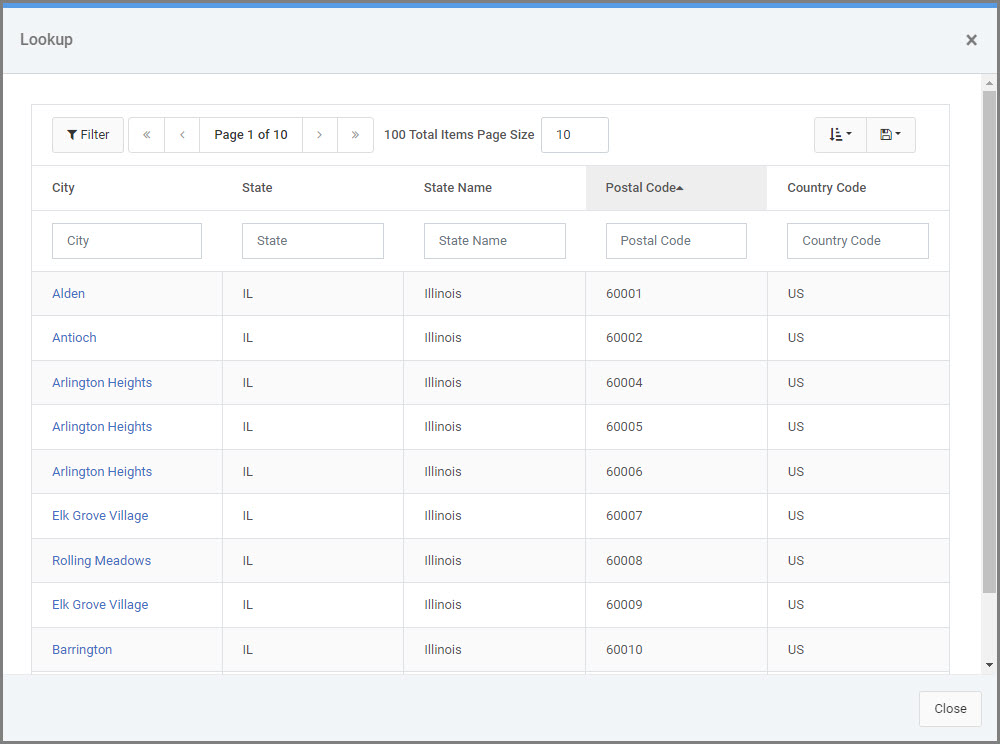
When the user finds the record they wish to select, they simply click the link. The Lookup Window will disappear and the value(s) they selected will be returned to the form (based on the fields you matched within m-Painter).