
Developers who wish to enable m-Power reports for email have two options:
- Allow end-users to send e-mails interactively through a Report prompt page
- Automate e-mails to be sent in a scheduled task. (This option is discussed in a separate document, found here.)
This document will focus on Option 1, listed above.
Configure Data Dictionary
Navigate to Admin Menu -> Dictionary Configuration -> and click “Runtime Application Settings.”
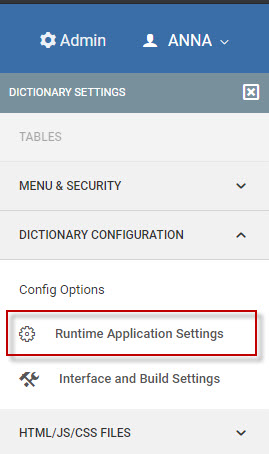
Look for the following options, under the “Program Options” tab:

Email Server — This is either the name of your e-mail server or the associated IP address. If necessary, please check with your company’s network team to find out the name/address of the mail server and to ensure that it accepts email requests from the machine hosting m-Power.
Email Sender Address — This is the FROM e-mail sender’s address. This is a required field. If your e-mail server requires authentication, please provide this user’s password below.
Password for Email Sender — (Optional) If your e-mail server requires an authenticates user, please include the password for the user listed within the email_sender field.
Advanced Email Server Properties — (Optional) If your e-mail server requires any additional properties, please include them here.
Be sure to press “Accept” to save your changes. The above steps need only be completed once, per Data Dictionary.
Configure your Report
Next, build your report.
Once your application is compiled successfully, open the Application Properties and click the “Email Options” tab.

Enable Emailing on this Report — Controls whether your end user has the option to email this report from the prompt page. Select “Yes” to be able to email the report at run-time.
Email Report as Attachment — Controls whether your report is sent directly in the body of the email or as an attachment. This option is only valid for users who select the HTML output. All other output will automatically be available as an attachment, no matter how this option is set.
After email, redirect to…— When a user chooses to send an e-mail, they are not shown the Report. Instead, the end user will be directed to a new page to let them know the report has run successfully. You can control this address by modifying this setting.
Click Accept to save your changes.
At run time, I would see a screen similar to this:

End-users have the ability to, by default choose whether or not their report should be e-mailed by clicking the “Report via E-mail” option.
Users who wish to send the e-mail to multiple addresses simply should separate the e-mail addresses with a comma.
The end-user running this report also has the opportunity to modify the subject or include a “Message,” which will appear in the body of the e-mail, prior to any data.
Notes
Q: I would like to hook my E-mail capability to g-Mail. How can I do this?
Set the following parameters:
Email Server = smtp.gmail.com
Email Sender Address = youremailaddress@gmail.com
Password for Email Sender = your_password_here
Advanced Email Server Properties = mail.smtp.starttls.enable:true
Q: What do I do if I do not have a section within the text to enter my Mail Server information?
You are using an older version of mrc_servlet_config.xml. Go into m-power/mrcjava/WEB-INF/classes/DATADICTIONARY and rename mrc_servlet_config.xml to mrc_servlet_config_backup.xmlbackup. Now all you will need to do is compile any new or old application and a brand new mrc_servlet_config.xml will be added to your data dictionary folder. Following the instructions listed above will allow you to now enter in your mail server information.