
Overview
m-Painter gives m-Power developers the ability to import (or combine) two applications into one. Use cases of this can include importing large page elements (such as data tables) down to importing only specific field values.
Video Overview
Walkthrough
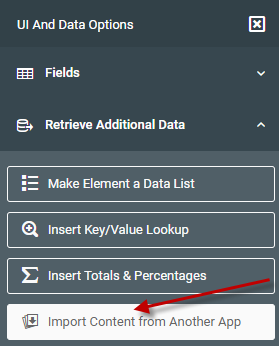
To begin, click your cursor in the m-Painter editor where you would desire to insert the imported application. Then on the left side UI & Data Options panel, select “Import Content from Another App” within the Retrieve Additional Data option.
Application Selection
From the window that pops up, you will need to select which application you wish to import.
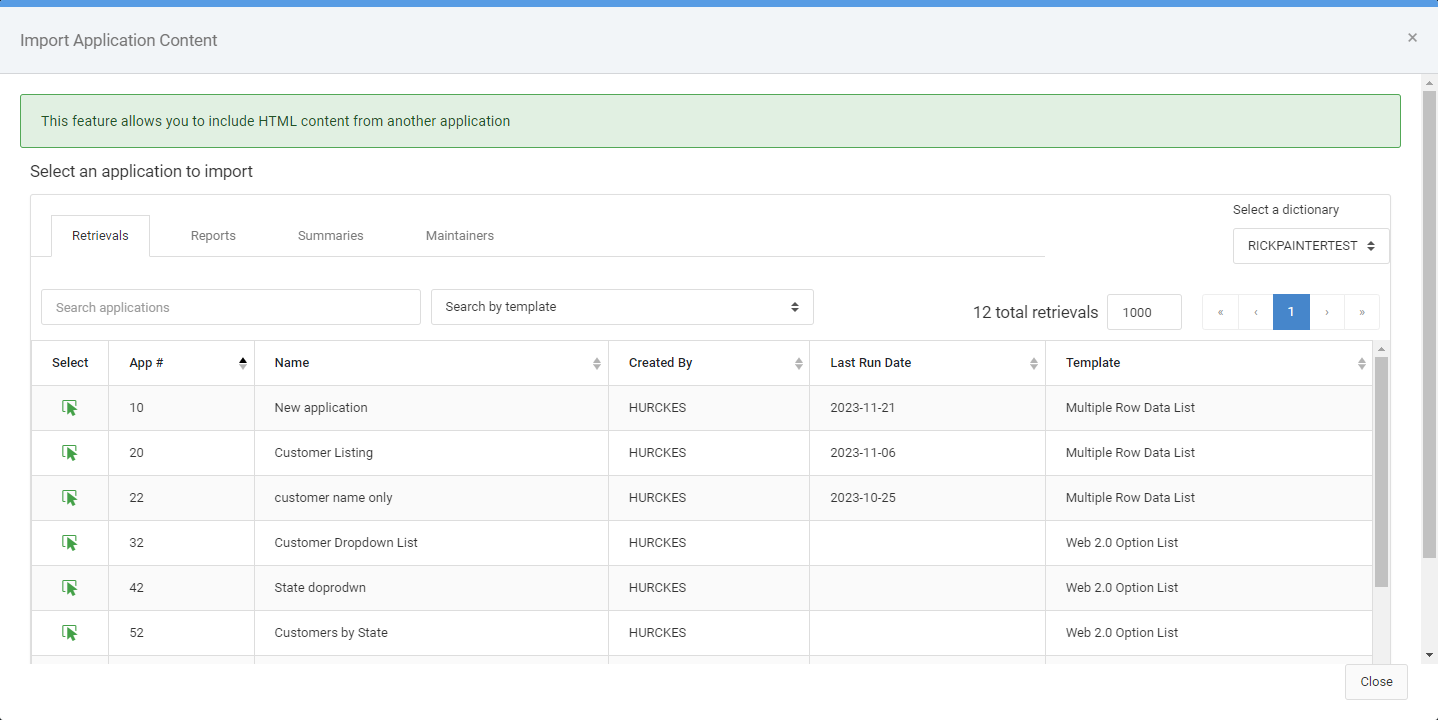
Please note, that you can also import applications from a separate dictionary via the “Select a dictionary” on the right side.
Import Configuration
After you select your application, you will be brought to the Import Configuration screen:
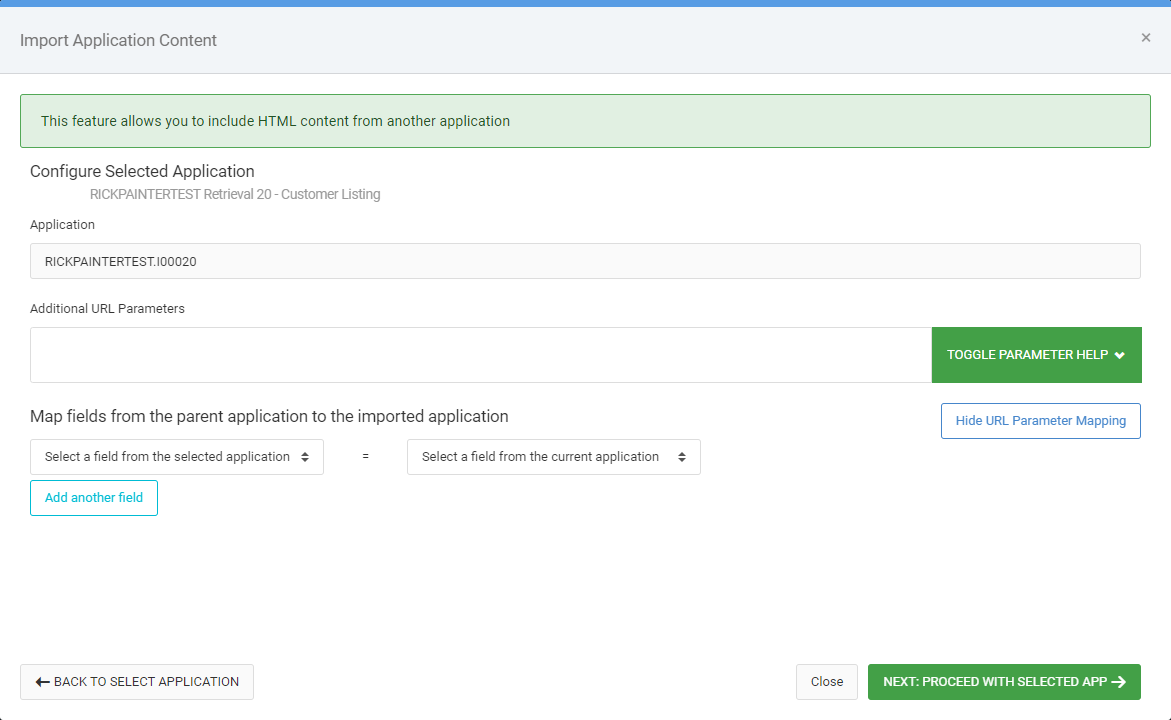
Pay close attention to the “Map fields from the parent application to the imported application” dropdowns. This is where you will pass parameters from the parent application to the imported application. Effectively, you are using this to only bring in the applicable records.
Import Application Content
The final screen you will interact with is the Import Application Content screen. This is where you can decide which parts of the imported application to return back into the main application. Options include:
- Main application body — The main content body will be returned. The red box in the preview panel shows you a visual of what will be included.
- Static data table — Only the data table itself will be returned.
- Custom — In this option, simply select the element you wish to return directly in the preview. Doing so will draw a blue border around the element. Only this element will be returned to the parent application.
No matter which of the three choices you select, you will see the imported content substitutions in m-Painter. These are greyed out as you can not edit them in this application. They are only being shown for visual context.
Additional Notes
- Pivot Table Applications are unavailable to be imported. In fact, you will not see any Pivot Table applications within your “Import Application” drop-down list. If, however, you wish to create a Dashboard that includes a Pivot Template, please consider using your Pivot Table Application as your “Primary” application. This will allow you to then import all of your secondary applications off of the Pivot Table.
- If you wish to import an Interactive Report Template, it must be imported into another Interactive Report Template to function correctly.
- It is advised to not import Maintenance applications to avoid the potential of having two overlapping forms on the same page.