mrc Documentation
michaels, ross & cole, ltd.
http://www.mrc-productivity.com/
|
|
|
|
Using HTML Edit Codes to
Control Data Rounding
Before Web 2.0 Reports arrived, you were forced to make difficult decisions when dealing with financial data. In one hand, you wanted to save screen real-estate and not print the decimals on field values. However, by doing this your sub-totaled and total valued figures were being calculated by the rounded amount, not the real amount. Thus, in the end, your totaled figures were off by a few dollars. Since financial accuracy is of the up-most importance, your only option left was to print the decimal fields and take up screen space.
In this documentation, you will learn how to use HTML edit codes to hide the decimal field from view, but still allow it to be used in calculating sub and grand total levels.
Be sure to use the Web 2.0 Report Template when building your application.

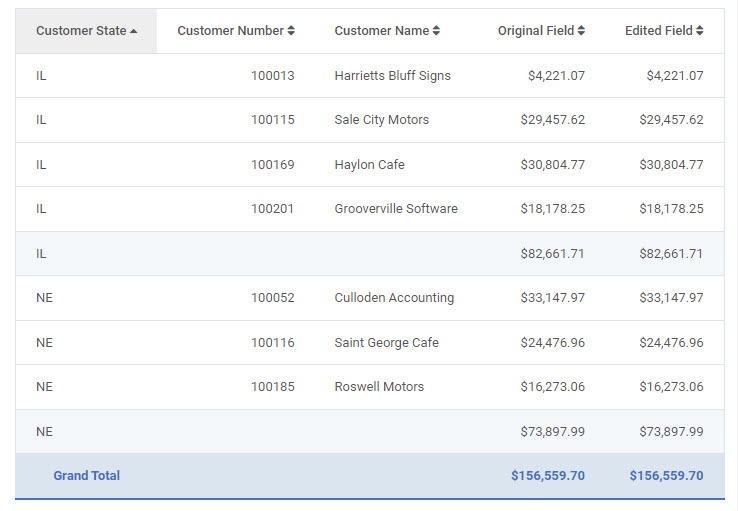
So that you can easily see the difference, an application has been built, sequenced by State. Only one Numeric Field has been selected. For comparison purposes, a calculation has been used to replicate this numeric field.
Before any editing is done, my output looks like this:

Since this requires HTML editing,
we must open m-Painter. Since the editing needed is advanced, we must use
m-Painter in the plain text only mode. To do this click the Application
Properties button
.
Under the Program Options tab, look for “edit_type” Change the value to “Text
Editing Only.”

Click the “OK” button. Click OK on the Pop Up window.
Under the Pages Drop Down List,
select RXXXXXp.xml (where XXXXX is your application number), then click on the
Application Properties button
.
Once again, to make the changes permanent, click Text editing only from
within the Program Options tab.

Click the “Save” icon
.
Once saved, you can select the “HTML Output” from the Pages dropdown list.
Search for “Detail Level” and you will be brought to this area of text:

The field we will change the Formatting on is the ${row.CALCULA001} field.
The text required to modify the HTML edit code is:
${location.FIELD_o?string(“Formatting Change”)}
Location specifies the location of data. Valid values are
· row
· subTotal1
· subTotal2
· subTotal3 (etc)
· grandTotal.
Field specifies the name of the field.
“_o?string” specifies to Freemarker that this is a Numeric field that will utilize Number Formatting.
(“Formatting Change”) specifies the actual Formatting change. In this case, we would like to see an edit code of “$,##0”. This means that every value should begin with a dollar sign “$” and after every 3rd place of data place a comma.
Our string will look like this for each of the three sections:
·
Detail level - ${row.CALCULA001_o?string(“$,##0”)}
·
Subtotl level - ${subTotal1.CALCULA001_o?string(“$,##0”)}
·
Grand Total level - ${grandTotal.CALCULA001_o?string(“$,##0”)}
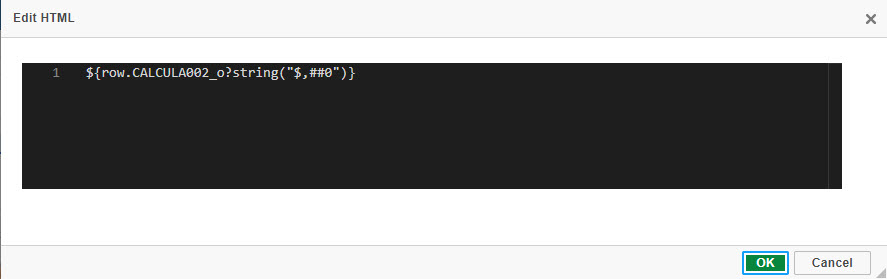
The changes in my HTML look like this:

Click the “Save” button & run your application. My output now looks like this:
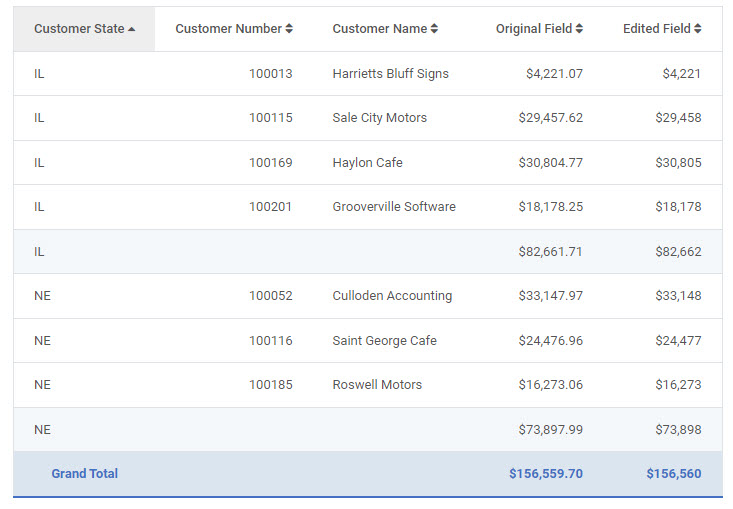
Note: the Original Field was left unaltered to show the comparison between itself and the HTML edited field.
Note: You can utilize numerous Formatting, such as (Assuming the Field value is 1.234:
· ${FIELD_o?string(“0”} yields 1
· ${FIELD_o?string(“0.#”} yields 1.2
· ${FIELD_o?string(“0.##”} yields 1.23
· ${FIELD_o?string(“0.###”} yields 1.234
· ${FIELD_o?string(“0.####”} yields 1.234
You can even use this same method for Rounding purposes:
· If Field = 1.2, then ${FIELD.string(“0”)} yields 1
· If Field = 1.8, then ${FIELD.string(“0”)} yields 2
· If Field = 1.2, then ${FIELD.string(“0”)} yields 1
· If Field = 1.5, then ${FIELD.string(“0”)} yields 2 (Rounding always goes to nearest Even Number)
· If Field = 2.5, then ${FIELD.string(“0”)} yields 2 (Rounding always goes to nearest Even Number)