
Calculation Features
- Calculations as Dimension keys and Filters — Calculations have been designed to take full advantage of SQL. Nearly every calculation is available to use as a dimension or filter field.
- Dimension/filter Availability — The Work-with Calculation screen shows which calculations are available for Dimensions/Filters within your application.
- Data Type selection — Selecting your data type will automatically filter out attribute options so that you can only choose from valid options.
- Easy to add SQL functions — After selecting that you wish to include an SQL function, a list of available options and the proper syntax is shown for you.
- Edit Codes — Edit Codes have been designed to show you the appropriate output based on the attributes of your calculation, rather than having to remember every IBM Edit Code.
- Error Messages — In the occurrence of bad syntax, the calculation screen will provide a specific error message to help you resolve the issue.
- SQL Edit Checks — m-Power will evaluate your SQL syntax. If there are any errors they will be caught before compile, rather than at runtime.
- System Values — Your calculation can include system values (System Date, Time, User, etc…) with ease.
- External Objects — External objects are easy to add. Simply select that you wish to call an object, define attributes and click Add.
- MTD/YTD — Useful for creating time-based calculations, based on a true-date field. Options include Year to Date, Month to Date, and X number of Days.
Calculation Types
- Database
- System Value
- Parameter
- Application
- External Object
- MTD/YTD
Database
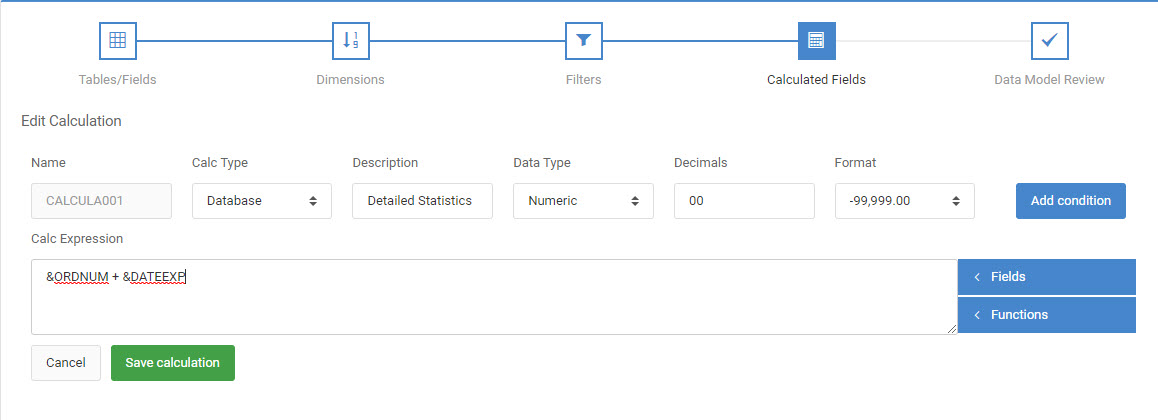
This is the default option for all new calculations. This option allows you to add almost any kind of calculation. Numeric, and SQL functions are called through this option. To the right of the expression box is a list of fields already defined to this application. For more information, simply hover your cursor over the field descriptions to show the field name and field attributes. Here are common example of how expressions are utilized:
Utilizing the Add, Subtract, Multiply, or divide operations with numeric fields
Numeric calculations involve any kind of arithmetic logic. Most common values would be similar to this:
&FIELD1 + &FIELD2 Two fields
&FIELD1 / 72 Fields, in conjunction with Static Numbers
Of course, you can use + (Addition), – (Subtraction), * (Multiplication), and % (Division).
Creating literal fields
Alpha calculations are very useful for displaying literal text. To enter literal text, be sure to wrap any literal text within single quotes (‘ ‘). For instance, if I wanted the word Hello as my calculation for each record, I would add the following as my Calculation Expression: ‘Hello’
For use within If/Else logic
If/Else logic is vital for times when your output depends upon something else. You can test any field against another field, a literal value, or blank/null. For operand LS – in the list, you should enter each list value separated by a blank. If you cannot fit all your list values on one line you must enter an additional list statement separated by an OR. For operand RG – range, you must enter two values separated by a blank.
To call SQL Expressions
This option allows you to call SQL expressions for your specific database. Click the Functions button and to see a pre-defined list of SQL functions. Hover over any of the listed SQL functions to see what the function does and the appropriate syntax. Clicking on the function will place the default syntax in the calculation for you. From here, click the “Fields” button to be shown a list of given fields. Lastly, add the fields to the SQL syntax to complete your SQL Expression.
For instance, if I wanted to concatenate field ABC & field XYZ, I would click the “CONCAT” function. This will place the correct syntax into my calculation. Next, I click the fields button to see a list of the fields I can use. Click “field1” and click field “ABC”. This will replace “field1” with “&ABC”. Repeat the process for the second concatenated field.
The examples provided are examples of the functions in their simplest form. You can add additional syntax as needed (For instance, in the example listed above, I could concatenate a third field if necessary, even though it is not listed within the default syntax).
mrc recommends utilizing SQL functions over Java functions whenever possible as SQL functions allow you the added benefit of the calculation allowing sequencing and/or record selection due to the fact that SQL functions are performed directly within the SQL statement.
This list of available expressions can be modified to add/remove SQL functions. This file is located in \m-power\proddata\conf\mrcSqlFns.xml
System Value
System Values allow you to enter “common” information into your application. For example, this option allows you to enter the Current Date, Time, User, Session ID, Data Dictionary, and/or Program Name. Specify a field Description, then click the System value you wish to include. The field attributes, and default calculation expression will be entered for you. Click “Save calculation” to create your calculation.
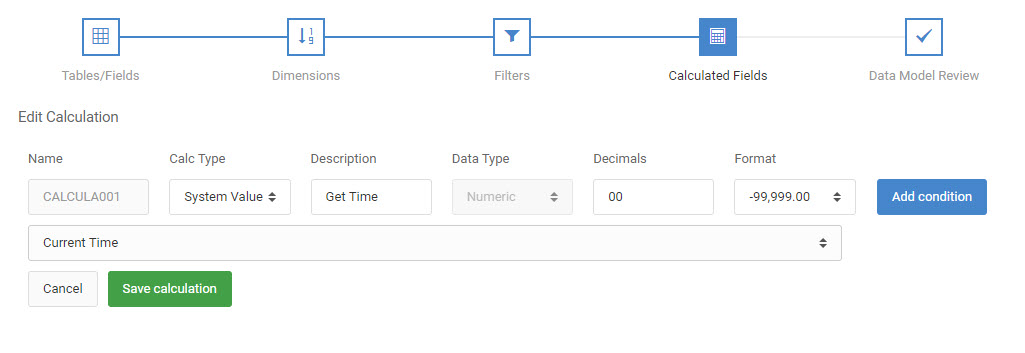
In the above screenshot, you can see that I have selected “System Value” as my Calc Type & have also specified a Calculation Description. As soon as I select the “Current Time” option, the Data Type, Length, and Decimal were set for me automatically.
Parameter Calculations
Parameter calculations serve as a way for you to pass data from one application to another. This method is especially useful if you are trying to pass a data field from one application to another application where no field exists to accept that parameter. A parameter calc can be created to match the attributes of that field. To do this select “Parameter” as the calc type and the appropriate Data Type. Lastly, specify a Description and click “Save”. After your Parameter Calculation is created, go back to your original application and pass the necessary field to the appropriate calculation name of your Parameter Calculation. More information about Parameter Calculations can be found here.
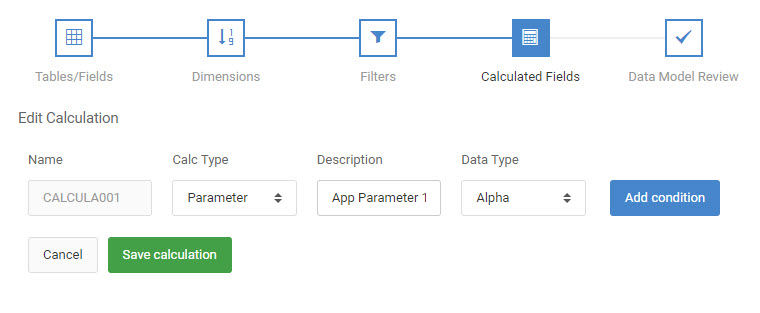
In the screenshot listed above, you can see that I have specified “Parameter” as my Calc Type. I can customize the application by Description, Data Type, and Decimal (if numeric). The calculation expression is determined for me.
Application
This option allows you to call Java Functions. However, mrc recommends that you always use Database calculations as this option allows the ability for the calculation to be a dimension field and/or a filter field.
Total-level/Margin
Total-level/Margin calculations are computed in Java and exclusively used to perform basic arithmetic on the total lines of the report application. As such, these calculations expressions only support basic arithmetic (addition, subtraction, multiplication, and division).
See here for more information on creating Total-level/Margin type calculations.
External Object
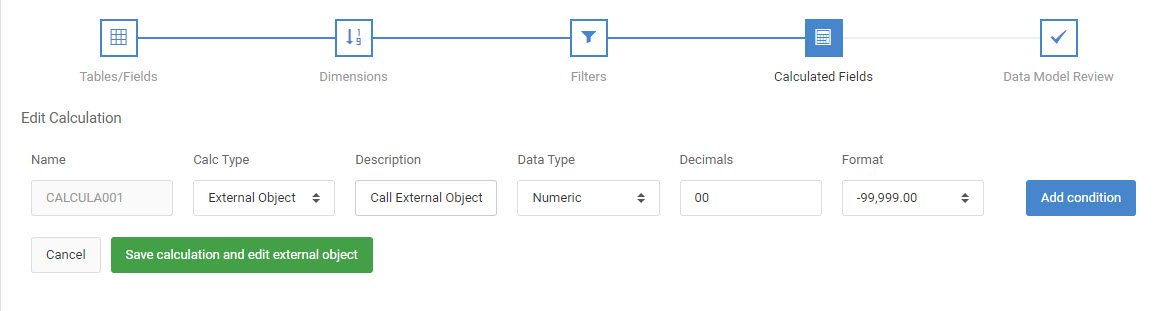
This option allows you to call external Java/RPG/CL programs from within your calculation. When called from a calculation, your external object will be called for each row that is printed. Usually, customers should choose this option (rather than calling an external object from the Application Options screen) when their object needs to return a value. When that happens, creating a calculation allows you to place that returned value into the calculation itself. Select “External Object” as the Calc Type, specify the necessary Data Type, and Decimal. Click the “Save calculation and edit external object” button to advance to a secondary screen that will allow you to select the object, the object location, and any object parameters.
MTD/YTD Calculations
Available in Report and Summary templates, this calculation feature allows you to create time-based calculations that allow you to compare data in date ranges. Rather than having to create complicated conditions to capture specific time periods, simply instruct m-Power what time frame you would like to examine and your application will automatically determine the proper values. This feature support is flexible: It allows you to specify a yearly start day (defaulted to January 1st), and a default month start date (defaulted to the 1st) in the event your organization starts the year and/or month on a non-traditional day. After selecting one of the four “Date Range Type” options, select the “Apply to Field.” This is the field that will computed. In “Date Field,” select your true-date field. If no field exist, your application contains no true-dates. Please revisit the “Table/Field” screen to pick one. Alternatively, you can use a previous calculation to convert an existing date into a true date. Finally, in the remaining option, select how far back you would like this calculation to compute. If you would like to compare this year’s value to last year’s value, create two calculations. In the “Number of Years Back” option for the first calculation, select 0. For the second calculation, specify a 1 here (for one year back).
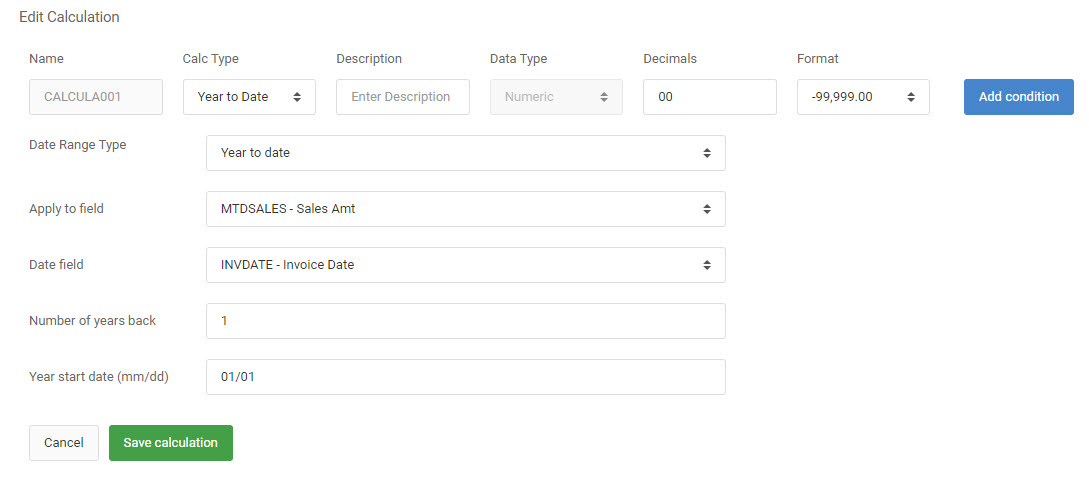
In the screenshot listed above, you can see that I have specified a YTD calculation, looking for the Sales Amount, based on my Invoice Date for the previous year.
Creating Calculations
Data Type — This option allows you to control whether your field will be: Alpha, Numeric, Date, Time, or Timestamp. When selecting a data type, the Decimal attribute will automatically be filtered for you to only show you valid options. For instance, when choosing a numeric calculation, the “blank” option of Decimal length will be removed as numeric calculations must have a decimal length. Or, when choosing alpha calculation, the decimal input will become disabled as alpha calculations do not have a decimal.
Format — The Format option allows you to control how your numeric (or DATE) output will appear. Utilize the “call out” icon to see how your data will appear with the given field attributes and format selected.