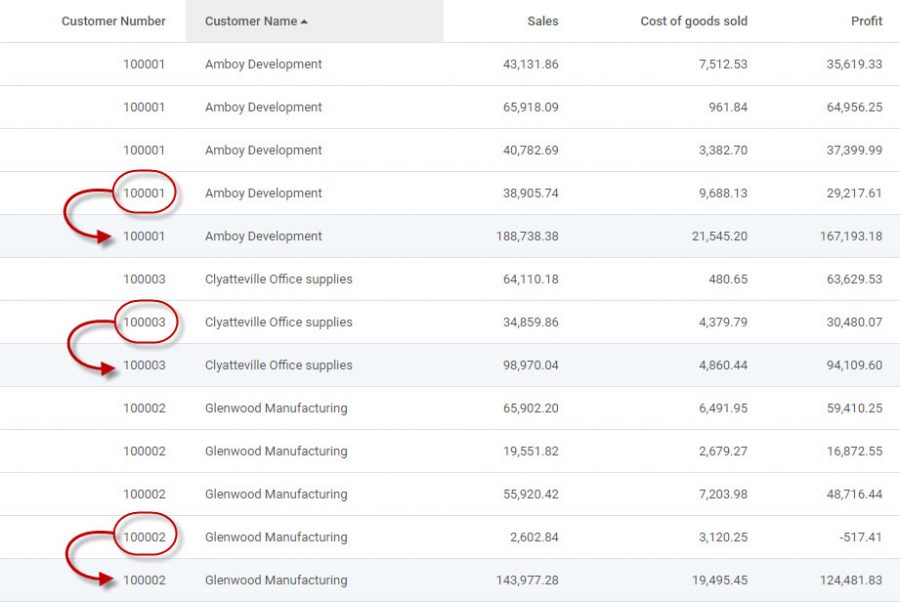
By design, m-Power automatically totals all numeric fields at the grand total and subtotal levels. As a result, you may occasionally encounter a situation in which a Report will subtotal and grand total numeric fields when this is not desired. You can prevent a numeric field from being shown by setting the Aggregate to “No Subtotal” in the Field Settings of the report or by displaying the Last Row of Detail in m-Painter.
Numeric Field Being Summed
The screen shot below shows that the Customer Number has been added for each record:
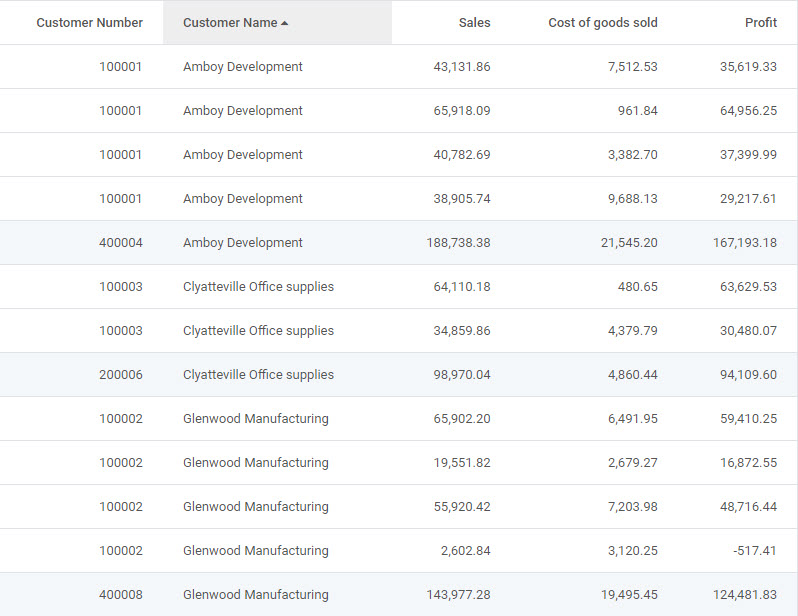
If you look closely at the records with blue backgrounds in the table above, you can see that the customer number is being totaled.
Moreover, if the end user chooses to not display the detail line, this can become even more confusing:
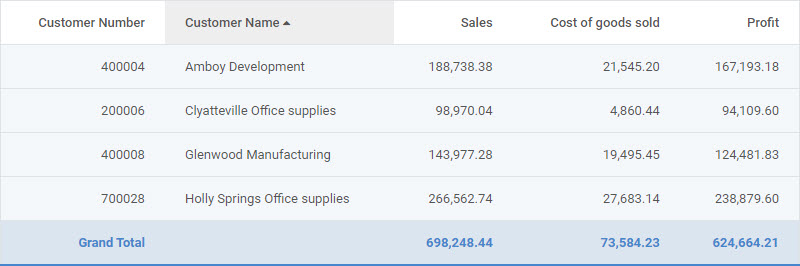
Do you notice how the customer numbers are being totaled? Obviously, the customer number is an identifier, and not a field to be totaled. There are two methods to prevent the field from being totaled.
Field Settings Aggregate Column
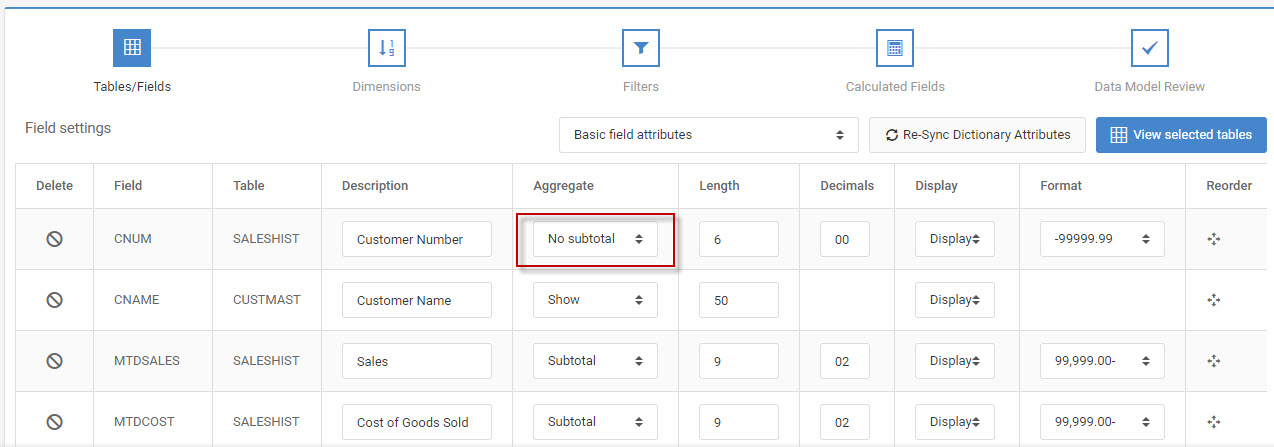
From Field Settings -> Basic Field Attributes. Find the Aggregate column. There are different options for numeric versus alpha/date fields:
- Alpha/Date — Show and hide.
- Numeric — Subtotal, No subtotal, and hide.
Again, by default, the template will automatically set non-dimension numeric fields to ‘Subtotal’. Simply change this setting to ‘No Subtotal’ to show the max value from that subtotal level
m-Painter Changes
Sometimes, you will need a more granule method of controlling the value at the subtotal levels. In these cases, m-Painter allows developers to set which level will display at different levels.
Once in m-Painter, left-click to select the data field that needs to the have the Last Row of Detail applied:
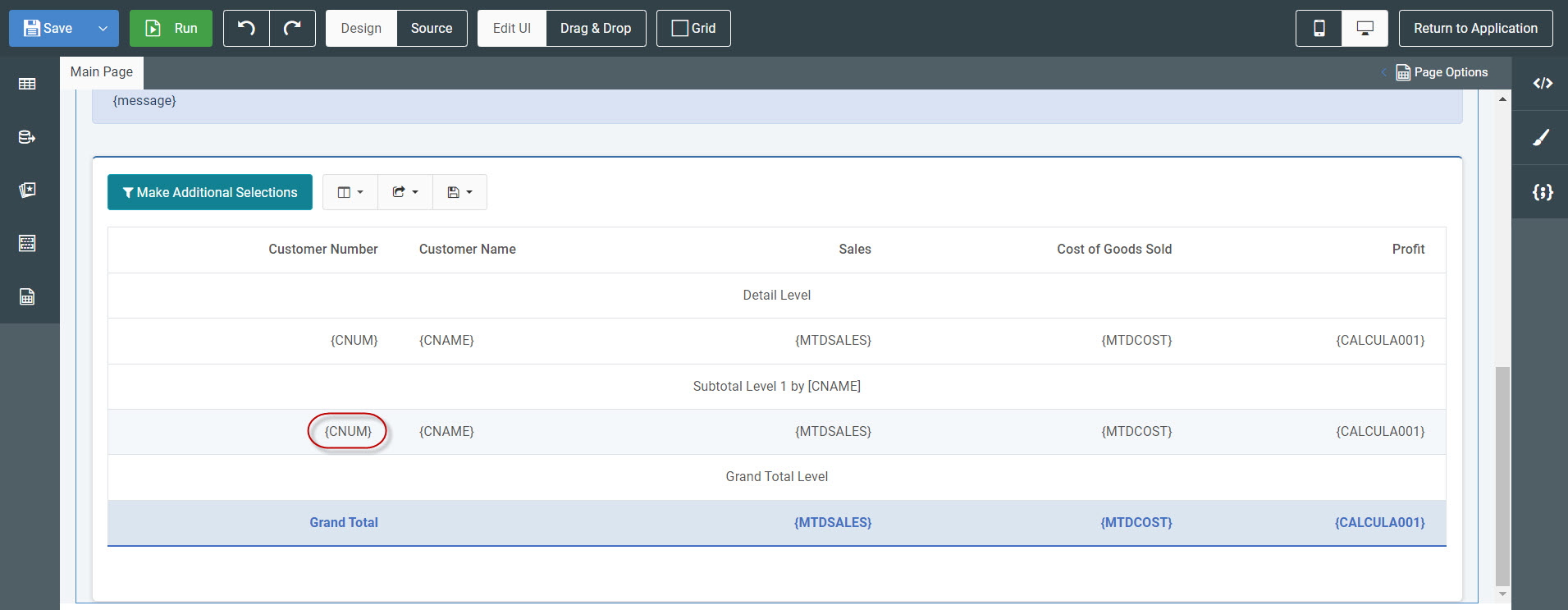
Once selected, the Element Panel will open on the right.
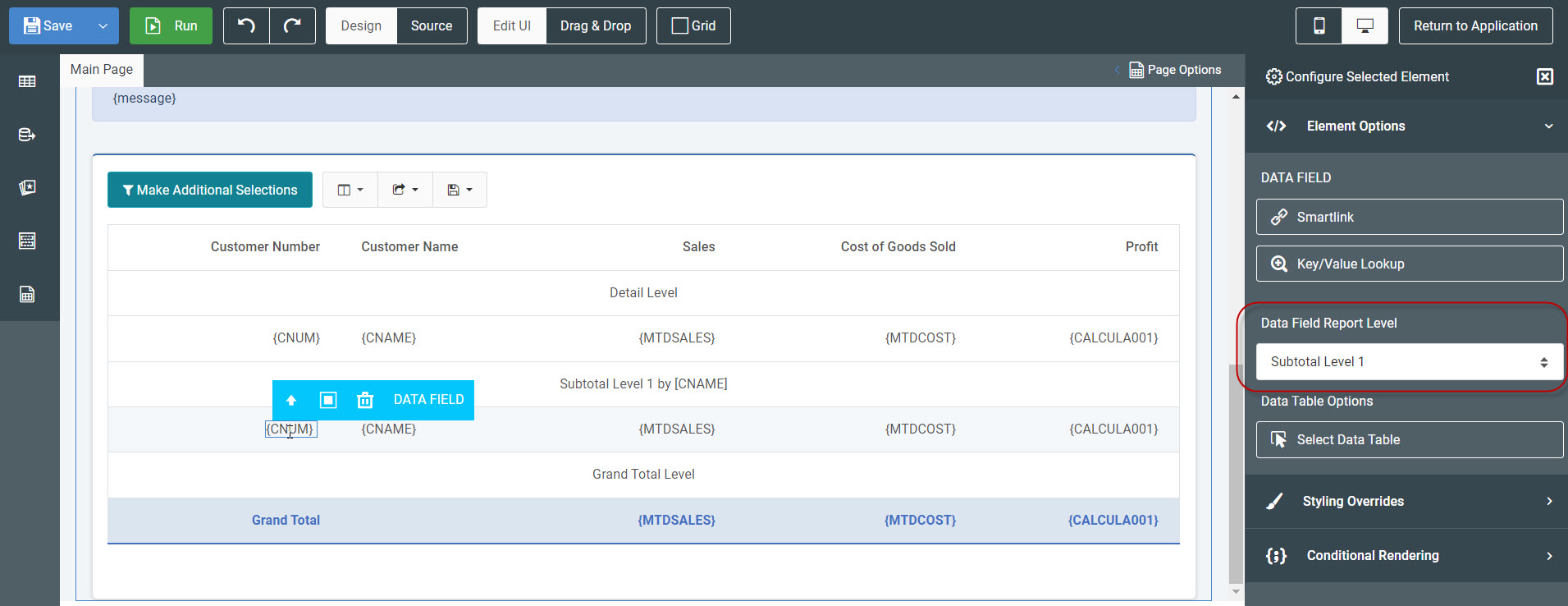
Under the “Element Options” section, find the “Data Field Report Level” and select “Non-Totaled (Last row of detail”.
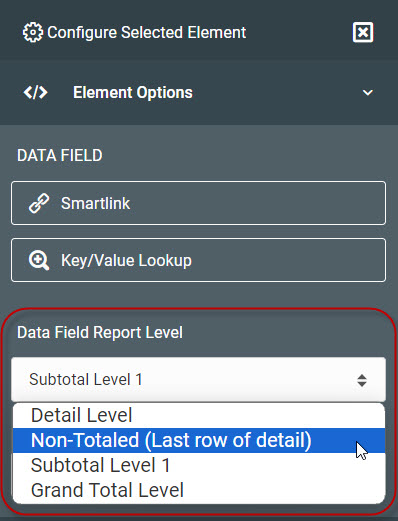
At runtime, this will not total the field, but rather place the last instance of the detail row on the subtotal line. The benefit of this is that your report (regardless whether it is running in Subtotal or Detail view) will always display the correct Row Information.
Save m-Painter.
Numeric Field No Longer Summing
Running the report with detail again, you can see the report is pulling the last row of detail prior to the subtotal break.