

Overview
While m-Painter allows you to change the look of your applications, the Edit Properties section of an application allows you to control the behavior of your applications. These are options called “Application Properties”.
You can access your application properties one of two different ways:
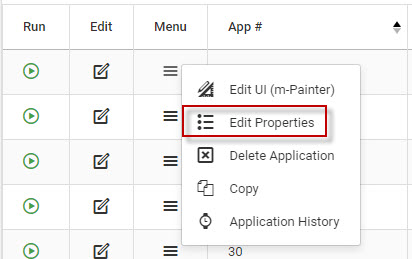
- From the Manage Applications screen, click the hamburger icon next to your application and choose Edit Properties.
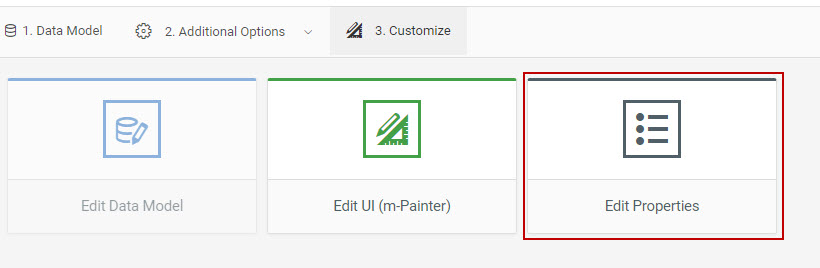
- While editing the application, select the “3. Customize” screen and then click the “Edit Properties button:
Regardless of how the application properties are accessed, a window as shown in the below figure will appear with a list of configurable properties.
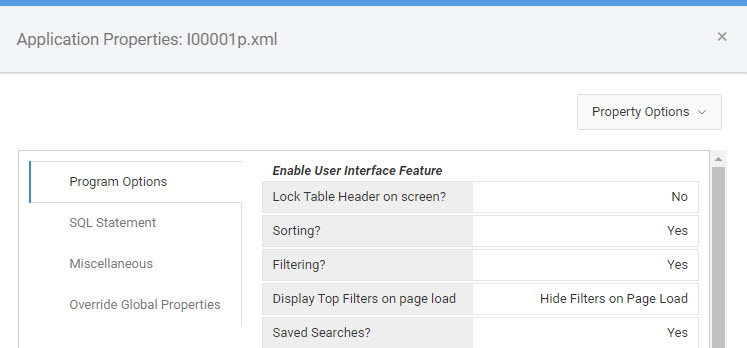
Properties are either global or template/application specific. This means that some properties listed will be constant across all application types; Retrievals, Reports, Summaries, and Maintainers. Other properties will only be template specific, meaning that they are exclusive to certain application types or templates.
This document will walk you through some of the most commonly used properties, broken down by the application type and tab the property falls under.
Retrieval Properties
The following lists out properties apply to Retrievals templates. Note that not all properties listed here are available in every template, and some properties are sharing with other application types.
Program Options
Lock Table Header on Screen? – Default is No. Used to create a sticky header functionality that “sticks” the column headers with the data table as the user scrolls.
Sorting? – Used to disable or enabled runtime column sorting for the end-user.
Filtering? – Used to disable or enable runtime filtering for the end-user. This property is only applicable to templates that support the advanced search options.
Saved Searches? – When enabled, allows end-users to save their current runtime column sorting, filtering, and any column re-ordering options via a cookie in the browser. This allows end-users to save their own ‘search’ for future access, without affecting the default layout the application developer has specified.
Allow Excel Export? – Default is No. When enabled, this will add a button to the application that allows the user to export the data shown on their current screen to Excel (in .xlsx format).
Display Data on Page Load?- When enabled, suppresses data from appearing when the page is loaded until the user has made a filter selection.
Automatically Save Row Count? – Default set to Yes. This property allows the end-user to save their default number of records displayed on the page, via a cookie in the browser. This allows them to revisit the application later and have this value remembered. This property is only applicable to templates that support the advanced search options.
Allow Column Reorder? – Default is No. This property, when enabled, allows the end-user to select at runtime to dynamically column re-order on screen, as well as show and hide columns from their current view. This feature utilizes a cookie, saved in the user’s browser, to remember their column preferences when the application is re-accessed in the future.
Enable Debugging – Default is No. By setting this to Yes, you are able to view the SQL statement and program parameters at runtime. When an application is not behaving correctly, this is often the first step to try as it will give you a behind-the-scenes-look at the logic of your application.
Enable Graphical Editor – Default is Yes. This property will enable m-Power’s WYSIWYG (what-you-see-is-what-you-get) editor, m-Painter. Setting this to No will open your m-Painter presentation in HTML source mode only.
Data List Display Type – Set the default presentation page for the application. The Table List View will display the data in a traditional HTML table. The Responsive Detail View will display the data in an abbreviated list on the left with a corresponding single row view on the right.
Maximum Rows to Display – This property sets the default number of rows to display on the page when the application is initially loaded.
Limit Max Rows – This property sets the maximum number of records a user can ask to display on their page at run-time. When set to 0, this means there is no limit. If set to 100 for example, this means the user can only display upwards of 100 records on a single page.
Auto refresh App – Default is 0, which means the auto refresh capability is disabled. If set to an integer value greater than 0, this will specify the application to refresh every N seconds, where ‘N’ is the value put into this property.
Submit Form? Defaults to Traditional. Controls how the form submission is handled. A traditional form submission is synchronous and it reloads the page, while AJAX submits the form and returns data asynchronously so the page does not require a reload. Typically you will want this set to AJAX when the application is contained inside other applications, like an KPI dashboard or m-Power’s importing functionality.
SQL Statement
Case Sensitivity – This property determines how filter values, both hard-coded and runtime, will be searched on in the SQL WHERE clause, specifically in regards to case. Using the Change both the search value and the DB field to uppercase using the UPPER keyword setting allows the query to match all text strings, regardless of case, when filtering the dataset. However, this option is more resource intensive from a database query perspective.
Secure Application – Allows the application to secure against a username or session ID. When enabled, this property will assume the first column listed in your data model contains the user or session ID value to secure against. Click here to learn more.
Override SQL Statement – Developers have the opportunity to overwrite the default SQL statement generated by the m-Power application. Click here to learn more.
Miscellaneous
Max Items to Display in Dropdown – Default number of records that any dropdown/radio button lists that are utilized within the application will contain.
Record Counter Value – Set to Show by default. For templates that display a record count on the screen, this property will enable or disable that record count. If the application contains a lot of records or takes a long time to return data, consider building an index at the database level and/or turning off the counter.
Report Properties
Program Options
Chart – Choose whether to show or hide the chart (graph) output associated with the report.
Lock Table Header on Screen? – Default is No. Used to create a sticky header functionality that “sticks” the column headers with the data table as the user scrolls.
Sorting? – Used to disable or enabled runtime column sorting for the end-user.
Filtering? – Used to disable or enable runtime filtering for the end-user. This property is only applicable to templates that support the advanced search options.
Modify Selections on Output Page? For templates that offer a prompt page, this property will determine if the “Make Additional Selections” button will appear for the end-user at runtime. Often disabled (set to “Do not show selections button”) if importing the report or utilizing it within a dashboard application.
Saved Searches? – When enabled, allows end-users to save their current runtime column sorting, filtering, and any column re-ordering options via a cookie in the browser. This allows end-users to save their own ‘search’ for future access, without affecting the default layout the application developer has specified.
Allow Excel Export? – Default is No. When enabled, this will add a button to the application that allows the user to export the data shown on their current screen to Excel (in .xlsx format).
Display Data on Page Load?- When enabled, suppresses data from appearing when the page is loaded until the user has made a filter selection.
Automatically Save Row Count? – Default set to Yes. For templates that support pagination through the dataset, this property allows the end-user to save their default number of records displayed on the page, via a cookie in the browser. This allows them to revisit the application later and have this value remembered.
This property is only applicable to templates that support the advanced search options.
Allow Column Reorder? – Default is No. This property, when enabled, allows the end-user to select at runtime to dynamically column re-order on screen, as well as show and hide columns from their current view. This feature utilizes a cookie, saved in the user’s browser, to remember their column preferences when the application is re-accessed in the future.
Enable Debugging – Default is No. By setting this to Yes, you are able to view the SQL statement and program parameters at runtime. When an application is not behaving correctly, this is often the first step to try as it will give you a behind-the-scenes-look at the logic of your application.
Enable Graphical Editor – Default is Yes. This property will enable m-Power’s WYSIWYG (what-you-see-is-what-you-get) editor, m-Painter. Setting this to No will open your m-Painter presentation in HTML source mode.
Top Records: This property is used to limit the amount of records the report should return to the screen. The default value is 0, meaning all records will be returned to the screen. If set to 10 for example, this means only the first 10 records the query produces will be returned to the screen.
Max Web Records: This property is a record governor for the report application and controls the maximum number of records the report can return to the screen before an error is thrown. The default value is 10000 records. If the query will return more than this limit, the user will be presented with an error message informing them that the query will not be processed due to the record limit.
Auto refresh App – Default is 0, which means the auto refresh capability is disabled. If set to an integer value greater than 0, this will specify the application to refresh every N seconds, where ‘N’ is the value put into this property.
Submit Form? Defaults to Traditional. Controls how the form submission is handled. A traditional form submission is synchronous and it reloads the page, while AJAX submits the form and returns data asynchronously so the page does not require a reload. Typically you will want this set to AJAX when the application is contained inside other applications, like an KPI dashboard or m-Power’s importing functionality.
SQL Statement
Case Sensitivity – This property determines how filter values, both hard-coded and runtime, will be searched on in the SQL WHERE clause, specifically in regards to case. Using the Change both the search value and the DB field to uppercase using the UPPER keyword setting allows the query to match all text strings, regardless of case, when filtering the dataset. However, this option is more resource intensive from a database query perspective.
Secure Application – Allows the application to secure against a username or session ID. When enabled, this property will assume the first column listed in your data model contains the user or session ID value to secure against. Click here to learn more.
Override SQL Statement – Developers have the opportunity to overwrite the default SQL statement generated by the m-Power application. Click here to learn more.
Output Format
Default Output Format – Allows you to control the default output format of your report.
Non-HTML Output
Auto Open – This option allows you to set whether a non-HTML file is opened automatically or the user is prompted for what to do.
Filename – This option allows you to set a different name for non-HTML files generated at run-time.
Include Column Headings – This option controls whether csv files include a header line.
Open/Save Content – This option controls how to handle csv files generated at run-time.
Enable Emailing on this Report – Default is set to No. Change setting to yes to allow a user to send reports via email directly from the prompt screen of the report.
Email report as attachment? – Default is set to Yes. If your user chooses the HTML output and this option is set to no, their report will be embedded into their e-mail.
After email, redirect to… – This is the address the webpage will redirect to after processing the email request.
Print Optimized
Page Break Grammar – The code listed here is what is used to force a new page in your report PDF output
Max Rows per PDF Page – Because your report does not know the size paper you are using, it will print as many records as listed in this file per page. Once the number of records are printed, it will move to the next page. If you find your reports have wasted white space, consider changing this value.
PDF Page Size – Required if using the JavaScript Enabled PDF Renderer. Specifies the page size of the PDF file that will be generated. Options include, but are not limited to, A4, Letter, Legal, and Tabloid. A list of supported sizes can be found here.
Maintainer Properties
Program Options
Lock Table Header on Screen? – Default is No. Used to create a sticky header functionality that “sticks” the column headers with the data table as the user scrolls.
Sorting? – Used to disable or enabled runtime column sorting for the end-user.
Filtering? – Used to disable or enable runtime filtering for the end-user. This property is only applicable to templates that support the advanced search options.
Saved Searches? – When enabled, allows end-users to save their current runtime column sorting, filtering, and any column re-ordering options via a cookie in the browser. This allows end-users to save their own ‘search’ for future access, without affecting the default layout the application developer has specified.
Allow Excel Export? – Default is No. When enabled, this will add a button to the application that allows the user to export the data shown on their current screen to Excel (in .xlsx format).
Display Data on Page Load?- When enabled, suppresses data from appearing when the page is loaded until the user has made a filter selection.
Automatically Save Row Count? – Default set to Yes. This property allows the end-user to save their default number of records displayed on the page, via a cookie in the browser. This allows them to revisit the application later and have this value remembered. This property is only applicable to templates that support the advanced search options.
Allow Column Reorder? – Default is No. This property, when enabled, allows the end-user to select at runtime to dynamically column re-order on screen, as well as show and hide columns from their current view. This feature utilizes a cookie, saved in the user’s browser, to remember their column preferences when the application is re-accessed in the future.
Enable Debugging – Default is No. By setting this to Yes, you are able to view the SQL statement and program parameters at runtime. When an application is not behaving correctly, this is often the first step to try as it will give you a behind-the-scenes-look at the logic of your application.
Enable Graphical Editor – Default is Yes. This property will enable m-Power’s WYSIWYG (what-you-see-is-what-you-get) editor, m-Painter. Setting this to No will open your m-Painter presentation in HTML source mode only.
One Step — Used to control whether or not a user must confirm before the maintainer will add/update/delete a record. The default value is Two. “Two” will prompt the user to verify the database action. i.e. they must press the ‘Accept’ button on the form page. “One” will cause an immediate database action.
A developer would typically only set this value to “One” if this maintainer will be called in the background, and not loaded by the user.
File Upload Directory – Specifies the directory (on the m-Power server) where any uploaded files will go.
This property, along with any of the ‘File Upload’ properties listed, is only applicable when a field has been set with a User Defined Field Code of “U” in Field Settings. See here for more on upload files in m-Power maintainers.
File Upload Auto Rename – Default setting is to “Automatically rename if file exists”. Should the uploaded file already exist in the specified directory on the server, the filename will be renamed to ‘file(1).ext’, ‘file(2).ext’, etc. Alternatively, “Overwrite if file exists” will overwrite the existing file if already found in the current directory.
File Upload Max Size – Set the maximum file upload size, in MB, that will be allowed to be uploaded. If a user attempts to upload a file with a file size larger than the value listed here, an error will be displayed at runtime.
Maintain Joined Tables?— Default is set to only allow you modify the primary table (the first table listed in Tables/Fields). Changing this value to All Tables allows you to write to any secondary tables as well.
Submit Form? Defaults to Traditional. Controls how the form submission is handled. A traditional form submission is synchronous and it reloads the page, while AJAX submits the form and returns data asynchronously so the page does not require a reload. Typically you will want this set to AJAX when the application is contained inside other applications, like an KPI dashboard or m-Power’s importing functionality.
Maintainer Page Layout – Allows you to control how your Work-With Maintainer behaves. Default action is that the list and maintain functions exist on two separate screens.
Add Action Mode – You can control whether a users can add records (no duplicates), add records (allow duplicates), or not add records at all.
Update Action Mode – You can control whether users can update records or not.
Delete Action Mode – You can control whether users can delete records or not.
View Action Mode – You can control whether users can view records or not.
Delete Confirmation — Default is Yes, which when a user goes to delete a record, will ask the user if they are sure they wish to delete a record prior to deletion. Setting this to No will disable this confirmation and record deletion will happen immediately.
Skip Database Actions – Default is No. When set to “No”, the m-Power maintainer will write to the underlying table(s) the application is built over. If set to “Yes”, the m-Power maintainer will skip any write actions to the underlying tables.
This feature is often set to “Yes” when a developer is only wanting to utilize the maintainer form to trigger a call to external business logic via an External Object.
CSRF Prevention? Enables the use of a token on any POST requests in order to prevent CSRF attacks. See here for more information.
Auto refresh App – Default is 0, which means the auto refresh capability is disabled. If set to an integer value greater than 0, this will specify the application to refresh every N seconds, where ‘N’ is the value put into this property.
Retrieval Page Name – The page of your data listing screen. It is not recommended to modify this value.
Maintainer Page Name – The page of your maintain form screen. It is not recommended to modify this value.
m-Power Suggest? – Allows you to specify how many suggestions AJAX returns, if any, after a user types in a partial word into an advanced Advanced Search filter/search field. This property is only applicable to templates that support the advanced search options.
Default Sort Fields – Use this property to sort the data at runtime by the fields that you list here, if needing to sort the application by fields that are not Dimension fields. Fields will need to be separated by a semi-colon:
ex. FIELD1 ASC; FIELD2 DESC; FIELD3 ASC;
After Actions
SQL Statement
Case Sensitivity – This property determines how filter values, both hard-coded and runtime, will be searched on in the SQL WHERE clause, specifically in regards to case. Using the Change both the search value and the DB field to uppercase using the UPPER keyword setting allows the query to match all text strings, regardless of case, when filtering the dataset. However, this option is more resource intensive from a database query perspective.
Secure Application – Allows the application to secure against a username or session ID. When enabled, this property will assume the first column listed in your data model contains the user or session ID value to secure against. Click here to learn more.
Display Matching Records Only – Use this feature to choose either a SQL left or inner join, with the default being a left join. The left join will select all records from the primary table and all matching records from secondary tables, whereas the inner join will select records from the primary table and secondary tables only where matching records exist.
Override SQL Statement – Developers have the opportunity to overwrite the default SQL statement generated by the m-Power application. Click here to learn more.
Miscellaneous
Max Items to Display in Dropdown – Default number of records that any dropdown/radio button lists that are utilized within the application will contain.
Record Counter Value – Set to Show by default. For templates that display a record count on the screen, this property will enable or disable that record count. If the application contains a lot of records or takes a long time to return data, consider building an index at the database level and/or turning off the counter.
Defaulting Properties
Changing the default selection for a property will affect any application that is built or rebuilt after the change, and can prevent you from having to change the same properties each time you build a new application.
To do this, go to the Admin menu, select Dictionary Configuration, and then “Interface and Build Settings.” Under the Default properties, you have the option to choose a property (after selection an application type and template) and add a default value. This can be done with any property, in any of the m-Power templates.
More information about setting default properties can be found here.