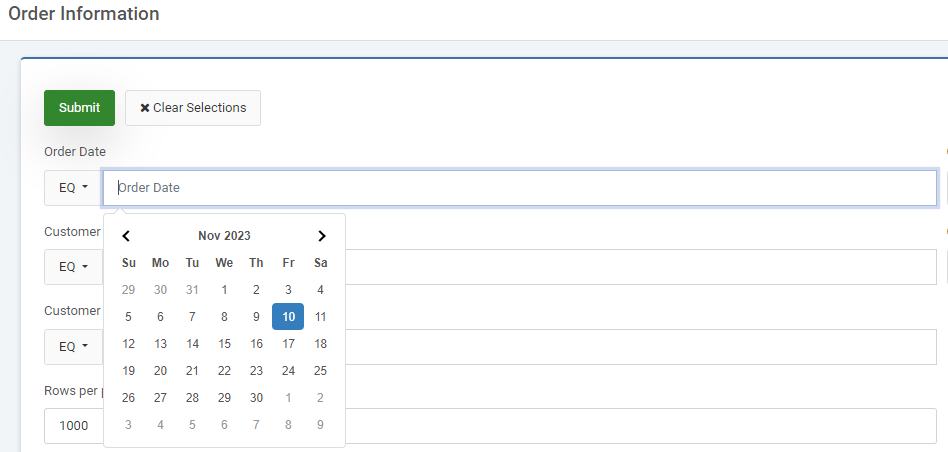
The calendar picker/helper is an m-Painter feature that assists with date and datetime fields. The purpose of the calendar picker is to allow your end-users to quickly and easily pick dates in the correct format.
m-Power will automatically insert calendar pickers on fields that are date or datetime in your table when a new application is made. However if necessary, a calendar picker may be inserted and edited after an application is created via the m-Painter editor.
Adding a Calendar Picker
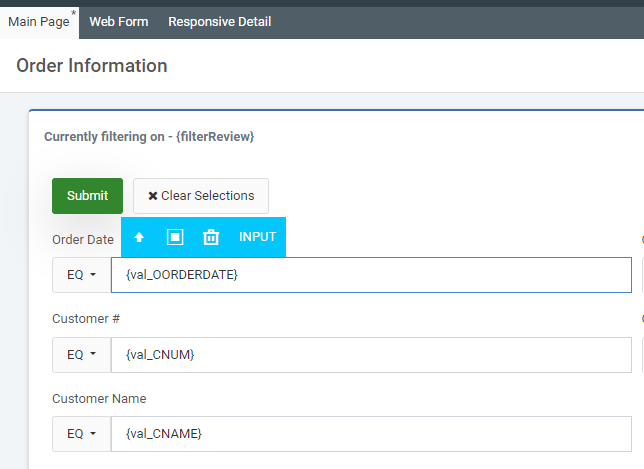
To add a date picker, open m-Painter and select the input field you would like to now utilize the picker.
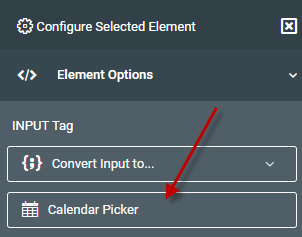
Next, in the element window, select “Calendar Picker.”
Calendar Configuration
You will now be presented with configuration options for your Calendar Picker.
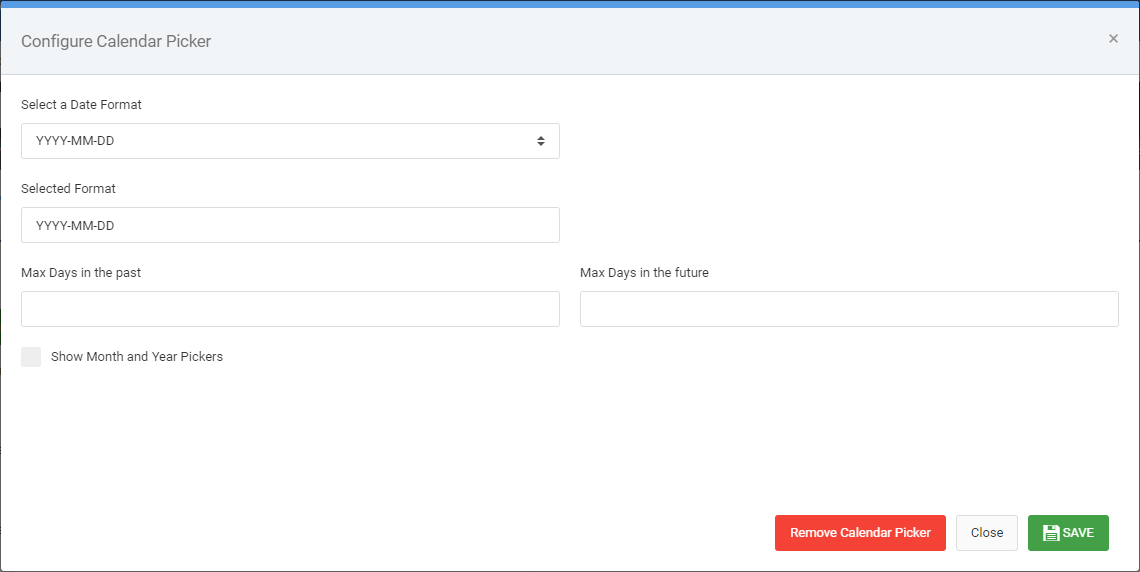
- Select a date format – Use to select the format that matches your date’s format in the database.
- Selected format – the format that is utilized by your calendar picker will be shown here. This format must always match the date or datetime format that was selected for your field in Field Settings.
- Max Days in the past/future — Adding a number to either of these boxes will set a minimum/maximum date based on the number of days from today. For instance if you put “30” in each box, your user could only user the date picker to select a day within the window of 30 days ago through 30 days in the future.
- Show Month/Year Pickers? — This feature, when checked, allows the user to quickly switch to a different month or year, rather than paging through each month.
- Remove Calendar Picker — Removes the calendar picker element from the input and reverts the input to a basic input.
- Close — Closes the window without saving any changes.
- Save — Saves your calendar picker configuration.
Once you have made all the changes you would like, please click the blue “Save” button. Run your application.
Runtime Examples
Date only
Date and Time
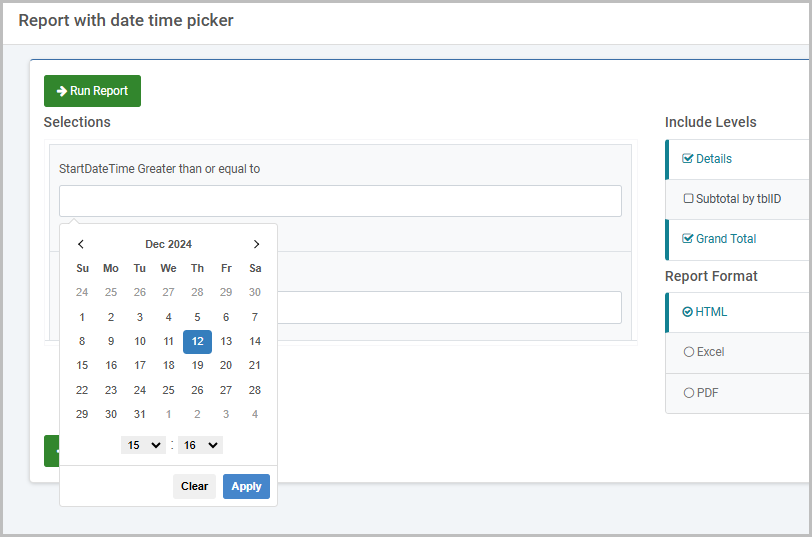
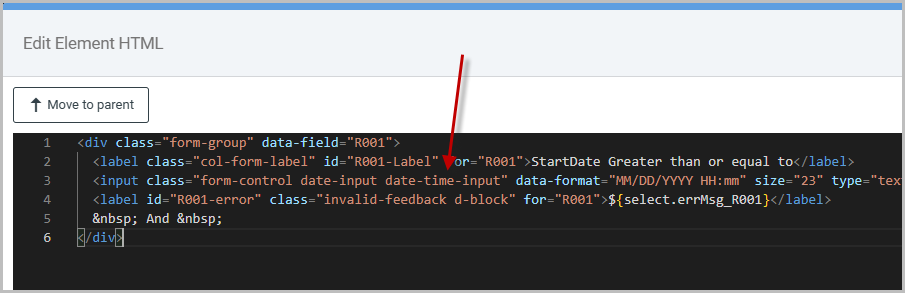
Important: The time option will only show with the date on inputs that have a class of date-time-input. New applications will generate this class on any datetime fields, however existing applications may need this added in manually via m-Painter.