

The purpose of this document is to explain the process needed to have a user interface in which end-users enter a value on a Prompt page, then are redirected to a retrieval. The retrieval shows them the appropriate information based on the data entered from the Prompt.
To make this application, you will need to create the following:
- Multiple Record Retrieval (data output)
- New Table (In which the maintenance application will be written over)
- Single Row Maintainer (Prompt Page)
Step 1 — Build your Retrieval (data output)
When building your retrieval, please keep in mind what field you wish to pass to your retrieval. For instance, if I want my end user to search on customer name, I need to remember that the Customer Name field is CNAME. Otherwise, please build your retrieval as you normally would.
Step 2 — Build your new table.
The purpose of this table is to serve as a container for your maintenance application data to reside in. In fact, once the data goes into this table, there is no need for the data to ever be examined. Create your table by going to the Admin screen, then click on the Registered Tables option. Lastly, click the “Create New Table” icon.

In the above picture, note that I created a two column table. One will hold a sequence key, while the other holds the name of the field that I wish to search on. In my case, I have named this SEARCHVALUE.
Step 3 — Create your Maintenance Application (The Prompt)
The Maintenance application needs to be written over the table you created in Step 2.
Be sure to use the “Single Row Maintainer” template.
Choose all fields.
Set the SEQNO field as the Dimension, as well as specifying the field as Auto Sequence.
Build your application and go to the Workflow Designer. Configure the designer to redirect to the retrieval you created in Step 1, passing in the value from this maintainer.

Lastly, open m-Painter. You should see something like this:

Right click on the SEQNO row, and select “Hide Row”. While the row will not be hidden within m-Painter, when the application is run, this row will be hidden. Please save your changes in m-Painter.
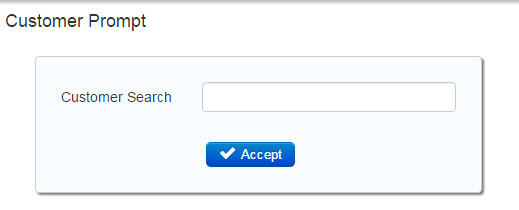
That’s it! Simply run your Maintenance application. Enter part of a Customer Name, and press Accept. Your After Action property will take the user’s input and pass it to the Inquiry only showing you the valid records!