Interface Upgrade: Watch Your Build Process Live!
Throughout the m-Power Web Interface product life, when you built a web application you were greeted with the "Rolling Dots" progress bar.

While this was useful, we felt it would be much more beneficial for you, as a developer, to know exactly what was happening behind the scenes during your Java Build Process.
Included with the July 24, 2008 update and later, you will be introduced to a new Compilation screen that looks something like this:
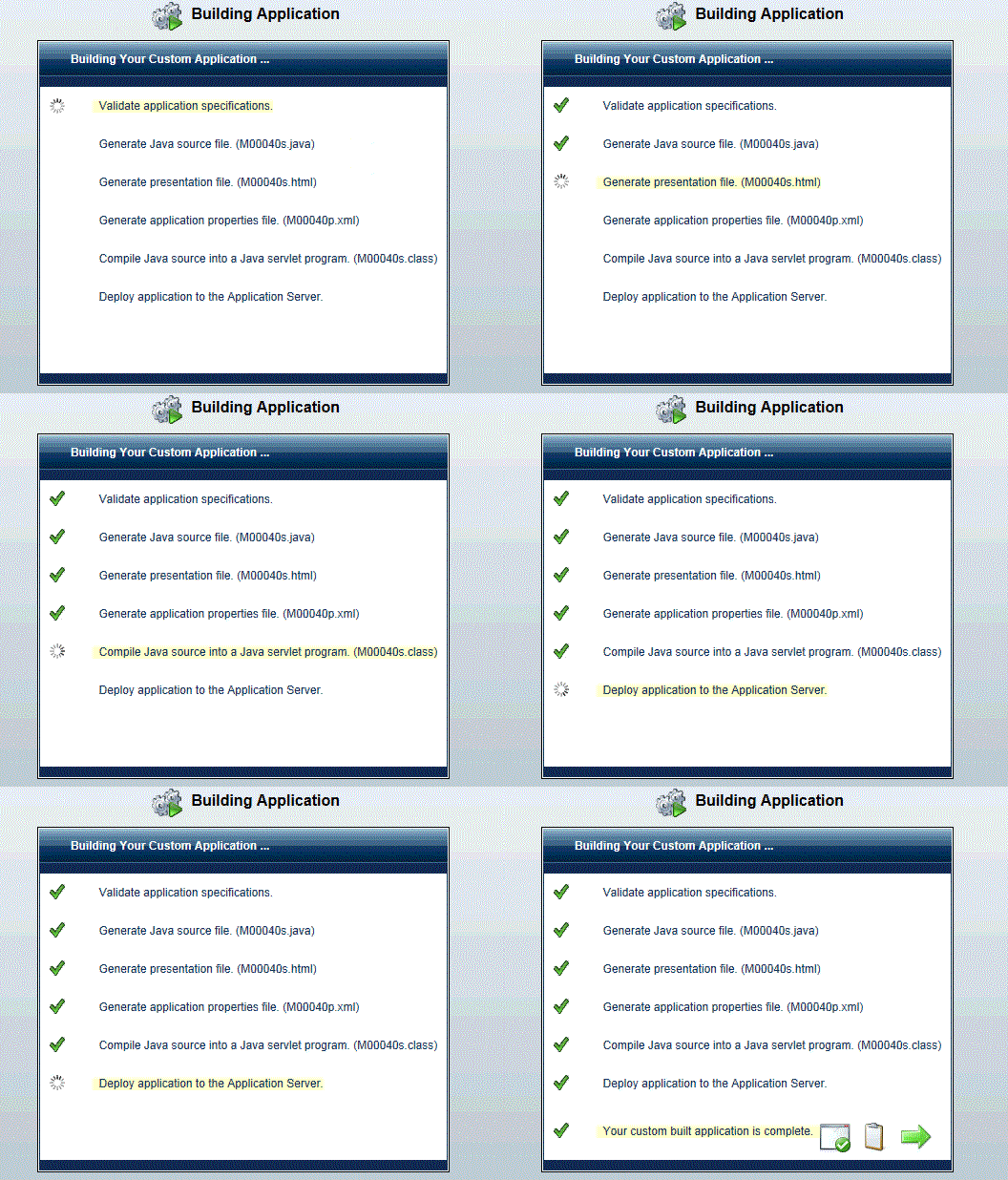
After each step verifies, you will be alerted to this by a green "Checkmark".
- Validate application specifications — This step verifies that you have selected at least one table/field, verifies that you have set up the correct sequencing (based on your application type), and otherwise verifies that your application is ready to begin building. If it fails, you will see a red "X" and explanation as to why it failed.
- Generate Java source file — This step takes all of your specifications, coupled with your template choice and creates a java file that is 100% open to advanced developer access, if desired.
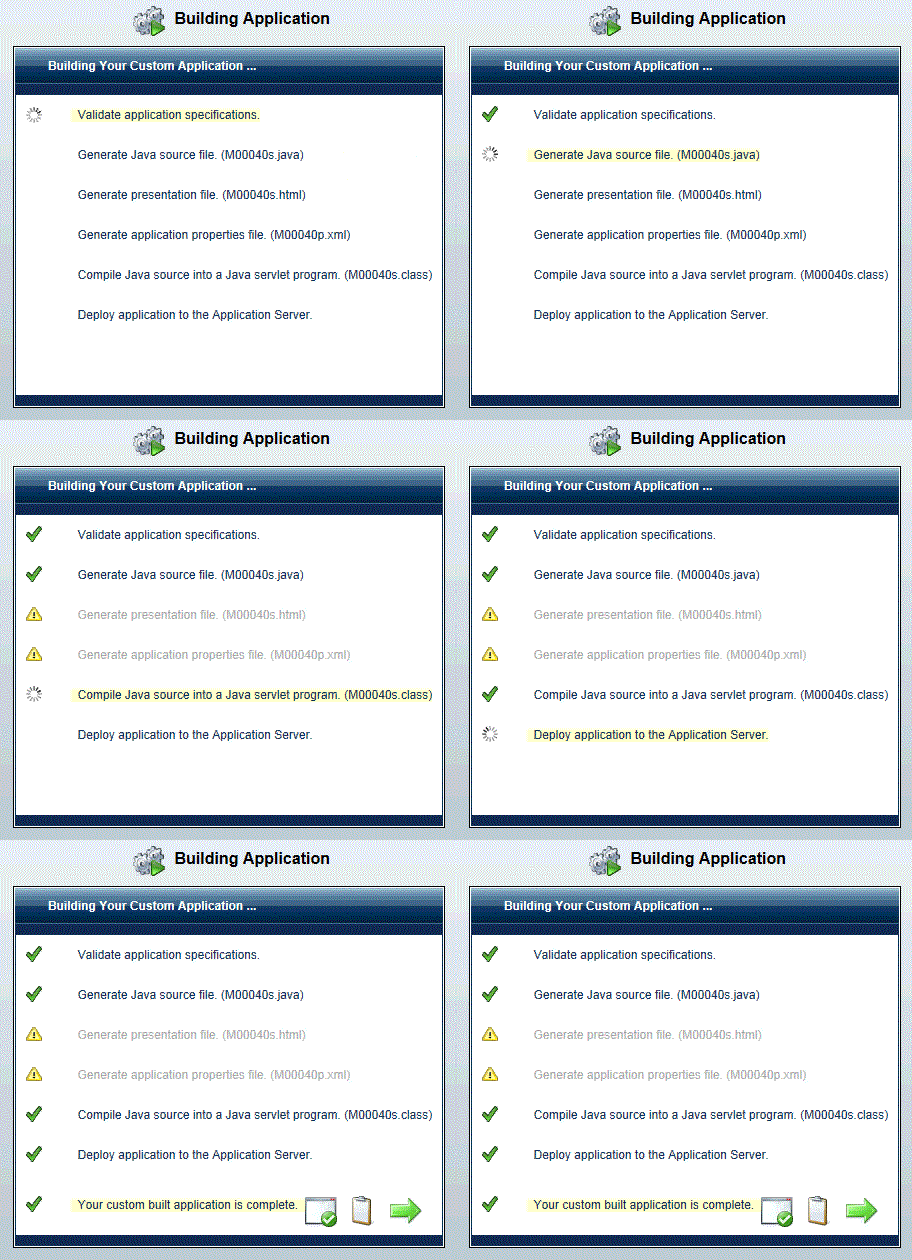
- Generate presentation layer — This step is optional. The code generator will create or re-create the screens that are seen to the end user (usually HTML files). If you choose to not overwrite the Presentation Layer (HTML), you will a yellow "!" alerting you that, per your request, this step was skipped.
- Generate application properties file — This step is optional. The code generator will create or re-create your application properties xml file depending on your choice on the previous screen. If you choose to not overwrite the Application Properties File (XML), you will see a yellow "!" alerting you that, per your request, this step was skipped.
- Compile Java source into a Java servlet program — This step takes the Java source file created above and will compile it into a series of .class files so it can be interpreted by your application server and seen by your end users.
- Deploy application to the Application Server — This step finalizes the build process and places all of your newly generated objects into memory (hard disk) and loads the application into your Application Server.
Please see the final screenshot of a completed build process (Note how I chose to not overwrite the Presentation Layer nor the Application Layer).
Note: The Deploy Application to the Application Server has a built in timer delay to allow adequate time for the Application Server to load the new application into memory. This timer can be adjusted to better meet the needs of your setup.
To manually adjust the timer, please open the mrctool.properties file located in /mrcjava/proddata/conf (mrc-Productivity customers) or m-power/proddata/conf (m-Power customers).
Add the following lines to the end of the file:
#Allow 3 seconds to register to server

register_to_server_time=3000
The register to server time is in milliseconds, so in this case 3000 would equate to 3 seconds. If you are still seeing 404 Servlet Invoker is Not Available after compiling an application, it is likely that you need to increase this value.
By default, 3000 milliseconds is the register to server time interval when nothing is set.
After your change, Tomcat will need to be restarted.