
Updated September 2026 with Microsoft’s end-of-support dates for Access 2016 and 2019, a new section on AI readiness, a customer example, and an FAQ.
Last Updated:
Key takeaways from this article
-
What is MS Access database modernization?
Access database modernization means moving data out of file-based Access databases (.mdb/.accdb) into a server database like SQL Server, PostgreSQL, or MySQL, then rebuilding the forms, queries, and reports as web applications. The result: Multi-user performance, browser and mobile access, and centralized security. -
Is Microsoft Access still supported?
Microsoft ended support for Access 2016 and Access 2019 on October 14, 2025. Those versions no longer receive security patches or fixes. Newer versions remain supported, but share the same file-based architecture and limits. -
What’s wrong with MS Access?
There’s nothing inherently wrong when it’s used as intended. The real issue is that simple Access apps can quietly balloon into complex, mission-critical systems that Access wasn’t built to support. -
When should you not use Access?
MS Access falters in multi-user environments, in projects that require integration, apps that require mobile access, or once your database grows past its 2 GB limit. -
Can we just build web apps directly over our Access database?
Not reliably. Access has no native web deployment and its file-based engine isn’t designed for web concurrency. While you can connect a web server to an Access file for very light scenarios, it’s fragile and doesn’t scale. For web apps, you need to move the data to a server database (e.g., SQL Server, PostgreSQL, MySQL). -
How can you migrate Access to the web?
As demonstrated in the below video, moving Access data to a relational database and building web applications over it is pretty straightforward with the right tools.
Introduction
If your business still relies on Microsoft Access, you’re certainly not alone. MS Access powers simple, department-level apps across the globe. It’s great when you need a fast solution for a few users.
The problem: These simple databases often expand into critical, multi-user systems before anyone realizes it. What started as a quick solution to a basic problem ends up stretching Access past its comfort zone.
Now, that doesn’t mean Access is a bad tool. In the right context (with a handful of users and simple data needs) it works perfectly. But once it becomes the backbone of core business processes, it causes headaches.
In this article, we’ll take a deeper dive into this issue. How should it be used? What use-cases was it not designed for? If you’ve reached its limits, what can you do? Here’s a brief overview:
Why Modernize Access Now?
On October 14, 2025, Microsoft ended extended support for Access 2016 and Access 2019. Both versions still open and run, but they no longer receive security patches, bug fixes, or technical support of any kind.
What does that mean? Many businesses run these versions because they came with perpetual Office licenses. If that’s you, the .accdb files sitting on your shared drives now run on an engine Microsoft no longer patches. Any vulnerability discovered now doesn’t get fixed. What happens if those systems hold customer or financial data, or other equally sensitive information?
Can’t you just upgrade to a newer version? You can, but it doesn’t solve the underlying problems with Access that we’ll cover below. Upgrading buys you security patches, but doesn’t buy you a web application, mobile access, or integration.
Another reason why Access modernization should be moving up your priority list: AI. If your leadership is asking what the AI plan is (and whose isn’t?), data locked inside Access files is a major obstacle. AI assistants and agents connect to data through server databases, APIs, and permission models. An .accdb file on a network drive offers none of those.
We’ll dig into this more below. But, before we do, I want to be clear about something: There is a place for MS Access, and it does some things very well. The problem is, many businesses take it far beyond its capabilities. That’s where it starts to struggle. Before we get into its limitations, let’s start with its strengths.
Where Microsoft Access Shines
Access certainly has a place in the business world. It’s great for:
1. Small teams with basic needs
If you have a small team (just a few users) and your data needs aren’t complex, Access is a good solution. But, be careful. If your team expands or your needs change, it can become unmanageable quickly.
2. Single-user or ad-hoc tools
Access works well for single-user apps or ad-hoc tasks like:
- Managing contact lists
- Tracking orders or invoices
- Creating simple reports
- Building local data entry forms
3. Local, non-mission-critical apps
It can be the right fit for temporary solutions, departmental data management, or tools that don’t require scale, security, or remote access.
Where Microsoft Access Falls Short
The problem is, it’s often used in ways it wasn’t intended. It struggles with:
1. Multi-user environments
Access is great for small-scale solutions for a handful of users. Beyond that, performance degrades fast. Why? There are a few reasons:
a. Architecture
It boils down to architecture. Microsoft Access is fundamentally designed around a file-server architecture, not a client-server model (like the web). That causes most of its issues with scalability.
What’s the difference between the two? Rather than get into the technical details, here’s a good illustration of the difference:
- File-Server: Everyone pulling files from the same file cabinet
- Imagine 10 employees walking to the same filing cabinet, opening the same folder, and editing the same documents. Now imagine someone slams it shut mid-edit. That’s Access.
- Client-Server: You send a request to a librarian
- You tell the librarian (server) what file you need. They find it, process your request, and hand you the result. That’s web architecture.
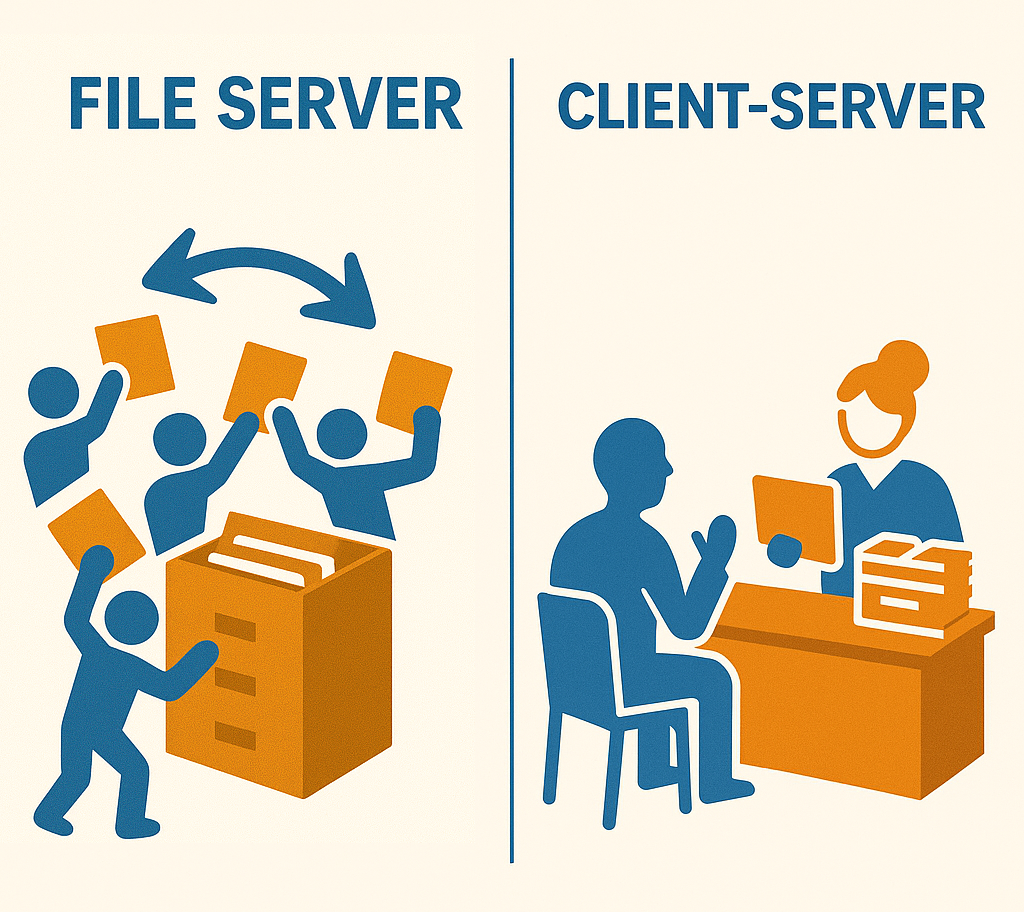
That’s the big problem: When multiple users open the application, they’re all reading and writing to the same file at the same time. That leads to problems like:
- Record locking: Only one person can edit a record at a time. The bigger problem is it doesn’t gracefully handle multiple users trying to update the same record at the same time. You get:
- “Another user has changed this record…” error messages
- Confused users unsure if their updates saved
- Data inconsistencies if two edits overwrite each other
- File-level locking risks: Even just opening the file can trigger file locks that block others.
- Increased corruption risk: If a user loses connection while accessing the file, it can corrupt the whole database.
b. Network choke points
In Access, files get stored on a shared network drive, but all processing happens on the client machine. When a user runs a query, the entire table (or a big chunk of it) gets pulled over the network to their computer for processing.
Let’s look at another example. Imagine you run a business and want to find a specific invoice from last month.
- The file-server approach: You walk to the filing cabinet and carry the entire cabinet back to your desk. Once you find the paper you need, you carry the cabinet back.
- The client-server approach: You ask the person who is in charge of your files to find that specific invoice, and they bring it to you.
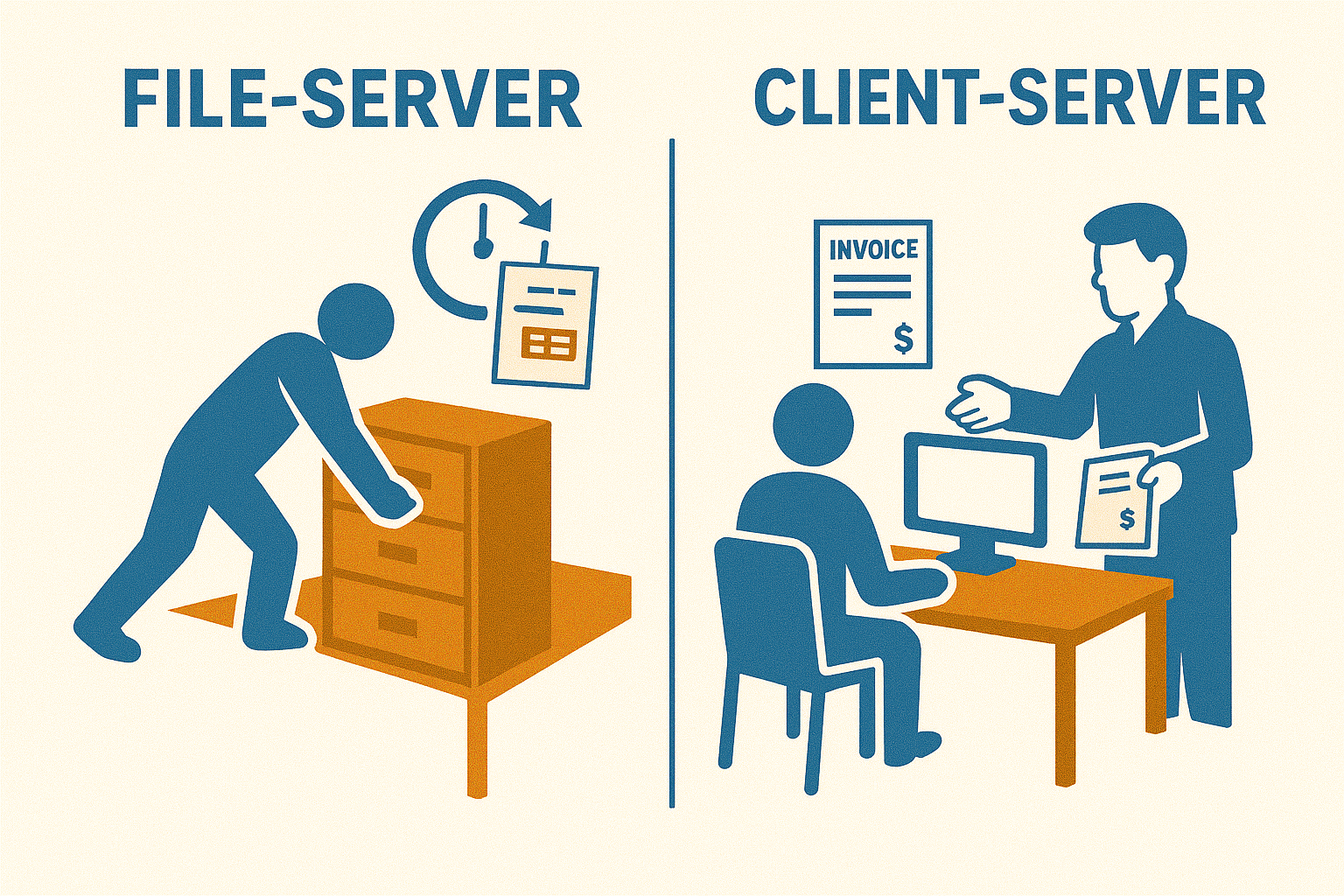
Now, imagine 10 users querying different tables at the same time. That becomes a serious bandwidth problem for the file-server approach.
Access is great for small-scale solutions for a handful of users. Beyond that, performance degrades fast. It can’t handle many users editing data at once. The database files grow unstable. Eventually, corruption becomes a very real (and very expensive) risk.
2. Integration and APIs
In the modern world of business software, integration is key. For instance, your CRM probably needs to talk to your ERP. Your BI tools need to pull real-time data. Your customer portal might need to push updates to inventory, billing, and email platforms simultaneously.
MS Access was never built for this world. If you need business systems that communicate with each other, here are a few reasons why Access may not be the right choice:
a. It doesn’t natively support modern APIs
Today’s systems typically use REST APIs to communicate. REST APIs are fast, secure, and standardized. They connect SaaS apps, databases, cloud platforms, and custom software.
The problem: Access doesn’t speak that language natively. It lacks built-in tools for consuming or exposing REST APIs. Attempting to connect to an API requires manual VBA scripting, which is complex and error-prone.
In contrast, modern platforms make it easy to integrate via API with just a few configuration steps or clicks.
b. It can’t expose secure web services
Suppose you want other systems to query your Access data. Access can’t expose a secure, RESTful web service to make this happen. You can’t easily call it from external applications, because it has no real web-facing capability.
Even building a simple JSON API layer over Access requires custom development. Even then, it still won’t scale or secure well.
c. Integration Requires Workarounds or Middleware
To connect Access with other systems, you typically have to:
- Write custom VBA scripts
- Use ODBC connectors (requires driver setup and careful configuration)
- Export/import CSV files (often manually)
- Use third-party middleware with limited control
All of these methods are hard to scale and difficult to maintain over time.
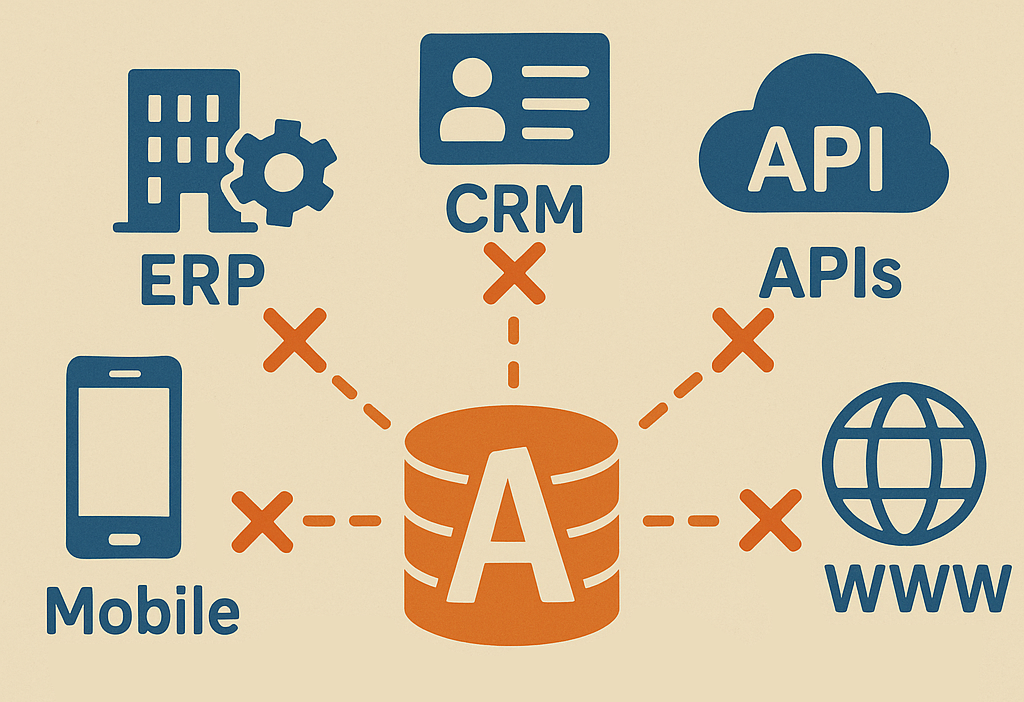
3. Web and mobile access
We live in a mobile world. Users expect instant access to their applications from anywhere.
Access is a desktop app. It relies on:
- A local copy of Access or the Access Runtime installed on the user’s machine
- A direct connection to a .mdb or .accdb file stored on a local or network drive
There’s no native browser interface and no abstraction layer between the UI and the data. As a result, it can’t run:
- In a browser tab
- On iOS or Android
- On a Mac or Chromebook
- On any device without a full Windows environment
Are there workarounds? Of course. With software as prevalent as Access, there will be workarounds for almost everything. But, they’re never perfect, often elaborate, and can’t compare to modern web applications.
4. Security and compliance
If data security or privacy is a concern, you probably need a different solution. Access’s file-based model makes centralized, granular security and auditing difficult.
a. File-based storage
Access stores your entire application (including the data) in a single file (.mdb or .accdb). That creates a major vulnerability:
- Anyone with file access can copy, email, or walk away with the whole thing.
- The file can be opened outside your system by anyone with a copy of Access or compatible tools
This is a non-starter for data protection policies and secure data governance.
b. No Granular User Permissions
Access lacks native support for:
- Row-level security (showing different records to different users)
- Field-level permissions (masking or restricting sensitive data fields)
- User authentication tied to centralized identity systems (e.g., Active Directory, SSO)
Again…there are workarounds. You can restrict forms and buttons using VBA or macros, but this is clunky, fragile, and more easily bypassed. More importantly, if you’re always looking for workarounds for your outdated system…should you still be using that system?
c. No Audit Logging or Change History
Auditing is crucial for compliance. You need to know:
- Who accessed the system
- What changes they made
- When those changes occurred
- Whether data was exported or deleted
Access provides none of this out of the box. Unless you build custom logging into every form using VBA (another workaround), you won’t know who changed what.
5. Long-term scalability
The problem with MS Access solutions: They often start as a quick fix to a simple problem…and slowly grow to an unmanageable mess. That simple app is now critical, used by more people, storing more data, and supporting more processes.
That’s where things start to break.
Access was never designed to support high transaction volumes, multiple users, or complex integrations. Here’s why it falls apart over time:
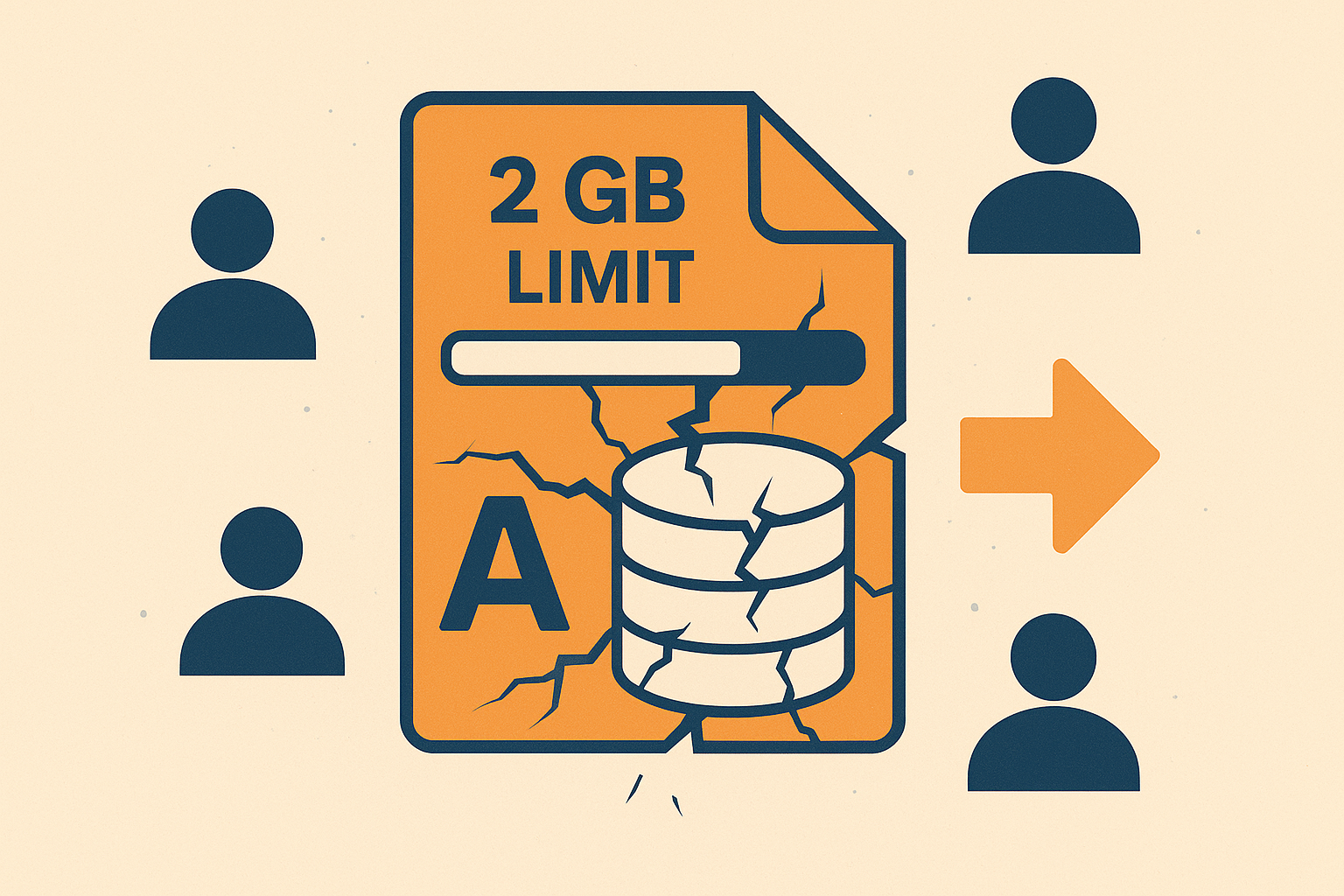
a. File Size Limits
Access databases have a hard limit of 2 GB per database file. That includes all your data, forms, reports, queries, and modules.
Once you reach that limit, you’re stuck. You either purge old data or move to another platform.
b. User Limitations
Access doesn’t support high concurrency. Roughly 5 to 20 concurrent users is the upper limit before problems appear
As mentioned earlier, this leads to:
- Slow performance
- Record locking
- Connection drops
- File corruption
c. Performance Degrades Quickly
As data volume and user count grow, performance falls off a cliff. You’ll start seeing:
- Long query and form load times
- Frequent errors with complex joins
- Indexes and queries that stop working as expected
- Reports taking minutes (or more) to generate
Access doesn’t use a server engine to handle processing. All the work happens on the user’s machine, over the network…which doesn’t scale well.
d. No Load Balancing or Horizontal Scaling
Modern apps scale horizontally. You add servers and your app handles more load. Access can’t do that.
- There’s no web server, app server, or load balancer
- It can’t split workloads across machines
- You can’t containerize or deploy it to the cloud natively
You’re limited to scaling down. You can break the app into smaller pieces or limit access…which obviously isn’t good for scalability.
6. AI readiness
Access databases can’t safely connect to AI tools. Modern AI assistants and agents query data through secure APIs, service accounts, and granular permissions. A file-based Access database has none of these, so there’s no governed way to let an AI tool read (let alone update) that data.
Why does this matter now? Users will start using AI whether you like it or not. If you don’t give them a secure option, they’ll copy and paste their data from Access into AI tools. For instance, if the sales history lives in an Access file and someone wants AI help analyzing it, what do you think they’ll do? Export the data and paste it into a public chatbot. Now your customer data sits in a tool you don’t control, and IT never even sees it happen.
Unlike an Access file, a server database gives you the building blocks for AI governance like authentication, row-level permissions, API access, and logging. You decide which data an AI assistant can see, who can use it, and which model runs behind it.
So even if the multi-user headaches haven’t forced the issue yet, AI pressure probably will. Moving your data to a server database is what puts it back on the table for those plans.
Why Moving to the Web Feels Hard

Ask most IT teams if they want to move away from MS Access, and you’ll hear the same thing: “Yes…but not right now.”
It’s not that they don’t understand the problem. They’re likely experiencing the problems listed above every day.
Here’s why migrating to the web feels intimidating:
1. Business dependence on an aging tool
Many Access applications started as quick fixes. Now, they’re mission-critical systems. They manage customer orders, track inventory, generate invoices, or run department operations. The problem is…
- No one remembers how they were built
- There’s little or no documentation
- Key users are afraid of losing their workflows
In short, Access may be outdated, but it still works…even if it feels like everything is just duct-taped together.
2. Knowledge lock-in and staff turnover
Maybe the person who built the Access app is gone. They left a black box of forms, queries, macros, and VBA code. It works, but no one fully understands why.
This creates fear of the unknown:
- What happens if we move it and something breaks?
- How do we replicate logic we don’t understand?
- Who will take ownership of the new system?
This knowledge gap causes teams to delay migration indefinitely, even if the current system is a ticking time bomb.
3. Rebuilding from scratch sounds expensive
The assumption is that moving to the web means:
- Hiring developers
- Rewriting every form and report
- Starting over with design, testing, and deployment
That sounds costly, and often pushes the project to the bottom of the priority list.
In reality, with the right tools (like m-Power, a low-code development platform), you don’t need a whole team. Once you move your data to a relational database, building web applications over it is the easy part.
4. Lack of Clear Migration Path
Unlike some platforms, Microsoft doesn’t offer an official “upgrade path” from Access to the web. There’s no button to convert your app into a web-based system.
Without a clear roadmap, uncertainty wins.
How to migrate MS Access to the web (the smart way)
What if you could bring your Access apps to the web without building everything from scratch?
That’s exactly what this video walkthrough demonstrates. Using the m-Power Development Platform, you can:
- Move your Access data into a proper relational database (like SQL Server or MySQL). Remember, you need to move your data away from the file-server architecture before you do anything.
- Quickly recreate the forms, queries, and reports as modern web applications
- Add authentication, role-based security, and audit trails
- Deploy your application to the cloud or on-premise. Your choice.
All without hand-coding.
Here’s a great example of how this plays out. Henley Enterprises ran into the classic wall: MS Access databases with network problems, plus SharePoint tools and PowerApps that each hit their own limits. They replaced all three by building web applications with m-Power. “It checks every box,” said Robert Reeder, Henley’s CIO.
Watch the Full Video Walkthrough:
See the entire Access-to-Web process from start to finish using m-Power.
Want to see what your Access applications would look like on the web? Set up a demo and we’ll walk through the Access-to-web process using your own data, so you can judge the result against the apps you have today.
MS Access modernization FAQ
Is Microsoft Access being discontinued?
No. Microsoft continues to develop Access and includes it with Microsoft 365. But support for the widely deployed Access 2016 and Access 2019 versions ended on October 14, 2025, and every version shares the same file-based architecture. The practical limits described in this article apply regardless of version.
How do you modernize an Access database?
In two steps. First, move the data out of the .mdb/.accdb file into a server database such as SQL Server, PostgreSQL, or MySQL. Second, rebuild the forms, queries, and reports as web applications over that database. The first step is well supported by free tools. The second step is where a development platform saves months.
Can you convert an Access database to a web application automatically?
There’s no one-click converter, and Microsoft doesn’t offer an official upgrade path. But you don’t have to hand-code the rebuild either. Low-code platforms can generate web forms, reports, and dashboards directly over your migrated data. m-Power, the low-code development platform built by mrc, takes this approach: It converts Access data to a server database, then builds any type of web application over it using a 4-step process.
Can AI tools work with an Access database?
Not in a governed way. AI assistants and agents need API access and permission controls to query data safely, and file-based Access databases provide neither. If you want business data available to AI tools on your terms, moving it to a server database is required.
How long does an Access-to-web migration take?
It depends on the number and complexity of applications, but far less than a from-scratch rebuild. The video above shows a simple Access database converted into working web applications from start to finish. Real projects take longer, but customers using this approach consistently report development running about 80% faster than hand-coding.
Want to see what your Access applications would look like on the web? Set up a demo and we’ll walk through the Access-to-web process using your own data, so you can judge the result against the apps you have today.