Skip to Content mrc logo mrc logo
  • What is m-Power?
    Overview Demos Build Process Case Studies Specs Pricing Trial
    m-Power Resources
    Overview How-To Videos Webinars & Podcasts White Papers Fact Sheets
  • What does m-Power build?
    Solutions by Industry
    Overview Database Front-Ends AI Reporting CRM Systems Business Intelligence Dashboards Inventory Management Mobile Apps ERP Enhancements Modernization
    Spreadsheets to the Web MS Access to the Web B2B/Web Portals Scheduling Embedded Analytics Web Forms Workflow Data Exploration Budgeting & Forecasting APIs & Web Services Db2 Web Query Alternative
    Solutions by Industry
    Overview Manufacturing Government Foodservice Software Vendors Logistics & Supply Chain Software Consultants Healthcare
  • Development Services Training Mentoring
  • Overview Partners Press Releases Careers Events Contact Blog
  • Support Home FAQ Documentation Customer Portal Enhancements Updates Roadmap Techblog
Try m-Power

m-Power Manual

Browse:

  • Home
  • Deprecated Documentation
  • Recreate only the Prompt Page of a Report
Back to Manual

Note: This method is no longer needed, as m-Power now allows users to choose which screens they wish to overwrite

How to Recreate only the Prompt Page of a Report
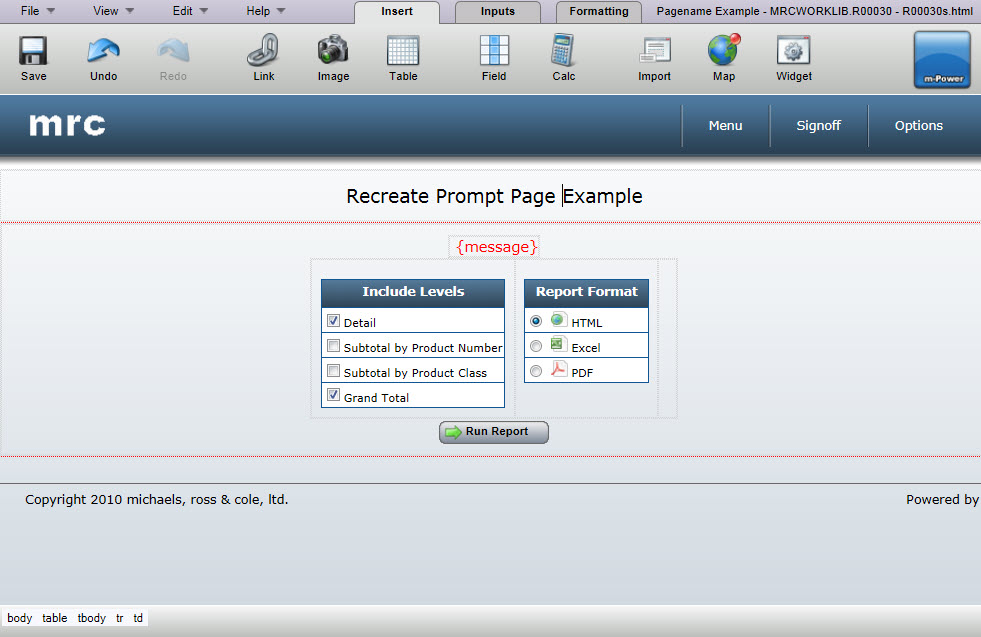
 

As you may have already noticed, during compile time, you must either choose to overwrite all HTML outputs or none of them. With the below method, you can save one page, while recompiling another. In the example below, we will show how to save the output page, while recreating the prompt page.

Note: This document assumes that you have not painted the prompt page. Any changes made to the prompt page will be overwritten with this procedure.

  1. Open this application in the interface and click "Build". On the next screen, choose to overwrite the HTML but not the XML.
  2. Once completed, both your prompt page and your output page have been recompiled.
  3. At this time, open the application in m-Painter and ensure you are on the output page. Then, click "Versions" in the File menu.
  4. Select the version right before this app was recompiled to open the latest painted presentation layer.
    Note: These versions are dated when they were saved. In addition, versions that are from a compile are labeled for your convenience.
  5. When you have visually confirmed this is the correct version, click OK and then confirm that you would like to restore this file.

Congratulations — you have just replaced the prompt page HTML, while retaining your existing output HTML.

Created: February 17, 2009 | Modified: October 20, 2016

Search


Browse By Category

Build Process (13)
Starting with m-Power (8)
Retrievals (10)
Reports (15)
Summaries (4)
Maintainers (17)
Graphs (8)
m-Power Data Explorer (4)
General (24)
Calculations (5)
Utilities (9)
m-Power Administration (23)
Security (11)
Freemarker (6)
m-Painter (29)
Form Validation (5)
External Objects & UDFs (12)
Deprecated Documentation (23)
Bootstrap Templates (7)

Popular Tags

Retrievals Java Advanced Administration Prompt Screens Popular Production m-Painter Tomcat Application Properties Form Validation Database Video Dropdowns Record Selections Dates Graphs Report RPG Admin Build Process Summaries External Objects Maintainer Graphing App Properties SQL Retrieval Graph Properties mrc-Productivity Series Getting Started Calculations Compiling Bar Graphs Parameters DB2 Data Dictionary Security Freemarker Reports Bootstrap Templates Maintainers Excel Email Performance

See all tags »

michaels, ross & cole, ltd. (mrc)

Privacy Policy Cookie Policy Cookie Settings Notice at Collection Do Not Sell or Share My Personal Information

mrc (US)

2001 Midwest Road
Suite 310
Oak Brook, IL 60523
630-916-0662

mrc (UK)

Mortlake Business Centre
20 Mortlake High Street
London, SW14 8JN
+44-20-335-59566


© mrc. All rights reserved.