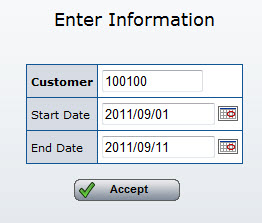
Validating via an SQL Procedure
This document will explain how to create and call an external object SQL procedure for validity checking. For basic information regarding validity checking please see this document.
The source code for the SQL used in this example can be found here. The purpose of this object is to check to see if the start date is less than the end date and that both date fields have been properly entered.
Note: This is a very simple example that is meant to demonstrate how to create and setup an SQL validity checking external object. Your SQL procedure could be designed to validate any user input.
In the included example, we are creating an SQL procedure called VALIDDATES within the MRCWORKLIB schema. Within this procedure are three parameters:
- i_error — 99 length, used for setting the error message.
- i_strdate — 8,0 length, used for accepting the start date, passed from the servlet.
- i_enddate — 8,0 length, used for accepting the end date, passed from the servlet.
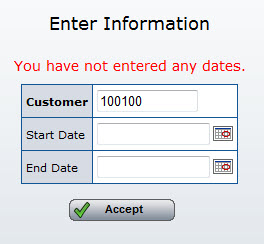
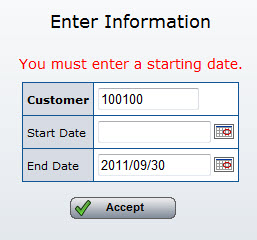
In the example, we setup a simple CASE statement that checks to see if the start date is greater than the end date. If it is, the SQL procedure will return the error message, which has been set to read: "Start Date is Later than End Date". Additionally, if either date is blank, an error message will also appear. However, if the start date is smaller or equal to the end date, the SQL procedure will return a blank error message, indicating to your m-Power application to continue on with the program.
Load the example into your SQL prompt (Please use your favorite SQL command line interface) and press enter. This will create this procedure on your system. Next, we will register this object to m-Power. When successful, you will see a message that reads "Procedure VALIDDATES was created in MRCWORKLIB".
- Click "Admin Menu" -> "Custom Code" -> "External Objects" -> "Create New Object"
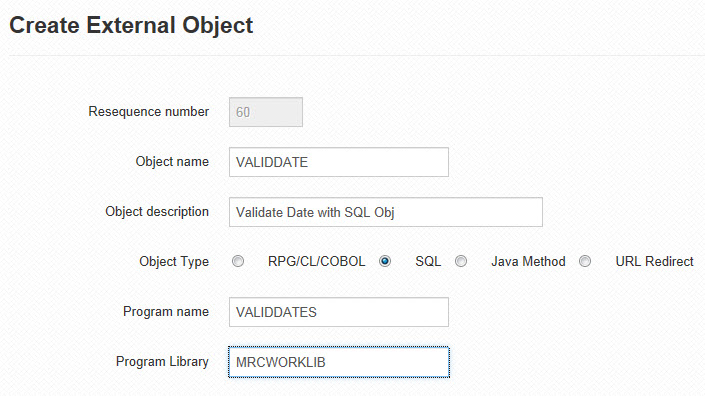
- Specify VALIDDATES for your Object Name & Program Name. Specify MRCWORKLIB for your Program library. Specify a meaningful object description. Select the "SQL" radio button for Object Type. Click "Accept".
- Next, click on the "Parameters" icon for the external object you just created. Click "Create Parameter".
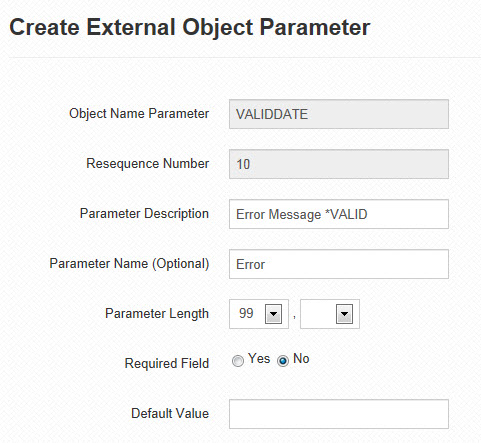
- Validity external objects require that the error message field is the first parameter used. It also requires that the description contains the text *VALID, the error message to be 99 alpha, and that the field is not required. By making this field non-required, we are allowing m-Power to pass this field a blank entry, and allowing it to receive the appropriate text from the SQL program. Once this has been completed, press "Accept".
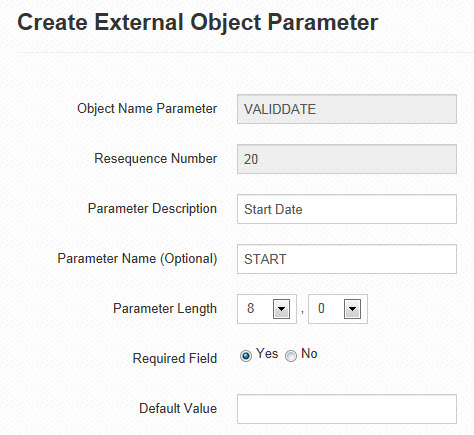
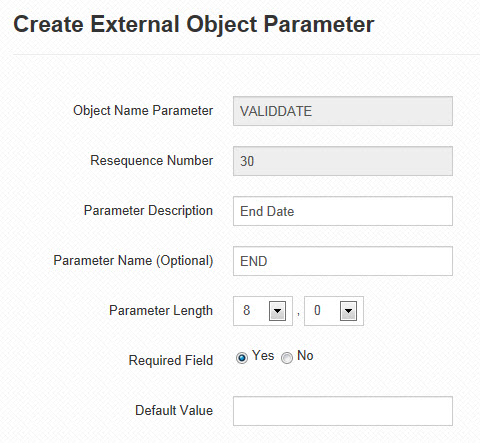
- Next, we should create two more parameters (for the start and end date). They need to be created in the same order they were listed in the SQL program. So, we will create Start Date first, then End date. Both fields should be 8,0 and be set as Required Fields. They are required because they are both necessary for the external object to function correctly.
- We have now completed registering the object to m-Power, next we move on to calling the program from our application.
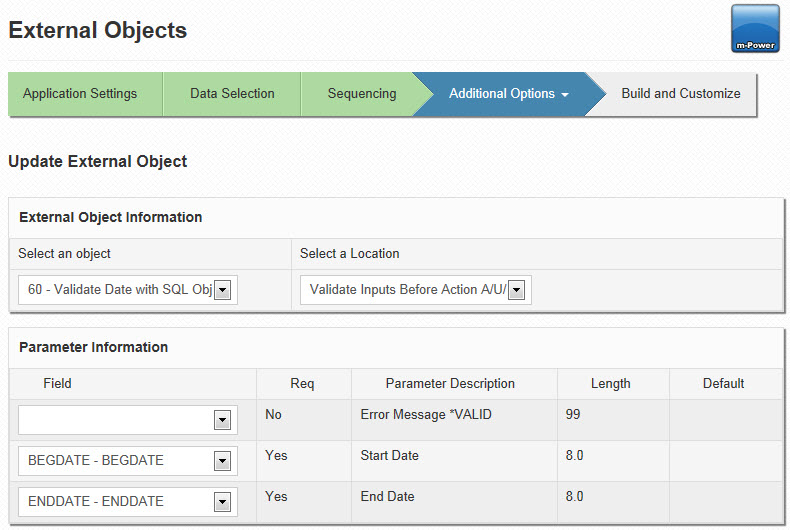
- Open your Maintenance or Report application, and navigate to the External Objects screen. Add your new external object to your application, using the *FLDVALID location (Report users will use the *RUNVALID location), and mapping the 2nd and 3rd parameter. The *FLDVALID location will call your external object after your user submits the form, but before the data is written to the database.
After compiling and running my application, here are the various error messages that would be displayed when data is incorrectly entered into my application:
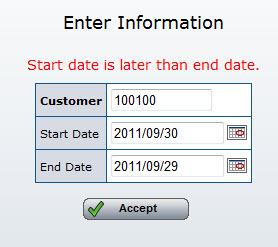
However, after correcting my input, you can see that no error message is returned and the data writes to the table successfully!