Skip to Content mrc logo mrc logo
  • What is m-Power?
    Overview Demos Build Process Case Studies Specs Pricing Trial
    m-Power Resources
    Overview How-To Videos Webinars & Podcasts White Papers Fact Sheets
  • What does m-Power build?
    Solutions by Industry
    Overview Database Front-Ends AI Reporting CRM Systems Business Intelligence Dashboards Inventory Management Mobile Apps ERP Enhancements Modernization
    Spreadsheets to the Web MS Access to the Web B2B/Web Portals Scheduling Embedded Analytics Web Forms Workflow Data Exploration Budgeting & Forecasting APIs & Web Services Db2 Web Query Alternative
    Solutions by Industry
    Overview Manufacturing Government Foodservice Software Vendors Logistics & Supply Chain Software Consultants Healthcare
  • Development Services Training Mentoring
  • Overview Partners Press Releases Careers Events Contact Blog
  • Support Home FAQ Documentation Customer Portal Enhancements Updates Roadmap Techblog
Try m-Power

m-Power Manual

Browse:

  • Home
  • m-Power Administration
  • Setting Up m-Power Applications to Handle Development & Production Data
Back to Manual

Setting Up m-Power Applications to Handle Development & Production Data


After developing applications, it makes good sense to promote these applications to a production environment. There are many documents that explain how to do that on this site. For example, Set up a production instance. However, this document covers something very different from just having a development and production instance. What this document will cover is what if you want to have your development instance run over Test data, and your production instance run over live data.

For this to be successful, the table structure between your test and production libraries must be identical.

Develop, test, and paint your application as you normally would. By default, your applications will use, at run time, the same library your table resided in at development time. Essentially, the library name is hard coded. However, we can change that option by doing the following:

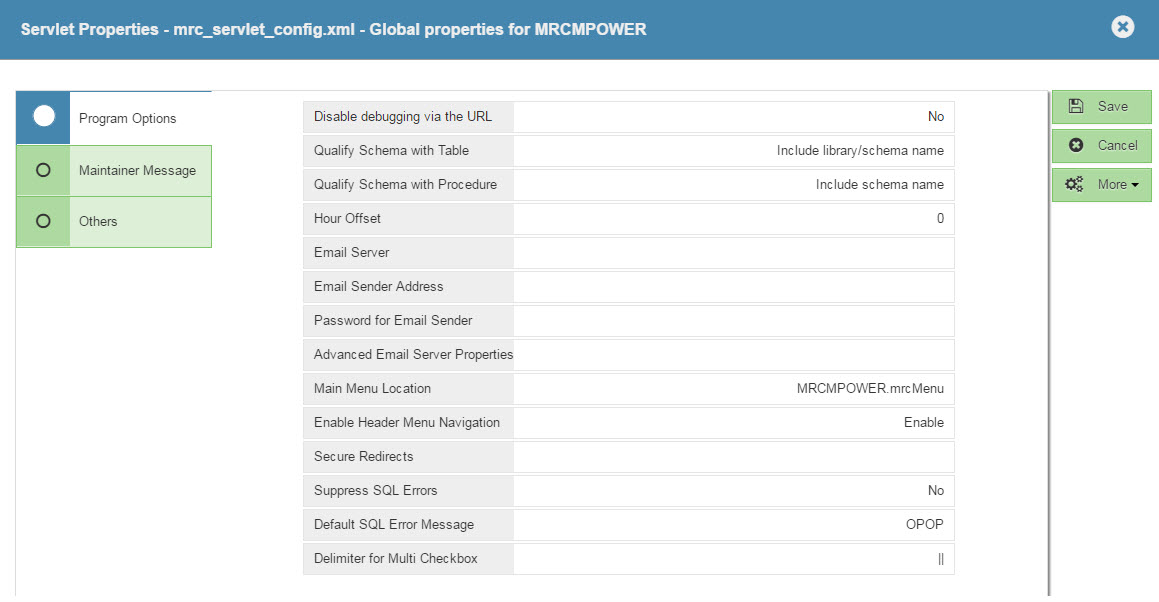
Click the "Admin Menu". Then click "Edit Dictionary Files", and click "Servlet Properties."

Your screen will now resemble this:
ServletProperties1

Change the "tablename_fmt" value from "Include library/schema name" to "Table name only".

Click "OK". Then click the Save button.

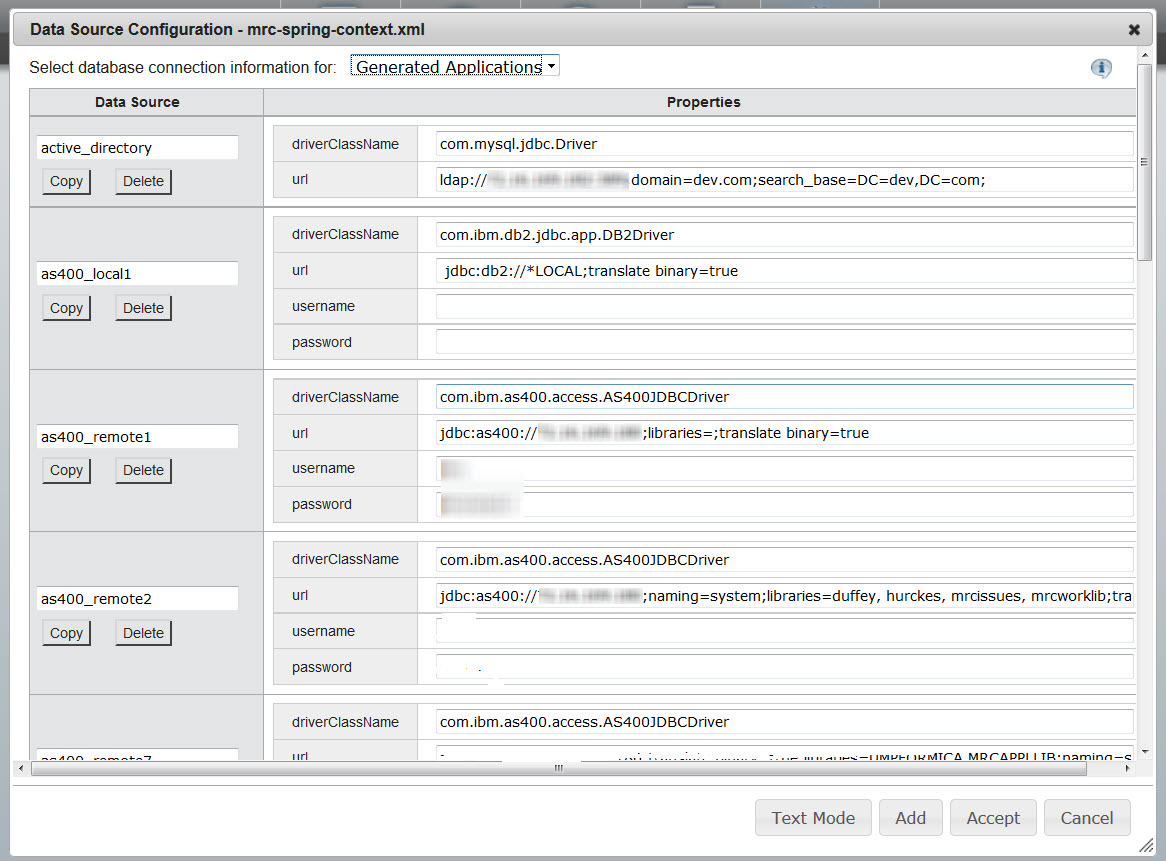
Now, at run time, your applications will not use the library you used at development time, but you must still specify a list of libraries for the application to attempt to use. This information can be found by clicking the Data Dictionary Tab. Then click Edit Data Dictionary Files, and click Data Source Configuration.
 

ServletProperties4

If you are using the remote connection, be sure to make the following changes to the "AS400 DB2 Remote" portion of the text. Likewise, if you are running locally, be sure to change to the "AS400 DB2 local" connection.

Since we told the SQL statement to no longer use the library used at development, we must specify libraries to try to use. The library list works left to right, and if your table is not found in the first library, it will continue on the list until it finds the correct library.

To specify your library list:

For Local connections:

After the *LOCAL ;, add libraries=LIBNAME1, LIBNAME2, LIBNAME3;

For Remote connections:

After the libraries=, add LIBNAME1, LIBNAME2, LIBNAME3

Where LIBNAME1, LIBNAME2, LIBNAME3, etc…. is your list of TEST libraries.

Click the Accept button. Restart Tomcat.

Now that we have your development environment set up, simply copy over all the necessary components to your production environment, making sure to change your libraries list to now reference production libraries.

Note: MS SQL users will need to use the word "databaseName" rather than "libraries" as syntax is set by each database vendor.

Created: April 29, 2008 | Modified: June 12, 2017

Search


Browse By Category

Build Process (13)
Starting with m-Power (8)
Retrievals (10)
Reports (15)
Summaries (4)
Maintainers (17)
Graphs (8)
m-Power Data Explorer (4)
General (24)
Calculations (5)
Utilities (9)
m-Power Administration (23)
Security (11)
Freemarker (6)
m-Painter (29)
Form Validation (5)
External Objects & UDFs (12)
Deprecated Documentation (23)
Bootstrap Templates (7)

Popular Tags

DB2 Data Dictionary Build Process External Objects m-Painter Database Report Parameters Excel Bar Graphs Video RPG Graph Properties Calculations Maintainer Dates Administration Retrievals Form Validation SQL mrc-Productivity Series App Properties Dropdowns Freemarker Compiling Graphs Getting Started Reports Performance Tomcat Application Properties Email Maintainers Summaries Popular Advanced Java Bootstrap Templates Graphing Retrieval Prompt Screens Security Admin Record Selections Production

See all tags »

mrc

Build the custom apps and AI tools your business needs with m-Power, or have our Chicago-based team build them with you. One platform, one team that makes sure you succeed.

Since 1981 · 1,500+ customers · 4.7/5 on G2

m-Power
Overview Demos Build Process Licensing Specs Get a Demo
Solutions
Database Front-Ends Reporting AI Tools Dashboards ERP Enhancements Modernization See all solutions
Company
Case Studies Services About Blog Careers Contact Support

Privacy Policy Cookie Policy Cookie Settings

michaels, ross & cole, ltd. (mrc)
US: 2001 Midwest Road, Suite 310, Oak Brook, IL 60523 · 630-916-0662
UK: Mortlake Business Centre, 20 Mortlake High Street, London, SW14 8JN · +44-20-335-59566
© mrc. All rights reserved.