Application Relationship Diagram
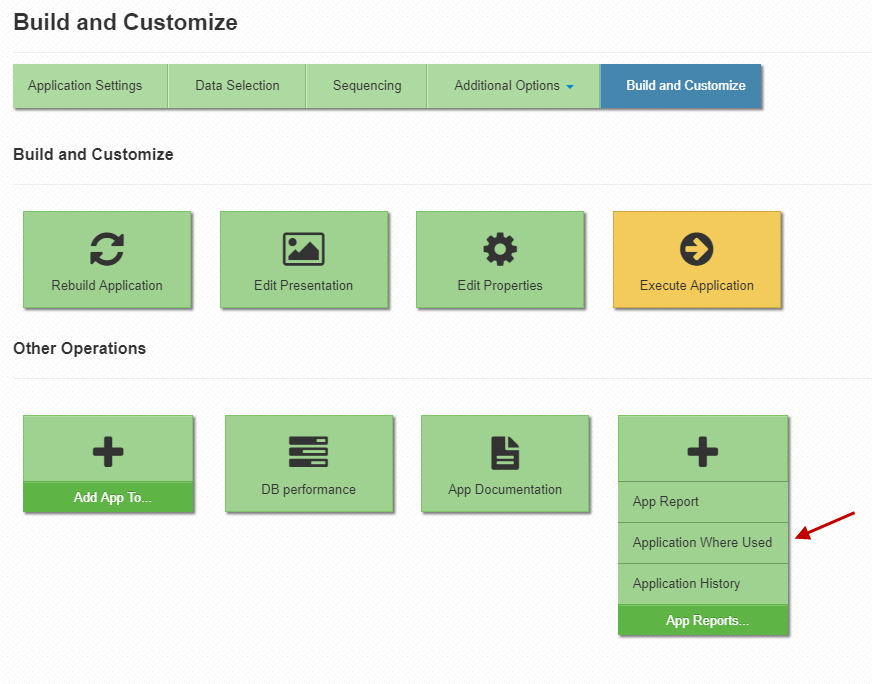
Beginning with the Q4 2018 release of m-Power, developers can now visually see the representation of all applications within their Data Dictionary with respect to how they interact with one another. This feature is useful for trying to document, or better understand, the relationships between apps within a specific Data Dictionary. To access this area, click the "App Reports" button on the "Build and Customize" screen. Then, click the "Application Where Used" button.
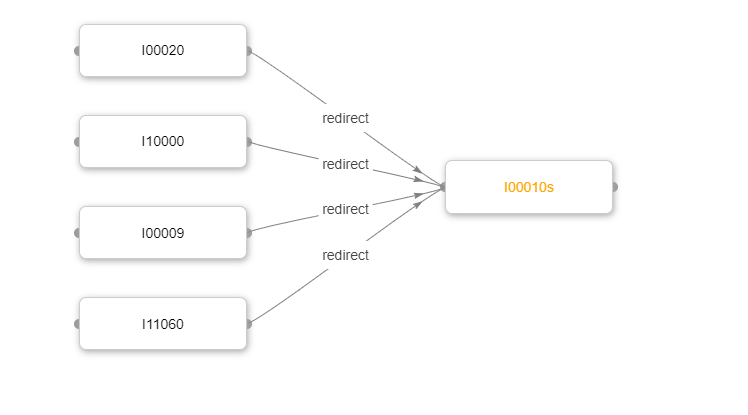
You will now be presented with a default screen that shows all applications that call your selected app. Currently, the Application Relationship feature will analyze existing HTML files to see where it can find Smartlinks, Imports, Redirects, Security, and Option Lists. In the example below, you can see that the 4 applications on the left all link back to my selected app, I00010s
The top navigation menu offers developers several options, including:

Orientation — clicking vertical/horizontal will redraw the screen to attempt to make better use of screen real estate. This feature is not available once you have saved your layout.
Diagram Type — Developers can pick from 3 options, including:
Where Used — This is the default view. It will show all apps that call your selected app.
Linked Apps — By contrast, this option will show all applications that your current app calls.
Dictionary — Clicking this button will show the relationship of all linked applications in this dictionary. Due to the wildly different Data Dictionary configurations, this option could cause a very large diagram to appear.
Label Display Type — Developers can toggle back and forth between having the application title or the application # appear in the button. Keep in mind that the application title will be as it is defined in the m-Power metadata, not within the HTML.
Zoom — Developers can zoom in and out based on the complexity of their diagram
Displayed Link Types — Developers can filter certain application relationships in/out based on what they are trying to analyze. Valid options, include: Smartlinks, Imports, Redirects, Security, and Option Lists.
Save Layout — Developers are free to move elements around the page. If they would like their positioning saved, they can click Save. To revert back to the original layout, one can click the Reset button. Keep in mind that once a design is saved, the orientation can not be changed until the layout is reset.
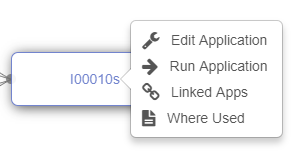
Within the main canvas, users can click on the button to drag and drop the element around the page. Users can also click on the application # or application title. Doing so will bring up a context menu that allows the user to either Edit or Run the application. Alternatively, users can view the selected applications Linked Apps or Where Used diagram.
Finally, notice the color coding of the text. Each color represents a different link type:
Smartlinks — Blue
Imports — Green
Redirects — Orange
Security — Red
Option Lists — Purple
Developers who wish to print this information can take a print screen as this feature was not designed to be printed.