The Pivot Table Report template aggregates data across various combinations of dimension keys. While standard summing rolls up perfectly across subtotal levels, standard averaging does not — defaulting to mathematically incorrect “averages of averages” across stacked dimensions. To ensure accurate reporting, this template uses a true weighted average. Setting this up requires two steps: setting the average aggregate in the app specifications and creating a Counter calculation.
1. Set Aggregate Value to Average
First, you will need to manually set the aggregation type in the application’s JSON file.
- Open m-Painter for your Pivot Report.
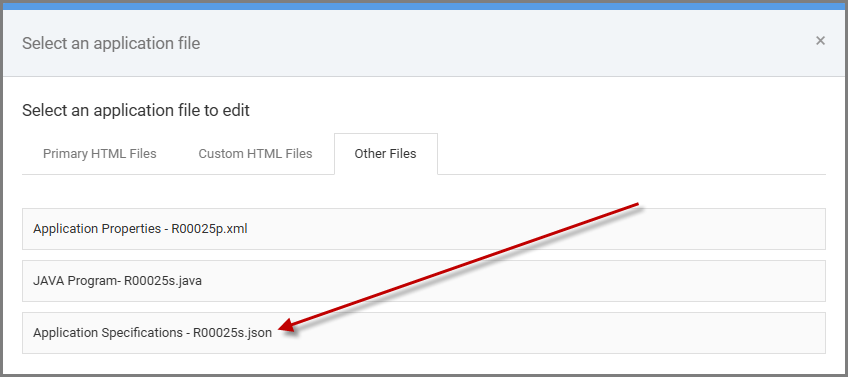
- Click the down arrow next to the Save button and select Open File.
- Switch to the Other Files tab and select Application Specifications.
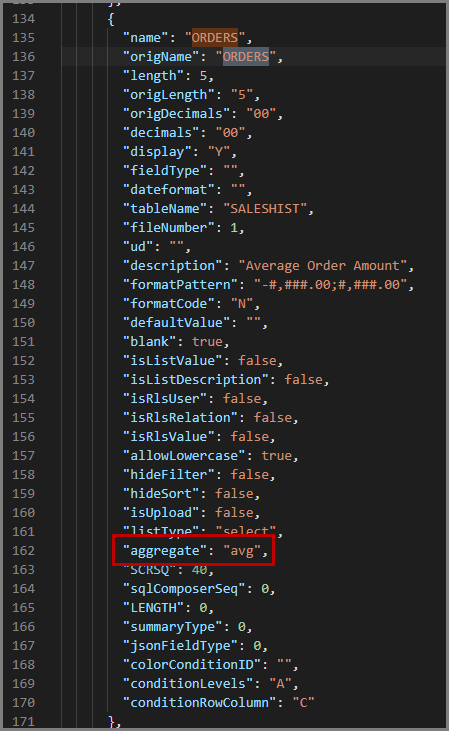
- Use the keyboard shortcut Ctrl+F to find the field name you wish to average.
- Once you locate the field block, find the nested property for
"aggregate"and change its value to"avg".
- Repeat as necessary for any additional fields needing to be averaged.
- Save and close the JSON editor.
2: Add the Counter Calc
Because the pivot table template requires a weighted average, you must include a “Counter Calc” alongside your averaged numeric field.
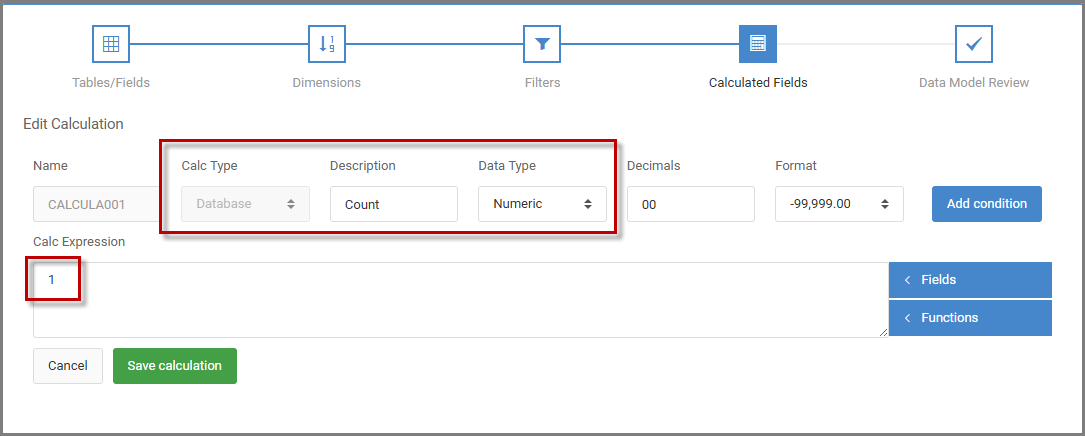
- Create a new Database type Numeric calculation.
- Set the calculation description to exactly Count or Counter.
- Type
1into the expression box and save.
Missing Counter Calc Warning
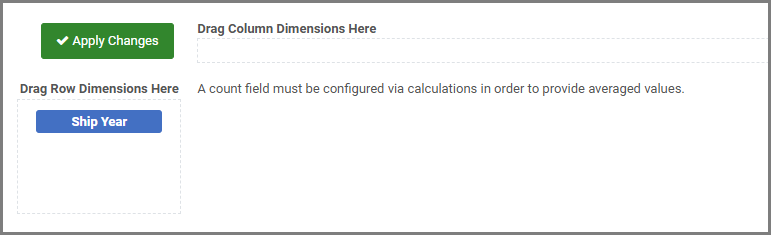
The template contains a built-in safeguard to prevent mathematical errors. If you have a field set to average but the application does not include a counter calc, the report data will not run. Instead, you will see the following warning message:
“A count field must be configured via calculations in order to provide averaged values.”