Create and Register a User Defined Function (UDF)
A user defined function (UDF) allows users to extend the power of SQL. Like built-in database functions, UDFs are invoked from SQL statements. They can be a powerful yet simple way to perform routine data transformations, calculations, and complex SQL logic. Database vendors have specific requirements for creating UDFs; most allow the UDF to be written in SQL or another programming language such as C or RPG. Please see your database documentation for more information. To see sample code for a UDF written for DB2/400, click here.
After the UDF has been written for your database, it must be registered within m-Power. This is done by accessing the "Admin Menu", then click the "Custom Code" button. Finally click "User Defined Functions"
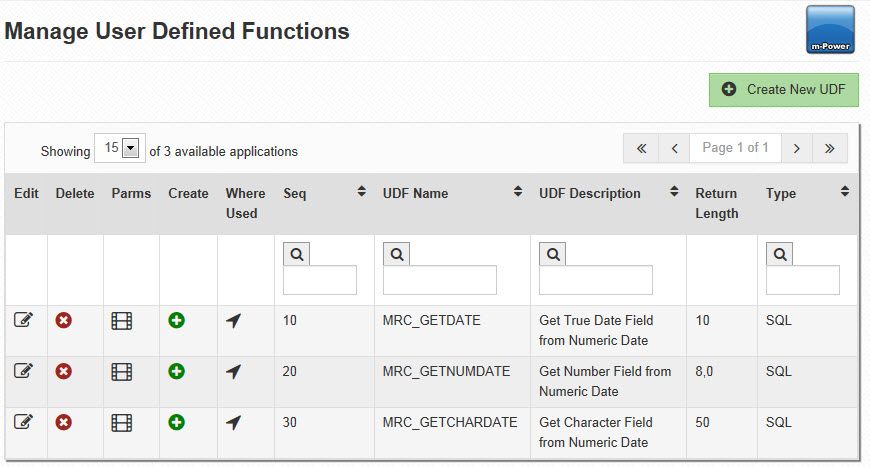
A listing of all registered UDFs is displayed. Click the "Create UDF" button to register a new UDF to m-Power.
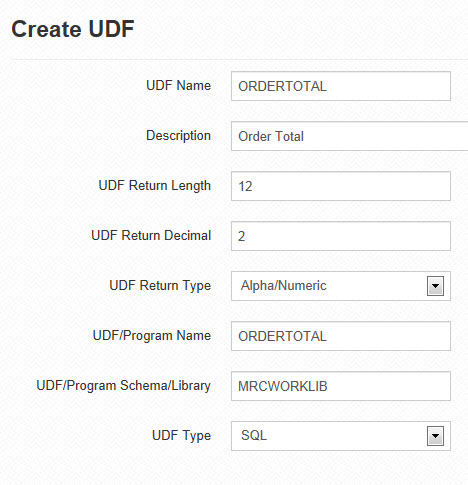
Enter a Name and Description for the new UDF. The Description will be seen in dropdowns on the logical field screen, allowing users to choose this UDF for a new logical field.
Enter the Return Length and Return Decimal.
Note: If the Return Type is Alpha or Date, Return Decimal should be left blank.
Enter UDF / Program Name; this should correspond to the function name in the database. Enter UDF Schema/Library; this should correspond to the function's database location.
Enter UDF Type; this is the programming language used to create the new UDF.
Click "Accept". The new UDF should appear in Manage User Defined Functions screen.
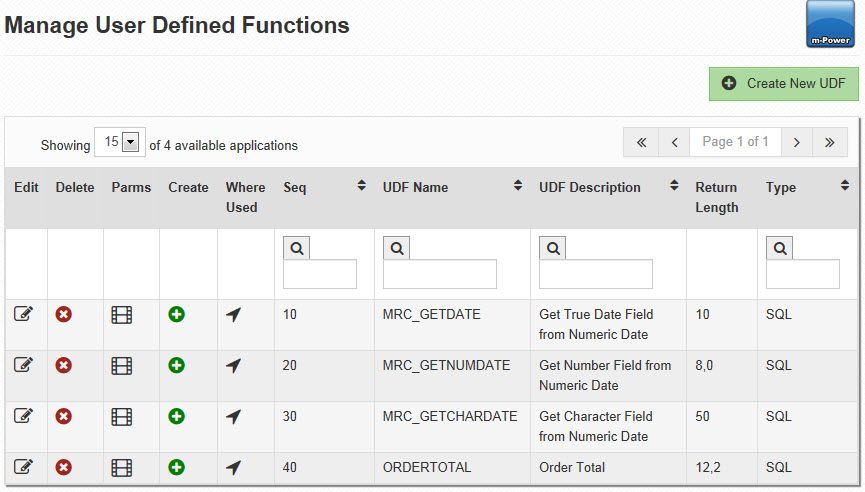
The next step is to specify the UDF parameters. Click the "Parameters" link. The "Manage UDF Parameters" screen will open. Click the "Create" button.
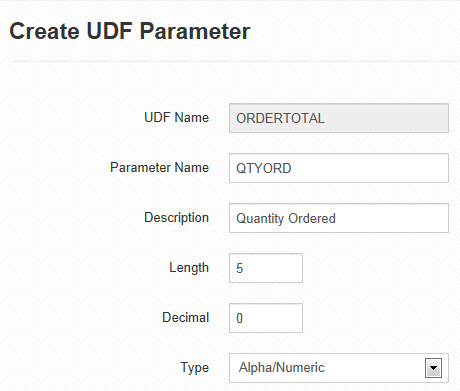
Enter parameter information as shown above. If the parameter type is Alpha or Date, leave the Decimal field blank. Click "Accept" and repeat for each UDF parameter. When finished, the Manage UDF Parameters screen should display the list of parameters in the order entered. Note that parameters must be entered in the order they are defined in the UDF.
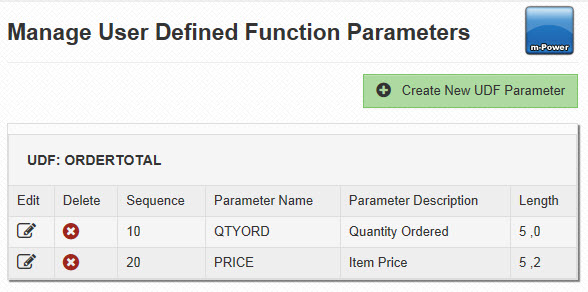
Click the "Manage User Defined Functions" link to return to the main UDF screen.
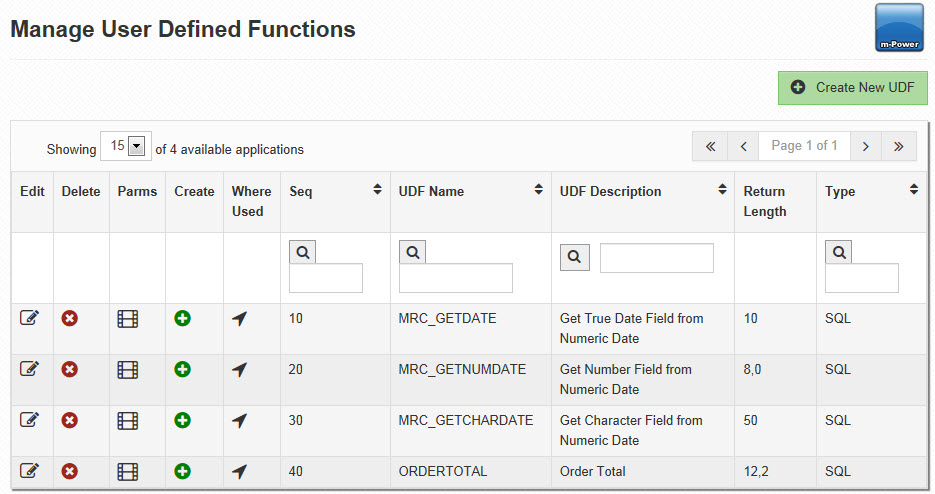
UDFs written with SQL language must be created directly on the database; this can be done by running a CREATE FUNCTION statement within an SQL editor provided by your database vendor. This can be done either before or after registering your UDF to m-Power.
For non-SQL created UDFs, use the "Create" link on the Manage User Defined Functions screen to automatically create the function on your database with the proper syntax. The function can also be created directly on your database using a CREATE FUNCTION command described in your database vendor's documentation.
Note: When creating your own SQL UDFs, you do not need to click the "Create" link.
Note: Click here to learn how to create your own UDFs.
After the UDF has successfully been created on the database and registered within m-Power, it is ready for use in calculated and logical fields. Note that any subsequent changes to the UDF definition or its parameters will affect applications already using those functions. For this reason, use caution when modifying already existing UDFs.
Note: If you utilize dual databases for development and production purposes, UDFs will need to be created on both databases. For assistance on copying over mrc shipped UDFs, please contact us at 630.916.0662 or at support@mrc-productivity.com.
For more information on using UDFs within logical fields, see How to Create a Logical Field via the Data Dictionary.