

AI can be used for more than viewing data. A lesser known, but still incredibly powerful, feature of AI is the ability to write data back to your database.
However, due to data safety, m-Power utilizes a “Human in the Loop” approach when writing to your database. This means that instead of letting AI create SQL statements that autonomously communicate with the database, m-Power utilizes an interim step that allows users to review what is being committed. Further, m-Power utilizes traditional Maintainer templates to handle the writing functions. These maintainers have additional functionality built in such as CSRF protection, input sanitization, etc.
Build Maintainer
The first step is to build a maintainer over the table you want to write your data. While your maintainer requires no painting, there may be a scenario where you want to assist your end-users with items like drop-downs, calendar pickers or buttons.
UI Control
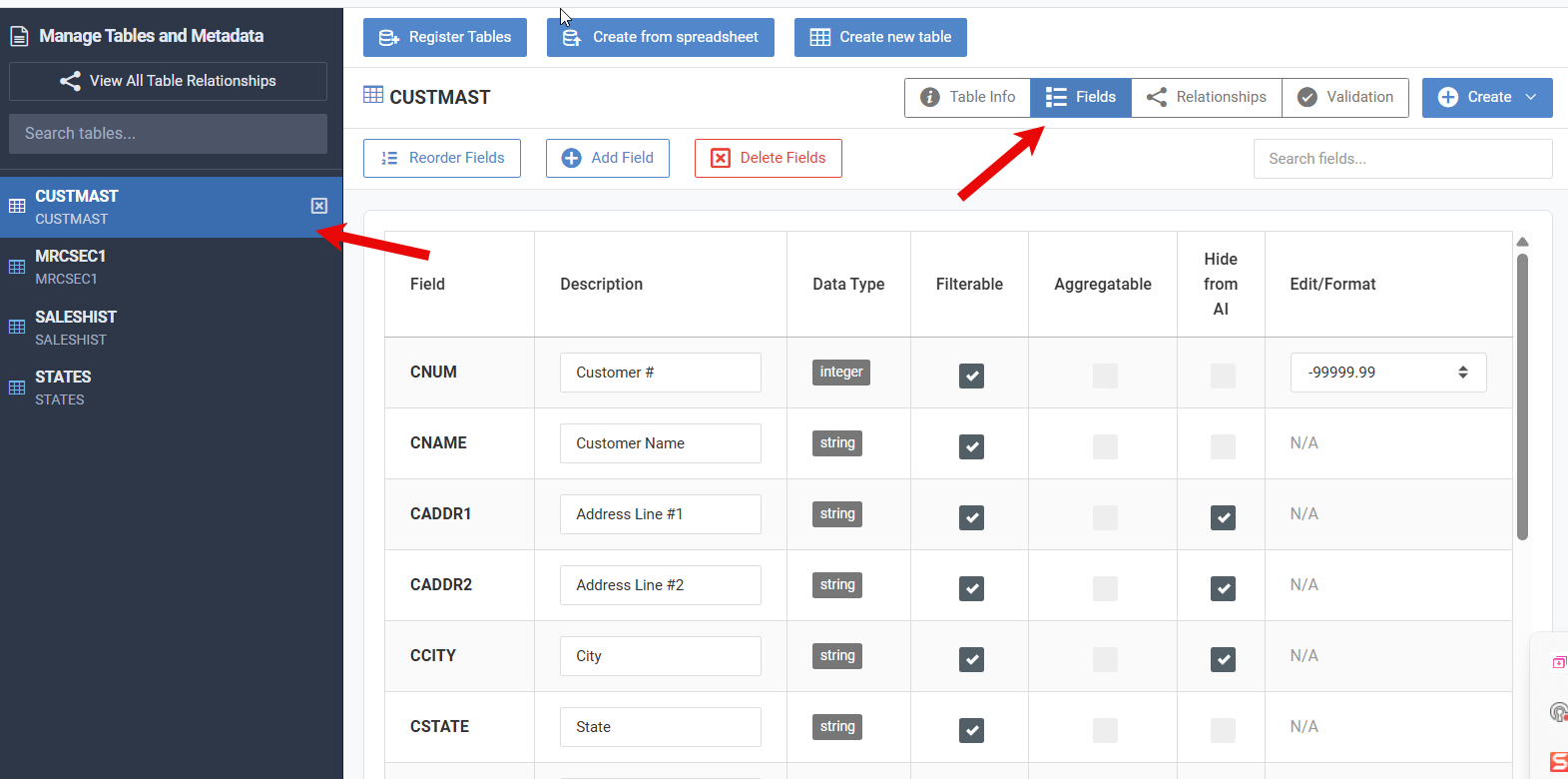
AI Helpers will automatically be added at run-time but you first need to define them to m-Power. To do that, head to the Admin -> Table/Field Metadata -> Manage All Metadata.
Next, select the table, then click the “Fields” button
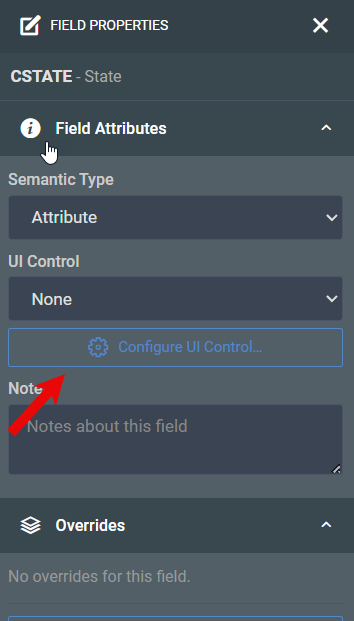
Next, click on the field you wish to add your helper to. When you do, a panel will appear on the right. Click “Configure UI Control.”
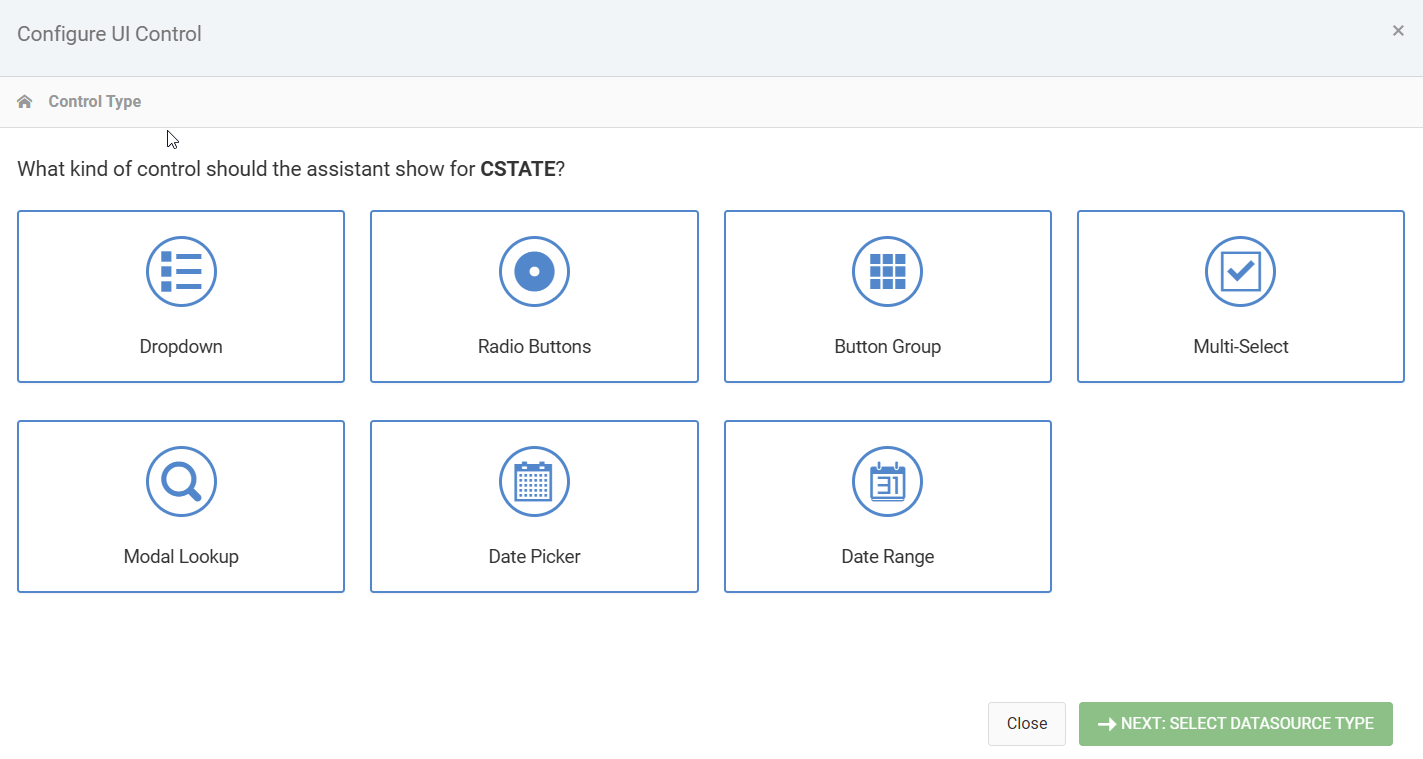
From here, select the helper you would like and follow the on-screen prompts. For my example, I am going to add a dropdown for State.
Configure the AI Studio
In the interface, select “AI Studio” in the header banner. Then create a new Assistant (General). When completed, it should look like this:
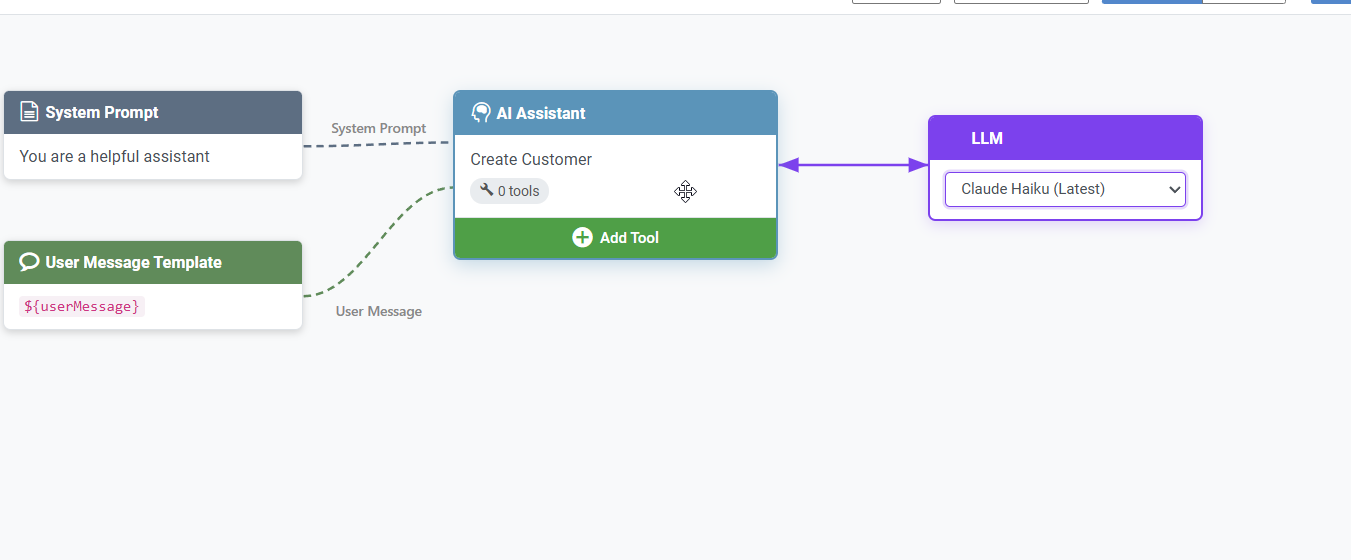
This is a generic AI Assistant that has no ability to communicate with your database. To change that, click “Add Tool”.
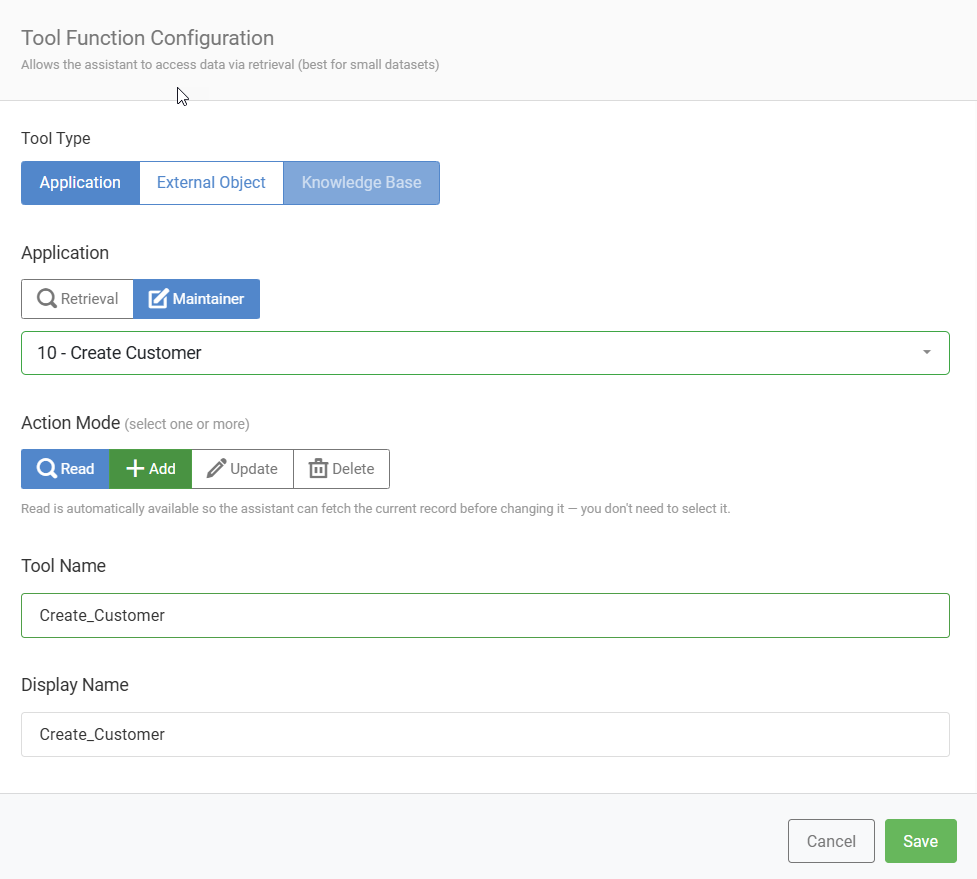
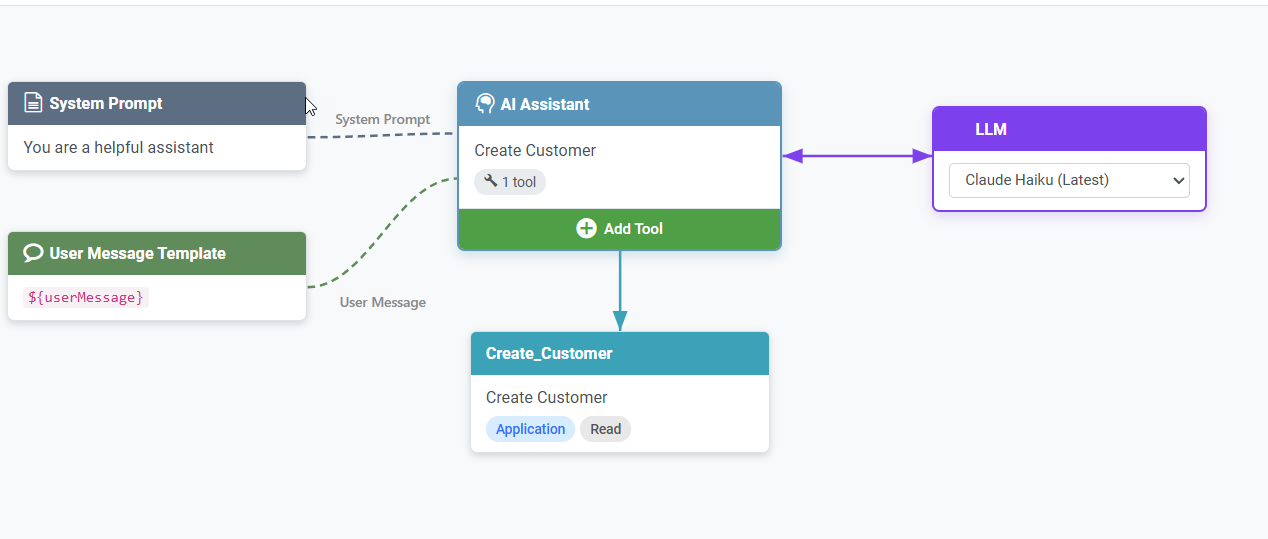
In this case, we want to interface our AI Assistant with the maintainer we created earlier. So After picking “Application” we should select “Maintainer”, and then select the proper maintainer. Finally, we need to tell the maintainer what action modes we want to support. In my case, I only want to be able to Add customers, so I select Add. I can also add some additional notes on this screen, but because my use case is so simple, no additional instructions are required. Press Save.
The completed process should like this:
Runtime
We are now ready to use our Assistant. Click the “Run as Application” button.
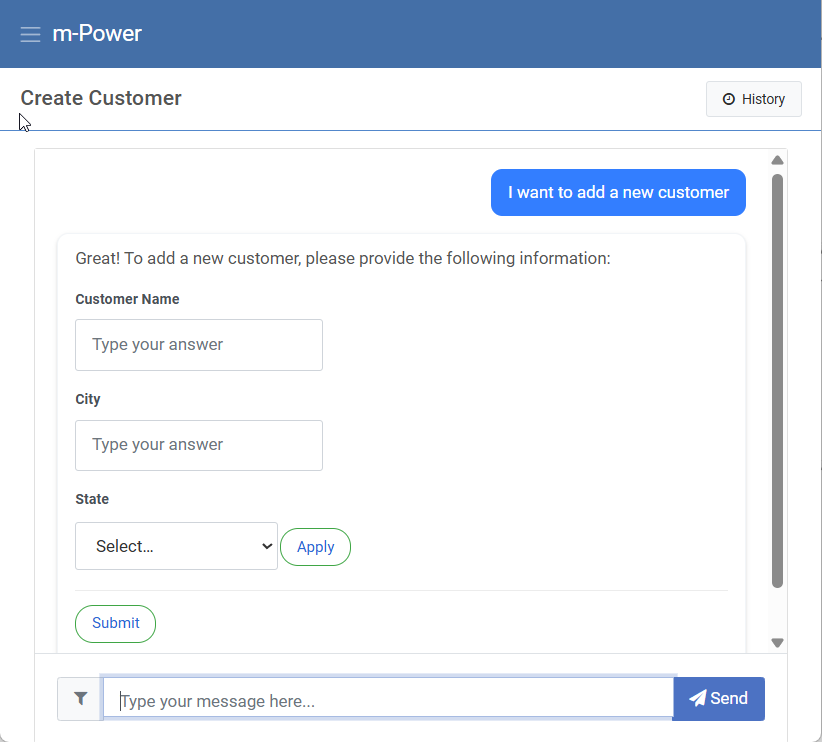
Notice that my prompt of “I want to add a new customer” causes AI to prompt me for the fields that exist in my maintainer. Pay close attention to the fact that the “State” field is a dropdown list to do the helper we loaded earlier in this documentation.
After filling our the necessary information and pressing “Submit”, my screen looks like this:
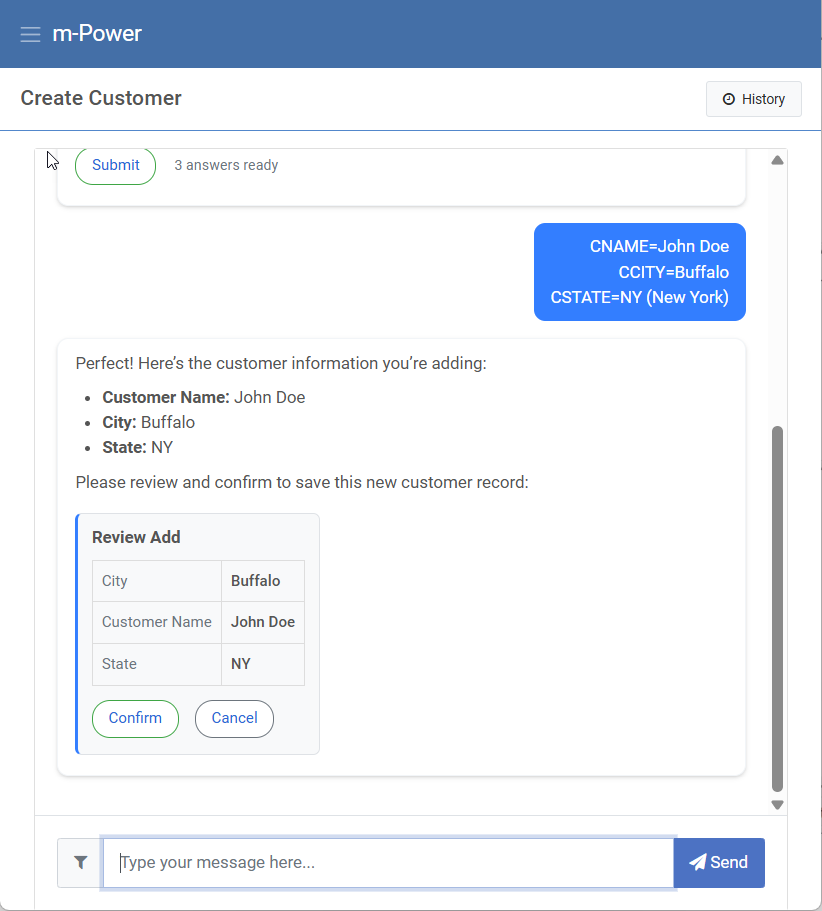
Notice that the Human in the Loop methodology is in play here. Rather than just allowing AI to write to the database, an intermediate step takes place. The information we entered is gathered and then displayed on the page for our final confirmation. Pressing “Confirm” allows our underlying maintainer to execute the insert statement and ultimately return this back to the user for their visual confirmation:
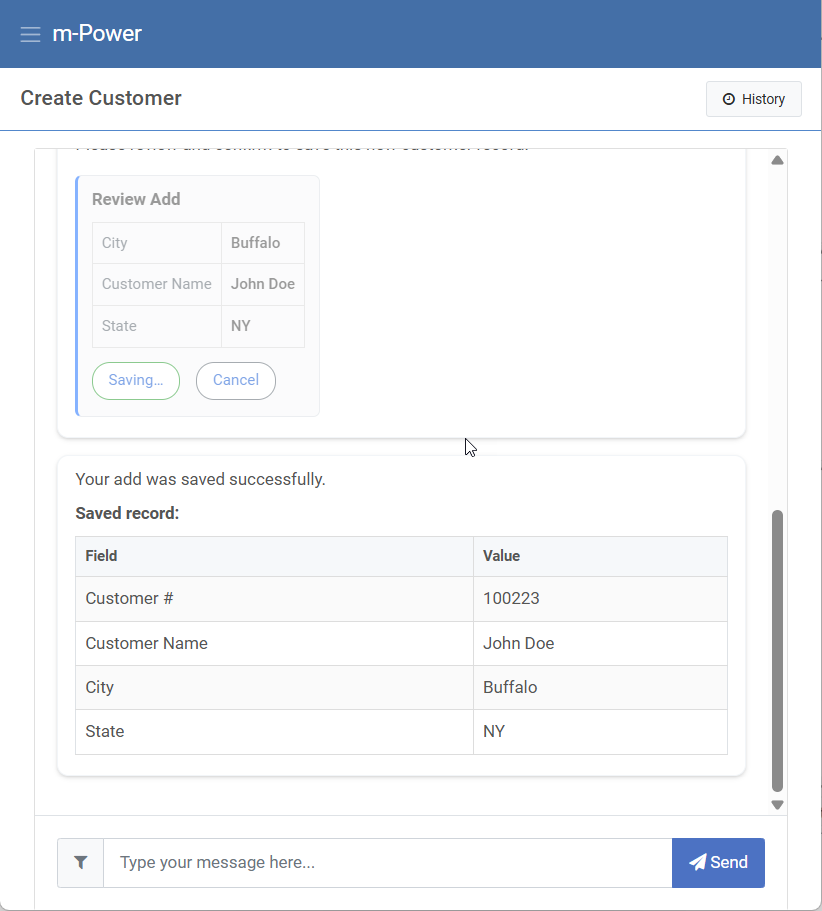
By leveraging this Human in the Loop approach, you can safely harness the efficiency of AI for data entry while maintaining strict control over your database. Because m-Power handles the write-back logic and sanitization behind the scenes, you can ensure that every AI-assisted transaction is securely verified by a user before any data is ever committed.