

The m-Power AI Studio is a centralized, visual workspace designed to help you build, test, and manage intelligent AI features within m-Power. The AI Studio provides a drag-and-drop diagram interface where you can orchestrate how your AI behaves, what data it can access, and what tasks it can perform.
Whether you are looking to create a simple chatbot to answer user questions or build a complex, multi-agent system that runs automated backend tasks, the AI Studio serves as the control center for all your AI integrations.
Navigating the AI Studio
The AI Studio workspace is broken down into three primary sections to streamline your development process:
The Diagram Screen
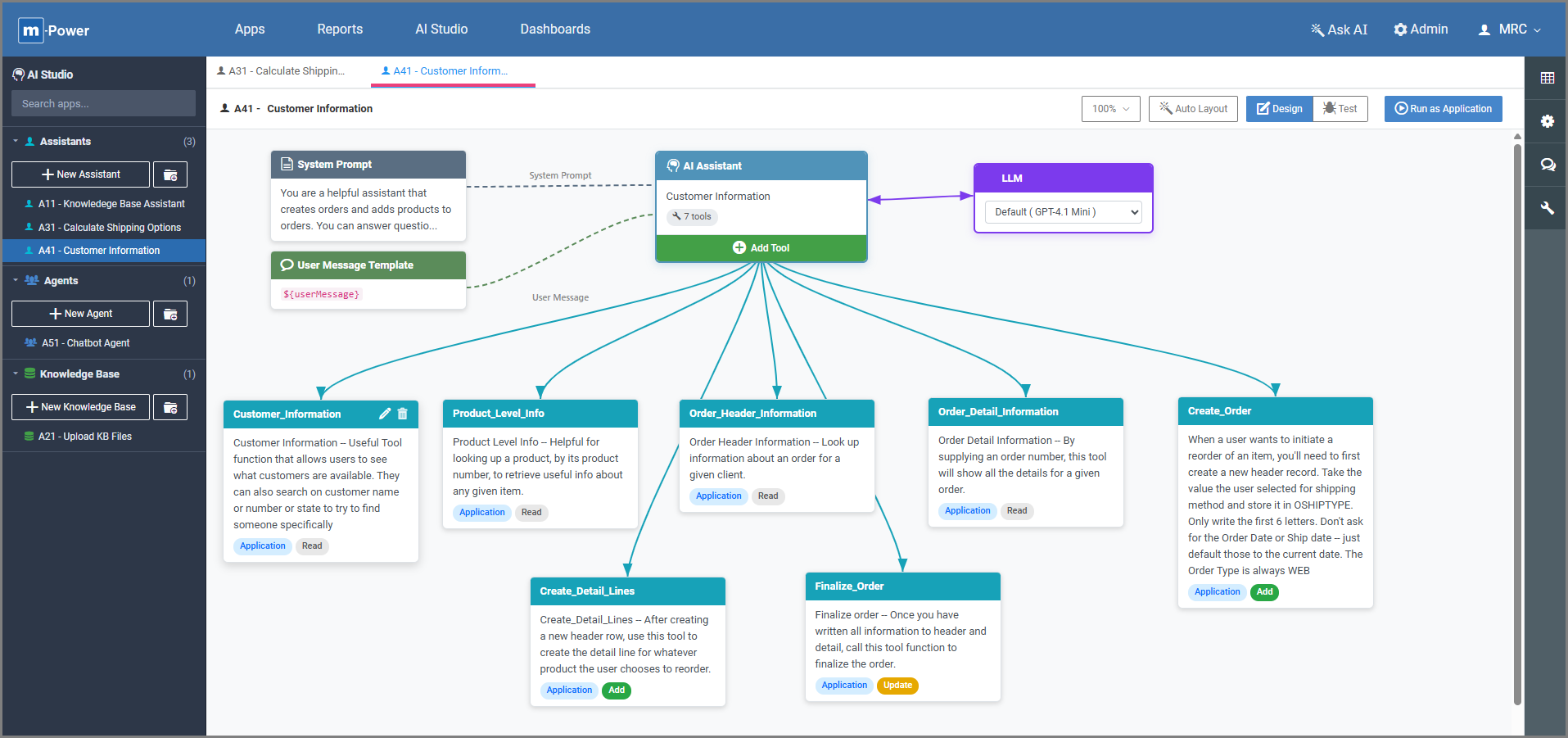
Located in the center of the studio, this visual workspace displays the architectural blueprint of your selected AI configuration. It clearly maps out the core components of your AI feature, including the System Prompt (the rules and boundaries your AI follows), the User Message Template, Application Tool Functions, Knowledge Base Tool Functions, and the selected LLM powering the engine.
Clicking the Edit (Pencil) Icon on any of these visual blocks instantly opens its configuration screen, allowing you to tweak settings on the fly.
The Top Toolbar
This toolbar houses your global actions and workspace management tools. Here, you can rename your assistant or use the Zoom Out dropdown if your diagram grows too large to manage comfortably. The Auto Layout button instantly cleans up and reorganizes scattered nodes for you. You can also use the view toggle to switch between Design Mode (building your diagram) and Test Mode (an interactive chat sandbox featuring a live trace activity log to inspect LLM communication). Finally, when you are ready, the Run as Application button lets you test the chatbot exactly as an end-user would see it.
The Left Management Panel
This panel is your organizational hub for all AI components. From here, you can create new assistants and group them cleanly into folders. Beyond basic assistants, this panel is where you manage advanced components like AI Agents for complex workflow orchestration and Knowledge Bases for uploading static reference documentation.
Core Components
To build effective AI solutions, you will utilize three core components within the AI Studio. Each serves a distinct purpose depending on how dynamic or data-dependent your workflow needs to be.
AI Assistants
An AI Assistant is a specialized bot designed to handle a specific role or persona. By configuring its system prompt, you dictate exactly how it should behave and respond to your users. Assistants can operate entirely on the selected LLM’s general knowledge, or they can be supercharged with optional tool functions. Application Tool Functions allow the assistant to pull live, constantly changing data directly from your licensed database, ensuring its responses are always accurate up to the second. Additionally, Knowledge Base Tool Functions allow your assistant to quickly search and retrieve relevant, specific facts from your uploaded static documents.
Learn more about configuring AI Assistants.
AI Agents
As your AI integrations grow more complex, relying on a single, massive prompt to handle dozens of different user requests becomes inefficient. AI Agents solve this by acting as central orchestrators. Instead of one assistant trying to do everything, a primary “Orchestrator Agent” interprets the user’s intent and dynamically routes the task to the specific sub-assistant or specialized sub-agent best equipped to handle it. This agentic approach allows you to build sophisticated, multi-step decision trees that feel seamless to the end user.
Learn more about building AI Agents.
Knowledge Bases
If your AI needs access to proprietary, static information—such as company handbooks, product manuals, HR policies, or FAQs—you can upload these files (like PDFs or plain text documents) directly into a Knowledge Base. This allows your AI Assistant to reference your specific business data instead of relying solely on its generic public training. Unlike Application Tools that fetch live, moving data, Knowledge Bases are ideal for stable information that doesn’t change from minute to minute.
Learn more about setting up and uploading Knowledge Bases.
Monitoring and Debugging
Building AI features requires visibility into how your prompts, data, and models are interacting behind the scenes.
AI Agent Trace Viewer
The AI Agent Trace Viewer is a built-in administrative screen designed to give you total visibility into the history of your AI interactions. It provides a running log of every user message and assistant response, allowing you to audit performance and troubleshoot unexpected behaviors.
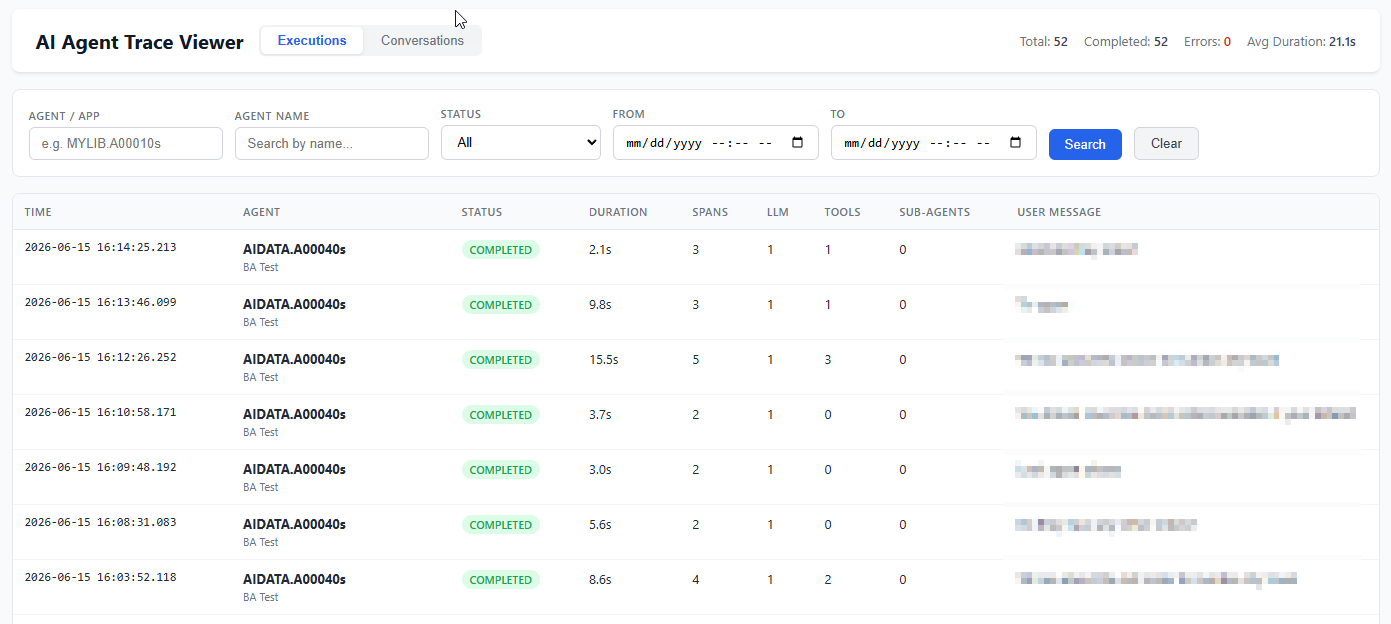
The main interface allows you to easily filter past interactions by application, agent name, status, and chat dates. For every interaction, the logs capture critical metadata including the date/time, agent name, success status, duration, token span, and which LLMs, Tools, or sub-agents were triggered.
Clicking on any specific user message drills down deep into the inner workings of that exact interaction. This granular view shows you the raw prompt sent to the LLM, the exact data returned by your tools, and how the model formulated its final answer—making it an invaluable tool for refining your prompts and debugging data connections.