

This document will discuss how m-Power developers can better understand and improve AI requests and responses.
When a user asks a question via an m-Power Chatbot, developers need to be able to see what questions were asked as well as how the system responded. Having this information will help future initiatives to improve System Prompts or to make future changes via the AI Studio to improve the user’s experience.
Configuring the Debugging Interface
mrc recommends installing this feature behind a secure login to limit user access.
Edit your /m-power/mrcjava/WEB-INF/web.xml in a text based editor on your server.
Locate the </web-app> at the end of the document. Directly above this, enter the following:
<login-config>
<auth-method>BASIC</auth-method>
<realm-name>AI Prompt</realm-name>
</login-config>
<servlet>
<servlet-name>AITraceViewer</servlet-name>
<servlet-class>com.mrc.airuntime.trace.AITraceViewerServlet</servlet-class>
</servlet>
<servlet-mapping>
<servlet-name>AITraceViewer</servlet-name>
<url-pattern>/ai-log</url-pattern>
</servlet-mapping>
<security-constraint>
<web-resource-collection>
<web-resource-name>Protected Trace Log Access</web-resource-name>
<url-pattern>/ai-log</url-pattern>
</web-resource-collection>
<auth-constraint>
<role-name>manager-gui</role-name>
</auth-constraint>
</security-constraint>
Save your file and restart Tomcat.
Credentials for valid users can be found in /m-power/tomcat/conf/tomcat-users.xml.
How to Access the Debugging Interface
Via the url, go to http://server_addess:port/mrcjava/ai-log.
Login within your Apache Tomcat username and password, and you will see a screen like this:
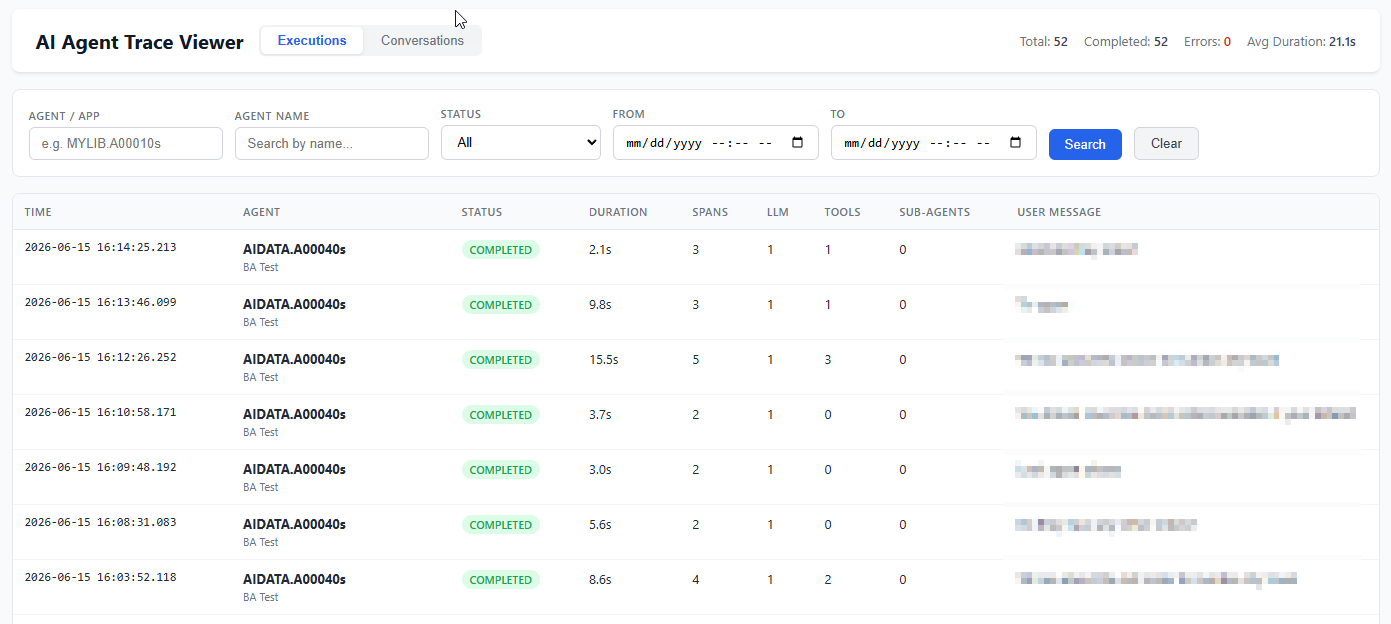
This screen shows one row of data for each question a user has asked. Vital information on this screen shows the date and time of the request and the AI Studio end-point URL that was used. Other helpful information here indicates how many sub-tasks were run (SPANS), how many requests were sent to the LLM, and how many Tool Functions were utilized in generating the answer.
To learn more about the request, click anywhere on the row.
Debugging Detail View
Upon clicking on a row from the previous screen, you are now taken to a screen that resembles this:
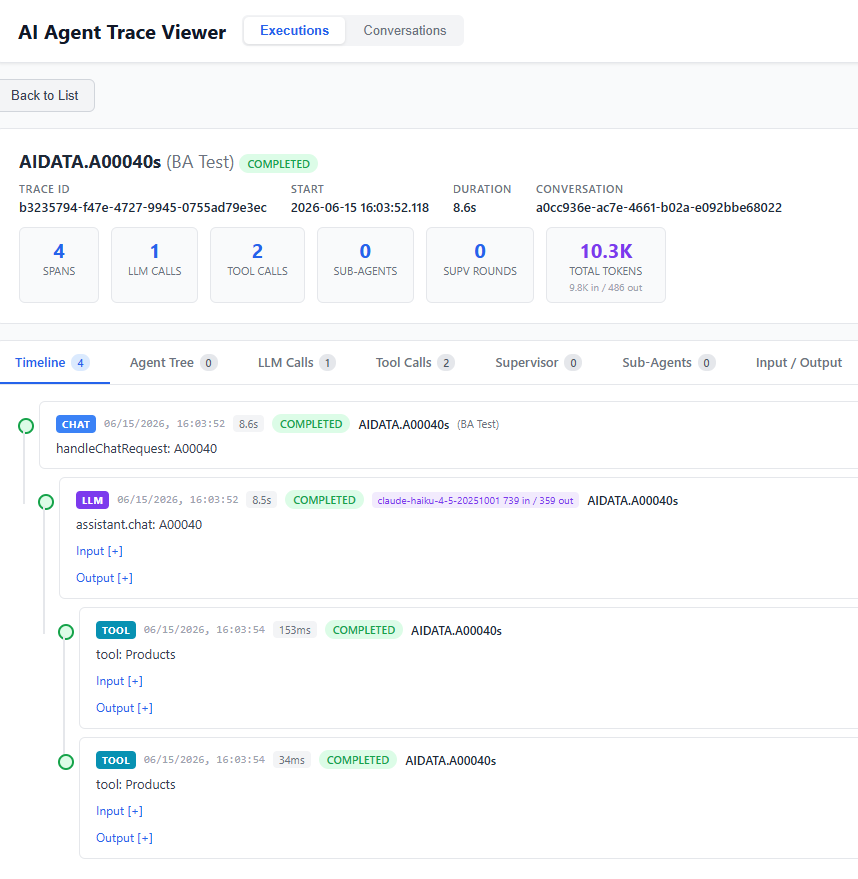
While useful information is laid out above the table, the real power of this screen is being able to drill in to each node to see its input (i.e. what the user entered, a generated SQL statement, etc…) and to expand the output (i.e. what was generated, results of tool-functions, LLM response).
Key metrics are included that explain how long each individual task took, as well as what LLM was used to process the request. Identifying this can help alleviate potential bottlenecks where a different LLM might be a better option or perhaps just an SQL index could help a query run faster, which in turn, would help the overall response time of the AI request.
While not illustrated above, when utilizing the Data Analytics mode, slow response times may be indicative of improving metadata. If your metadata is vague, that requires the LLM to make more assumptions. If these assumptions lead to queries that error, the LLM will take more to generate multiple SQL statements before it finally gets it right or eventually times out — both of which will drastically slow down the speed of the AI interface.
Ultimately, when AI gives you unexpected results, using this utility will give you the granular view of what is happening behind the scenes to help you troubleshoot the problem by adjusting dictionary metadata, cleaning up the prompt, or modifying database permissions.