
How to create a web-based data management system
Give your team a secure, browser-based way to view and manage your database tables, without desktop tools or scattered spreadsheets. This video builds three data management apps over live tables, adds logins and role-based security, then wraps everything in a single portal.
What you'll learn
This video builds a working data management system over existing database tables with the m-Power Development Platform, then secures it in a portal. Here's what you'll see:
Manage database tables from a browser
View, add, and edit records straight from a web app, so your team stops passing spreadsheets or logging into desktop clients to update data.
Build each app in minutes
Point m-Power at a table, choose your fields, and build. Most apps come together in a few minutes, with pagination, sorting, and filtering included.
Lock access behind a login
Put every app behind authentication so only the users you approve can read or change your data, using the sign-in method you already run.
Restrict data by role and row
Multi-tenant and role-based security let many users share one app while each sees only the records they are authorized to see.
Roll everything into one portal
Gather your apps into a single secured portal, so users get one link instead of many, and you can add more apps to it later.
Full transcript
Prefer to read? Here's the complete transcript of the video.
In this video, I'll create a web-based data management system in under 10 minutes.
As a starting point, I have data tables for customer data, product data, and sales forecast data. I'll give our employees a way to securely access and manage this data using web applications. And we'll wrap all that up in a data management portal. All in about 10 minutes. Sound good? Let's get started.
I'll be using our low-code development platform, m-Power, as it simplifies the process.
Let's get right to it. I already have data in some database tables...and I'm using MySQL but you can really use any type of relational database...I'm just using MySQL today.
So what I want to do is create web apps over some of these tables to maintain this data...and I'll start with the customer data. I'll just need to give it a name and choose a template. A template provides the basic layout and features for the app...but can still be customized however you want later on.
Now, I'll just need to choose my database table, which in this case is the customer table, and select the fields I want to include.
Moving right along, I now just need to tell m-Power how to sort this data. I'll sort by customer number and move on. So...now...I'm pretty much done. Sure, I could do more to this like add calculated fields, filters, custom logic, and more...but I don't need to this time so I'll just build it.
Now, I just showed you a very basic build process. But...there's so much more I could do...in fact I could add custom code, call apis, or I could even dive in and edit at the code level. There's no limit to what you can do...I'm just making a basic application for sake of time here.
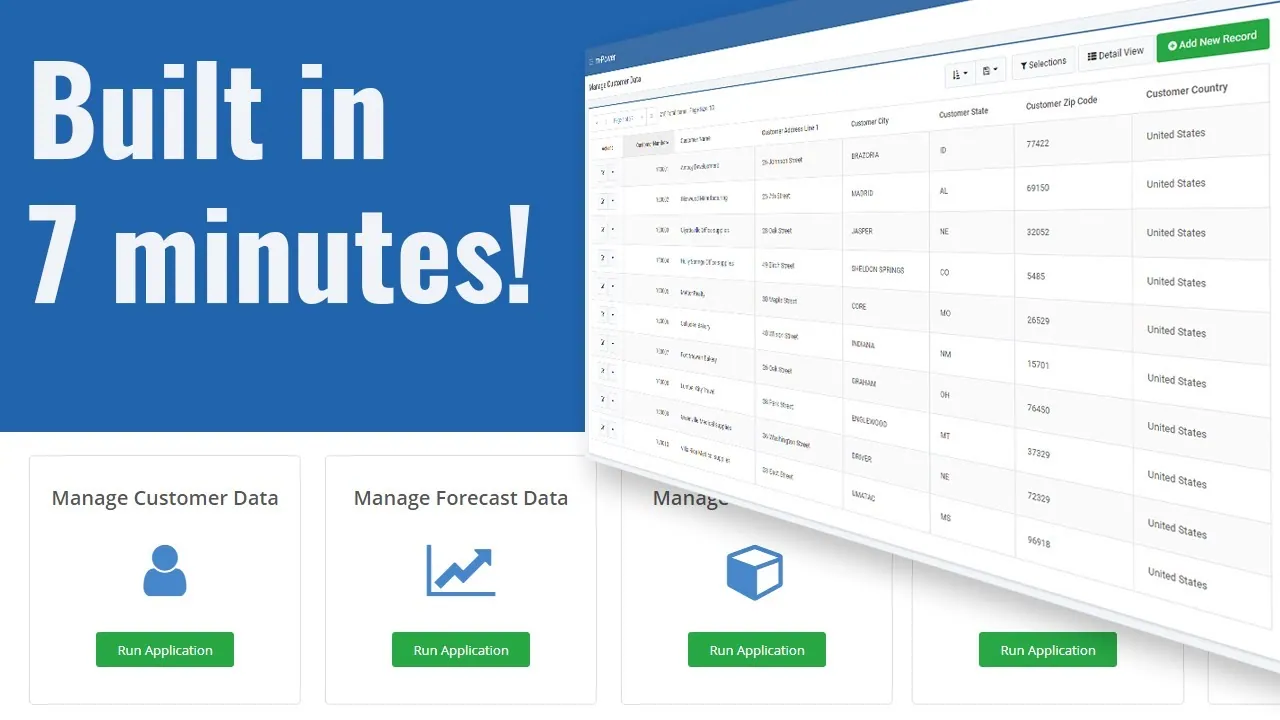
It's built now, so let's check it out. It's pulling directly from the customer database table and displaying everything here. It has some nice features builtin, like pagination up here...sorting...filtering. I can even add new records to my database table if I'd like, or edit existing records, okay? If I were to make any changes to this form, it would update the database.
Now, I'm not in love with this form layout, and I'd like to change. I'll dive into m-Painter, which is where I'd customize this application. I can customize any aspect of this..even at the code level if necessary...but I just need to change this form. So, I'll open up the form designer and make some changes. The form designer is a really simple way to edit your forms. I can move fields around, remove fields, or add fields. Once I'm done, I'll just save this and go back into my application and load that form again. There...it looks much better now.
So, let's say I need to edit this customer's data. I'll make a change, save the form, and you'll see that it now appears in my database table.
So, that's the first application in my data management system. For this video, I'll just create a couple more...one for products and one for sales forecasts.
But...creating those is the exact same process you just saw...but over different tables. So, I won't walk you through those, because it'd be repetitive. I'll just create them in the background and skip ahead.
There. Now we have three different web apps to manage different database tables. And this is nice...I can now give these to employees who are responsible for managing this data.
But...there are a couple of things I need to do to make this better.
First, I need security. I don't want just anyone being able to change my database tables. So, I've just enabled security and am now adding a few users. This will ensure that my applications are behind a login form and cannot be accessed by anyone who isn't one of these users that I've set up. There's a lot more I could do with security...for instance, I could add multi-tenant security so users can access the same application yet only see data they're authorized to see. Or, I could secure by individual application...and much more really. Okay, so now I have some users in here, let's pull up one of these applications. As you can see, I'm forced to login now using one of the users that I set up.
Okay, so that's good. Now only users that I've authorized can make database changes. But, I could still make this better. I'd like to put all of these applications in a portal. That way, I don't need to send different URLs to my users. I can just send them to the portal to access everything...and...I can easily add more applications to this portal later on.
Alright, so I just added these applications to my portal and you may have noticed that I assigned each application to specific roles. That means that only users with those roles can see that option in the portal. I'll just add roles to my users here to specify who can access which ones.
So, now I have my portal set up and user roles assigned. Let's login as an admin first to show you what it looks like. You'll see that I have all of my options to manage different database tables. Okay...so that works as it should. Now, let's logout of this and login as the sales manager. Now, you see that I can only manage the sales forecast data and customer data..and that's what I want. And finally, if we login as the product director here...I can only manage the product data.
Okay, so, there we have it. I've created a basic web-based data management system in under 10 minutes. I can maintain different database tables which are easily accessible in a data management portal, and even have security to make sure that only specific users can get in.
This works as it should but I'm just scratching the surface here. There's so much more I could do...I mean I could add workflow processes, join tables or applications together, add custom logic, customize these applications in any way...and so much more. For sake of time, I won't do any of that this time.
If you'd like to see more or set up a demo, visit us on the web at mrc-productivity.com. Thanks for watching.
See what you could build over your database
We'll walk through m-Power live, using your data and your use case, and answer any questions your team has.